14
4.5.3 Backup
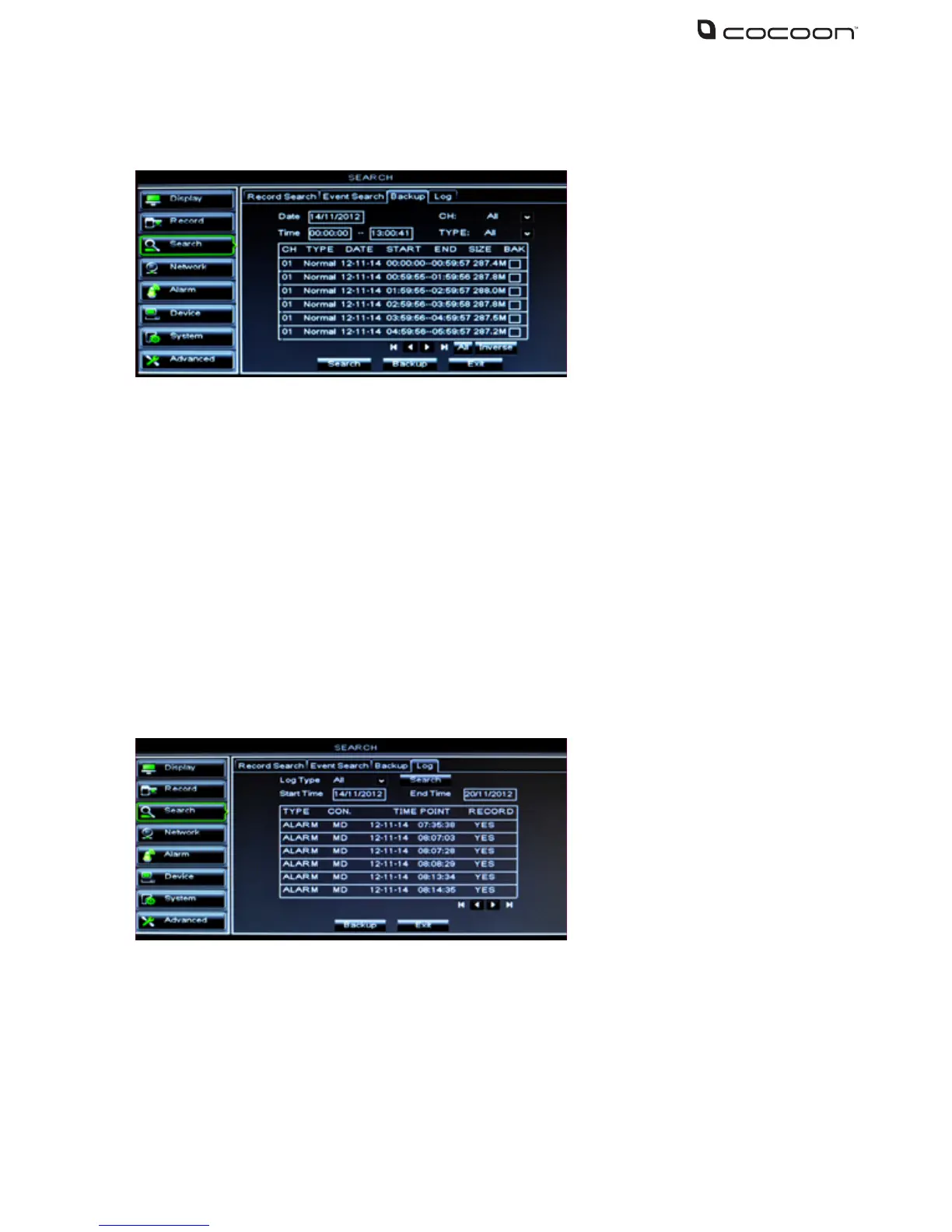
If you know the exact date, time and channel you would like to backup, use the Backup feature,
otherwise use the Event Search feature to review footage before backing up
1. Set the Search Date
2. Choose the CH to view, 1-4 or All
3. Set the Search Time
4. Choose the TYPE of event you are searching for, Normal, Alarm or All
5. Click the Search button to show the listing of events
6. Insert your USB ash drive. If you have not formatted the ash drive for use with the DVR
unit see section 4.8.1
7. In the chart, click the BAK box next to the events you would like to backup
8. Click the Backup button and the events will automatically copy to the ash drive
9. Files can be played back using the included software on the CD
4.5.4 Log
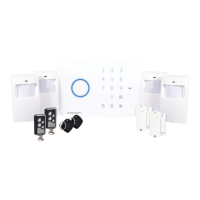
The system log lists all events recorded by the DVR unit including Video Loss, administration
changes and motion events in addition to recording events
To backup the DVR unit Log follow the below steps
1. Set the Log Type, All, Alarm or Operation
2. Set the Start Time and End Time
3. Click Search
4. Insert your USB ash drive. If you have not formatted the ash drive for use with the DVR
unit see section 4.8.1
5. Click Backup to save the log to the USB ash drive


 To Next Page