11
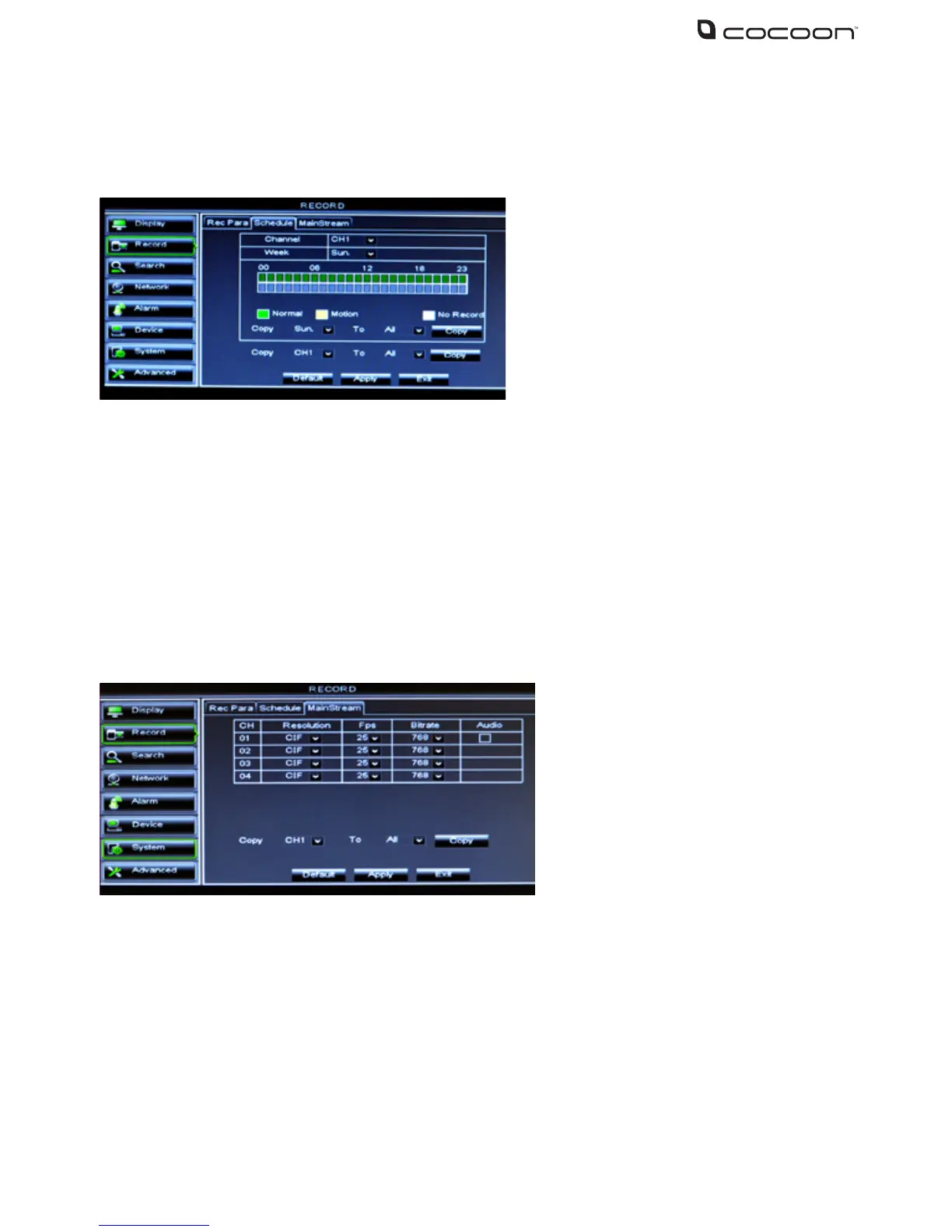
4.4.2 Schedule Recording
The Schedule function allows you to set up automated recordings. Choose from always record,
motion detection recording or no recording
IMPORTANT NOTE: Always click “Apply” after making any changes within the menu system. If you
do not click Apply your changes will not be saved
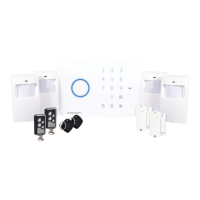
4.4.3 Main Stream
The Main Stream tab allows you to adjust the resolution and recording stream for each
camera
• Channel: Select the channel to setup
• Day: Select day of the week to setup
• Set the record type: 24 hours of the
day are represented by 24 boxes in 2
rows. Click the box to change the record
type. Green is normal recording which
will record for the whole hour. Yellow is
motion recording which will only record
when motion is detected. Gray is no
recording.
IMPORTANT NOTE: Always click
“Apply” once any changes are
made within the menu system.
If you do not click Apply your
changes will not be saved
• Resolution: D1 is the highest
resolution, CIF is the lowest. D1 - 704 x
576, HD1 - 704 x 288, CIF – 352 x 288
• Fps (frames per second): Choose from
1 to 25 fps. D1 global max frames 50.
HD1 global max frames 100. CIF global
max frames 100.
• Bit rate: Higher bit rates use more hard
drive space
• Audio: If a mic (not included) is attached,
select this option to record video and
audio stream simultaneously. The audio
will be attached to the camera 1 stream
• Copy: Copy settings from one channel
to another
Note: D1 resolution is the best image but
uses the highest amount of hard drive
space. SEE APPENDIX FOR APPROXIMATE
RECORDING TIMES
• Copy: Copy settings for the week and or copy settings to all cameras
NOTE: If Normal and Motion recording is selected at the same time, the Normal option will take
priority and record for the hour block


 To Next Page