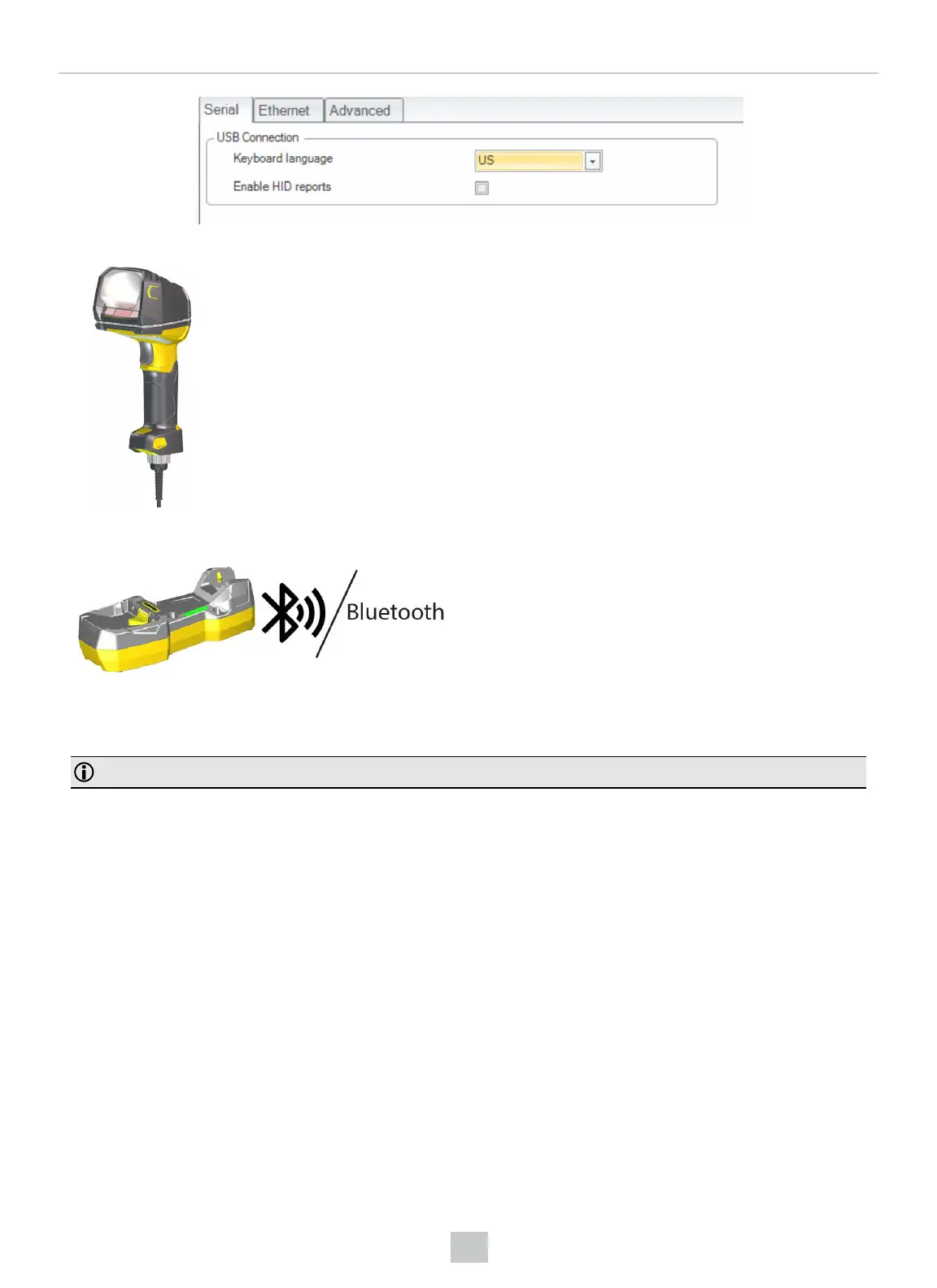
You can enable HID reports by ticking the checkbox in DataMan Setup Tool.
1. Open the target window. Make sure that the target window is the active window.
2. Start scanning codes with the reader.
You can also enable HID reports by the following steps:
1. Disconnect from the DataMan Setup Tool, if you are
connected.
2. Scan the Enable HID mode (USB Keyboard) code
from the DataMan Configuration Codes document.
3. Start scanning codes with the reader.
You can switch the DM8700 and the base station to the HID-only mode using the Enable HID only mode reader
configuration code in the DataMan Configuration Codes document.
Note: After enabling the HID-only mode, make sure to reboot the device.
In HID-only mode, the reader and the base station appear as a single USB keyboard device for the host computer, instead of
a composite device. Therefore, the host computer cannot communicate with the base station and the reader through DMCC
codes or the DataMan Setup Tool. You can switch back to composite operational mode with the following methods:
l
scanning the appropriate configuration code for the base station or the reader
l
from the OLED display of the reader
l
through the Repair and Support pane of DataMan Setup Tool
Keyboard Layout Setup
To have a 100% compatibility between the reader and the Linux host, you have to use the same keyboard layout setup both
on the Linux host and the reader. Use the following commands in the Linux command line:
MX (Xkb): setxkbmap -display :0 -model la-latin1 -layout latam
BR (Xkb): setxkbmap -display :0 -model br-abnt2 -layout br -variant abnt2
GB (Xkb): setxkbmap -display :0 -model gb -layout gb
DE (Xkb): setxkbmap -display :0 -model de-latin1 -layout de -variant nodeadkeys
22
Connection Options




 To Next Page