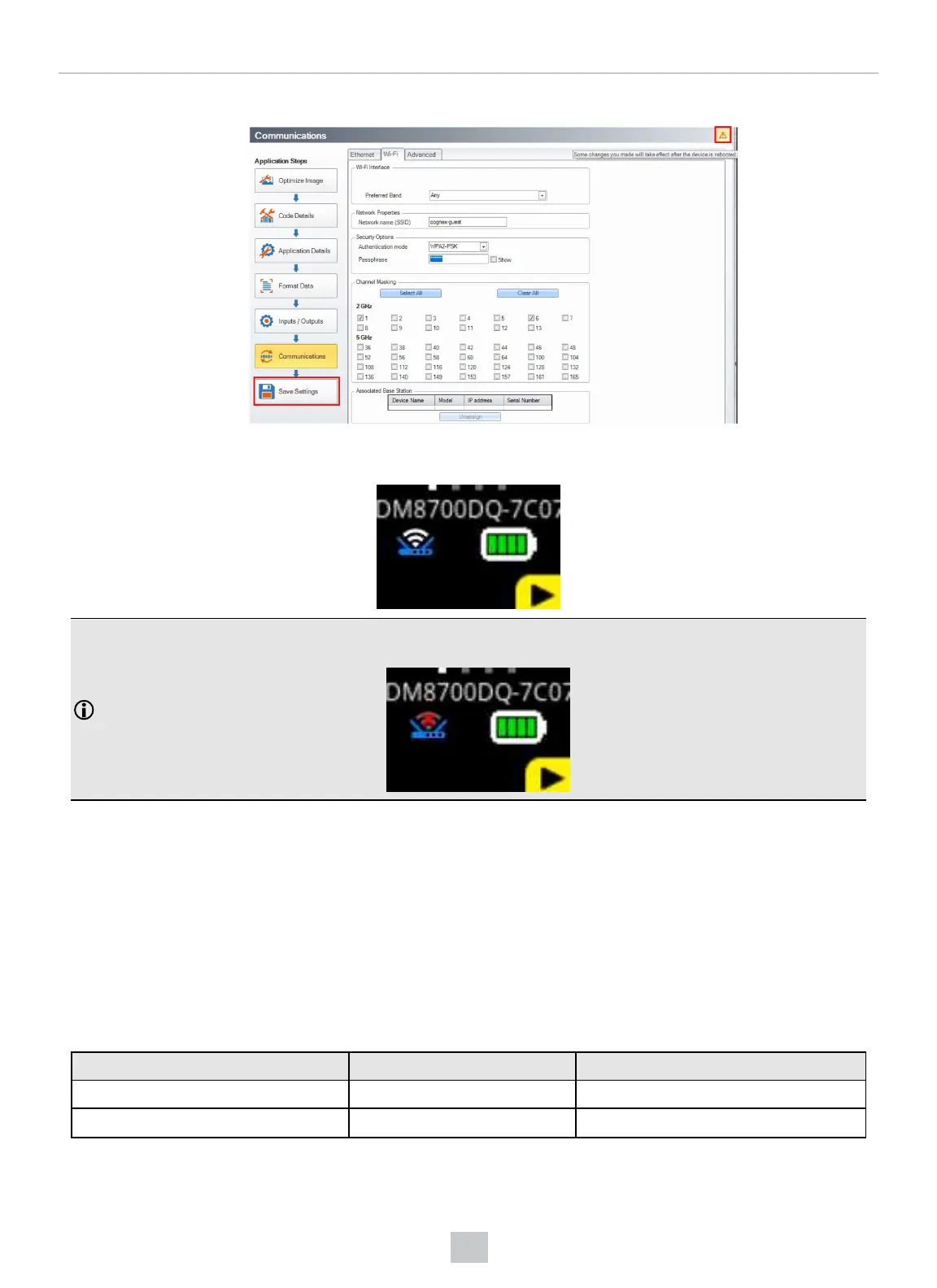
7. Save the changes and reboot the reader by clicking on the triangle icon in the upper-right corner.
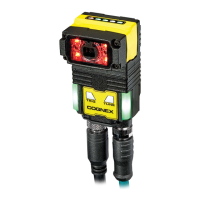
While the reader reboots, it connects to the Wi-Fi network. You can confirm this on the reader screen, which displays a router
icon with signal strength indicator. Up to ten seconds delay can occur until the signal shows up.
Note: If the reader display shows a router icon with a red X, it means the reader failed to connect to the network, or the
reader is out of range. Make sure your settings are correct.
Connecting in Infrastructure Mode
In Infrastructure mode, the reader connects to your Wi-Fi network through Wi-Fi Access Points or Wi-Fi routers. A reader
connected in Infrastructure mode is available on the network just like other networked devices. Infrastructure mode is aimed
to be the primary connection mode in production environments, where the wireless reader connects to a router, which is then
connected to a computer.
It is possible to connect to the reader in Infrastructure mode using Wi-Fi connection. You need to reset the reader to factory
defaults, connect to the reader in Access Point mode, and then use the Wireless tab under Communication Settings to
activate and configure Infrastructure mode.
Infrastructure mode requires a router as an Access Point. See the DataMan Communications and Programming Guide for
detailed information.
Authentication mode Encryption Requirements
Open System N/A N/A
WPA-PSK TKIP, AES-CCMP Passphrase
39
Connection Options









 To Next Page