Chapter 6: Configuring your Wi-Fi network
4. Click the Wi-Fi Radio (2.4 GHz) Enable or Disable button to turn ON or OFF the 2.4 GHz
Wi-Fi frequency range that you are setting up for your Wi-Fi home network.
5. Click the Wi-Fi Radio (5 GHz) Enable or Disable button to turn ON or OFF the 5 GHz Wi-
Fi frequency range that you are setting up for your Wi-Fi home network.
6. Click the Home Wi-Fi Network 2.4 GHz EDIT button to set up the Network Security mode
for your Wi-Fi home network.
7. Click the Home Wi-Fi Network 5 GHz EDIT button to set up the Network Security mode
for your Wi-Fi home network.
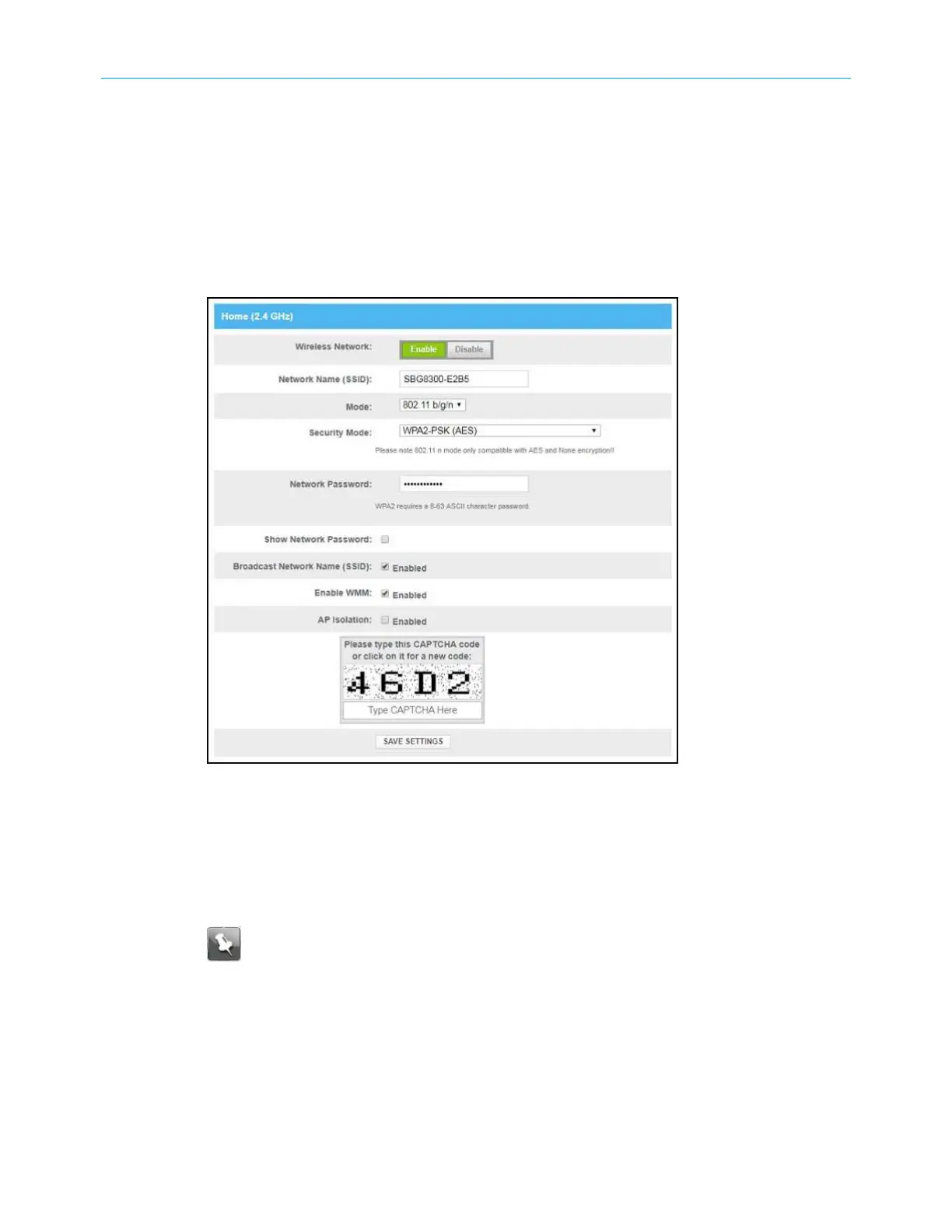
Figure 27: Wi-Fi network setup screen
8. Click the Wireless Network Enable or Disable button field to turn ON or OFF Wi-Fi on
your home network.
9. Choose to either keep the default network name SSID (Service Set Identifier) for your
Wi-Fi home network in the Network Name (SSID) field or enter a new network name of
your choice.
Note: The Wi-Fi network name cannot be the same name as any other SSID on
your home network. You can use any combination of lowercase and uppercase
letters, numbers, and/or special characters (symbols) up to a maximum of 32
characters.
10. Select the wireless networking standard mode for your Wi-Fi home network from the
Mode drop-down list:
■
2.4 GHz
● 802.11 g/n
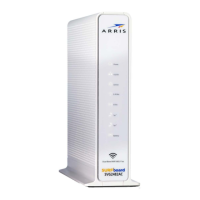
SURFboard
®
SBG8300 DOCSIS 3.1 Wi-Fi cable modem User Guide STANDARD Revision x.5 38



 To Next Page