Chapter 7: Protecting & monitoring your Wi-Fi network
■
Numbers: 0 to 9
■
Special characters: ! @ # $ % & *
9. Enter your new admin password in the Re-enter New Password field.
10. Select the Show Typed Password checkbox to view the new passwords and confirm that
both passwords match.
11. Enter the four-digit CAPTCHA code located in the Type CAPTCHA Here entry box.
12. Click SAVE to update your admin password.
13. Find a secure place to write down and keep your new password for future reference.
Set up firewall protection
You can set up firewall filters and firewall alert notifications to protect your computer(s)
and other connected network devices on your Wi-Fi home network. You can also block Java
Applets, Cookies, ActiveX controls, popup windows, Proxies, and website access to protect
the network devices on your home network from hackers, viruses, and other attacks from
the Internet.
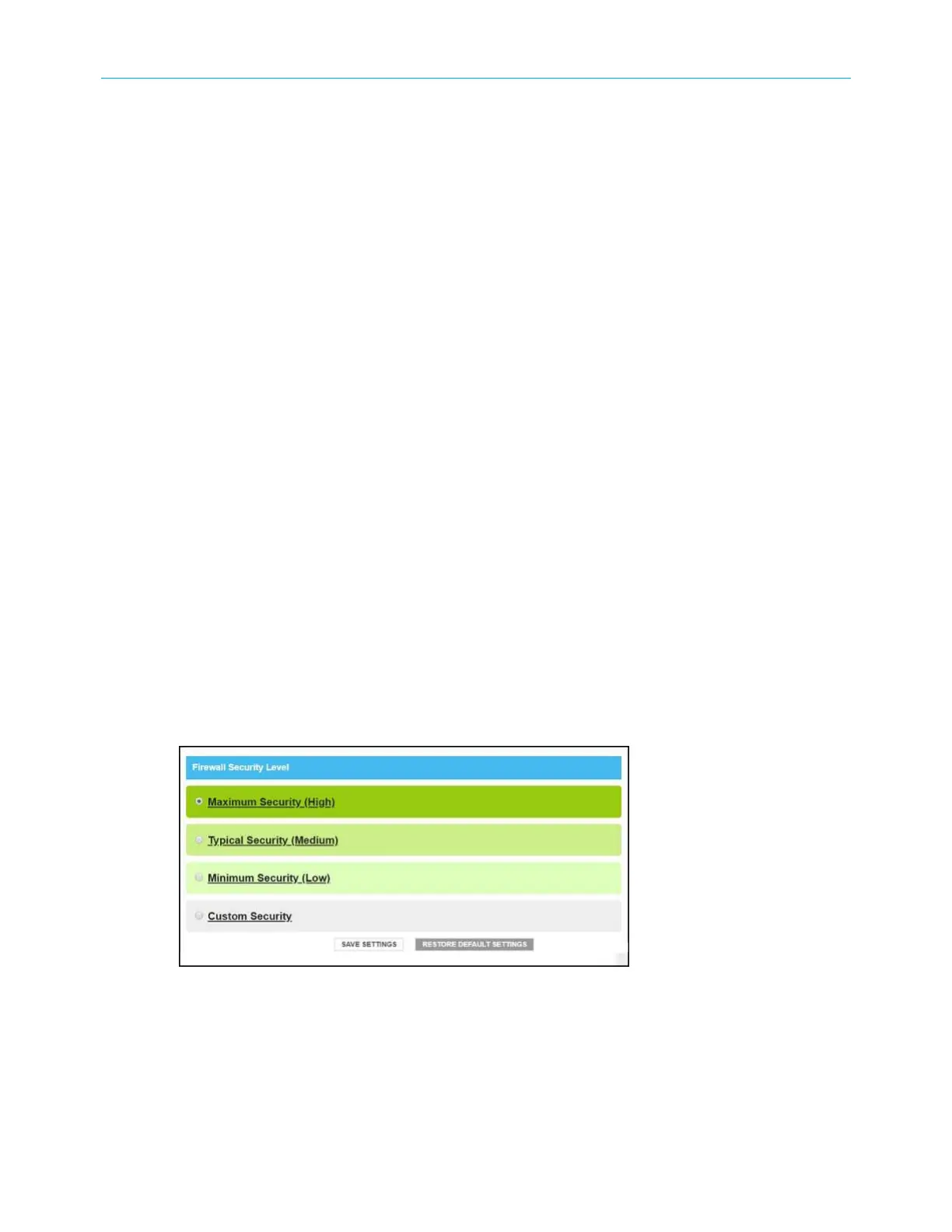
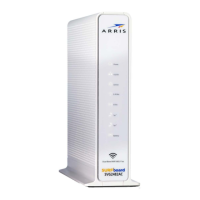
To set the firewall protection level on your SBG8300:
1. From any SBG8300 Web Manager screen, click the Gateway menu link on the SBG8300
Web Manager screen.
2. Click the Firewall submenu link and then click
IPv4 security (page 48) or IPv6 security
(page 50) to display the Gateway Firewall Security Level screens.
3. Select the security level that you want to set for your SBG8300 firewall.
4. When done, click SAVE SETTINGS.
IPv4 security
Figure 36: Firewall IPv4 available security levels screen
■
High: Safest configuration, maximum security level
SURFboard
®
SBG8300 DOCSIS 3.1 Wi-Fi cable modem User Guide STANDARD Revision x.5 48



 To Next Page