Chapter 6: Configuring your Wi-Fi network
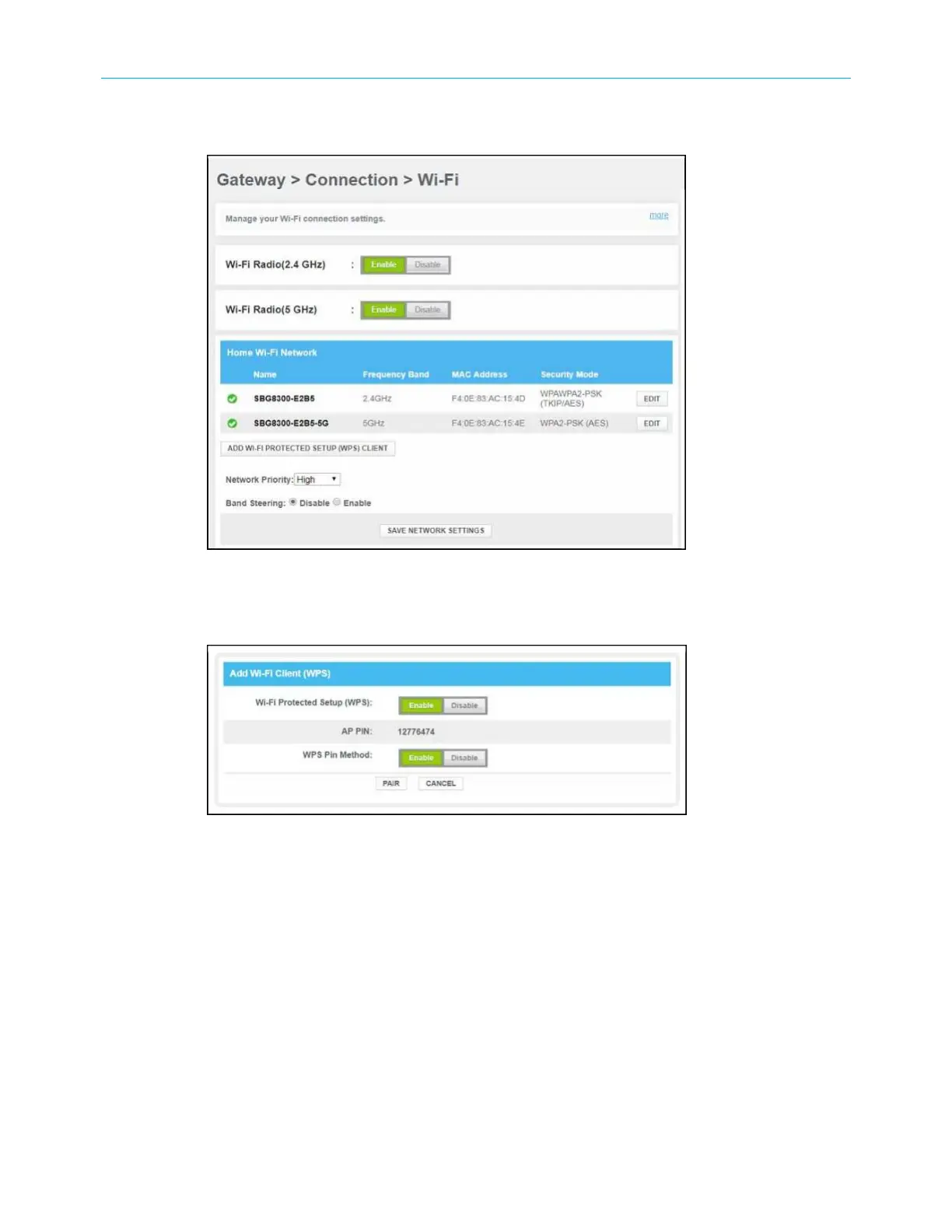
3. Click Wi-Fi under the Connection submenu options to open the Gateway Connection Wi-
Fi screen.
Figure 32: SBG8300 WPS device connection screen
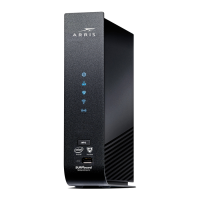
4. Click ADD WI-FI PROTECTED SETUP (WPS) CLIENT button to open the Add Wi-Fi Client
(WPS) screen.
Figure 33: SBG8300Add Wi-Fi Client (WPS) screen
5. Do one of the following:
■
Click the Wi-Fi Protected Setup (WPS) Enable button to turn ON WPS Wi-Fi
networking on your home network using the provided AP PIN number.
■
Click the Wi-Fi Protected Setup (WPS) Disable button to turn OFF WPS Wi-Fi
networking on your home network.
6. Do one of the following:
■
Click the WPS Pin Method Enable button to turn ON WPS Wi-Fi networking.
■
Click the WPS Pin Method Disable button to turn OFF WPS Pin connections.
7. Enter the WPS Pin number listed in the AP PIN field when you are prompted on your
WPS device screen.
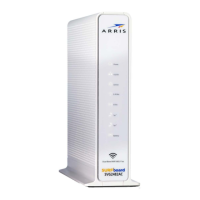
8. Click the PAIR button on the SBG8300 to connect your WPS-enabled device.
SURFboard
®
SBG8300 DOCSIS 3.1 Wi-Fi cable modem User Guide STANDARD Revision x.5 44



 To Next Page