Chapter 7: Protecting & monitoring your Wi-Fi network
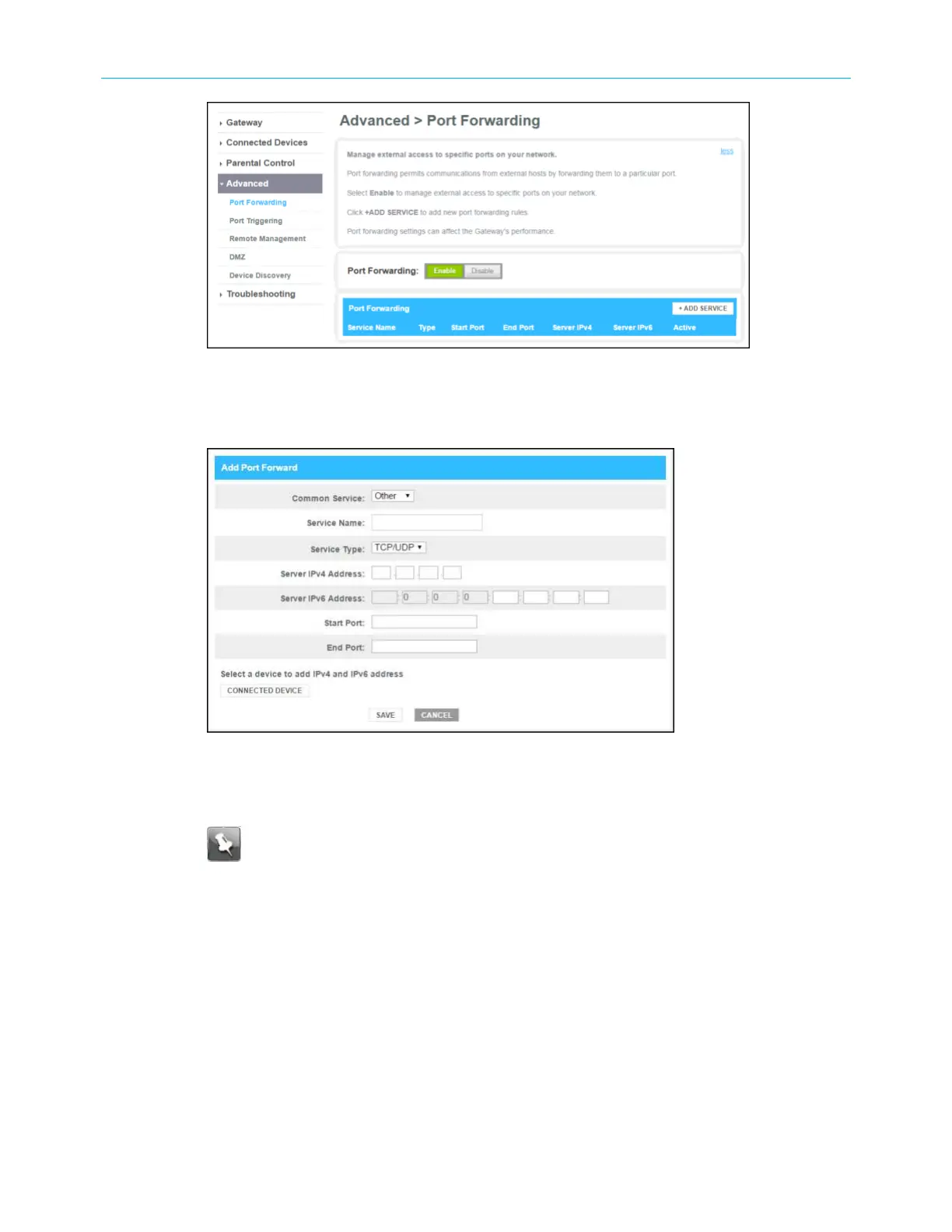
Figure 43: SBG8300 Advanced Port Forwarding screen
3. Click the Port Forwarding Enable button.
4. Click the +ADD SERVICE button to open the Add Port Forward screen.
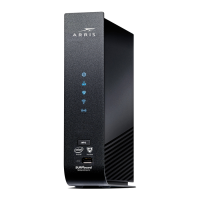
Figure 44: Add Port Forward screen
5. Select FTP, AIM, HTTP, PPTP, HTTPs, Telnet, SSH, or Other for the Internet data transfer
protocol from the Common Service drop-down list.
Note: When Other is selected, the Service Name field will display. Enter a name
for the service type you will be using.
6. Select TCP/UDP, TCP, or UDP for the Internet data transmission protocol from the
Service Type drop-down list.
7. Do one of the following:
■
Enter the IP address of your local computer that you are setting up for port
forwarding in the Server IPv4 Address field.
■
Enter the IP address for your local computer that you are setting up for port
forwarding in the Server IPv6 Address field.
8. Enter the starting port number of the website or online application in the Start Port
field.
9. Enter the ending port number of the website or online application in the End Port field.
SURFboard
®
SBG8300 DOCSIS 3.1 Wi-Fi cable modem User Guide STANDARD Revision x.5 53



 To Next Page