30
3-4. SETUP-STORAGE
This Menu has the options for setting the Overwrite function and Formatting the HDD(s).
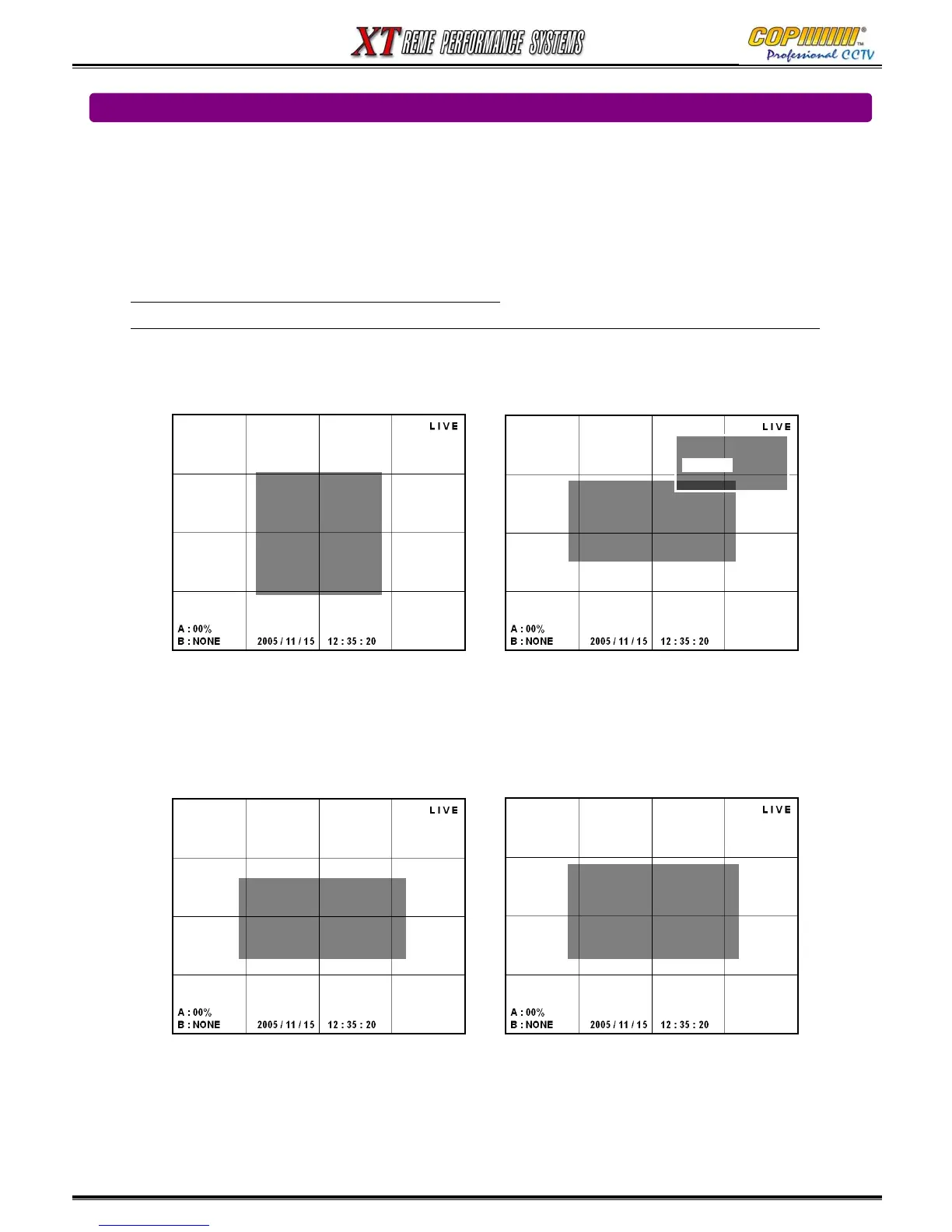
1) Select [STORAGE] by using (▲)(▼) buttons, and press [ENTER] button to show the Sub-Menu.
Setting the Overwrite Option.
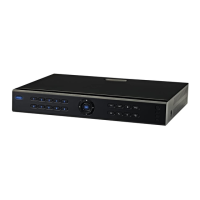
1) Highlight [OVER WRITE] using (▲)(▼) buttons and press [ENTER] button to show the Sub-Menu.
2) Using the cursor (▲)(▼) buttons, highlight [YES] or [NO]. Press [ENTER] to select.
NO : DVR Stops recording when HDD(s) are full.
YES : When the HDD(s) are full, the DVR will overwrite the oldest data with new Recordings.
3) Press the [MENU] button to exit the Sub-Menu.
Formatting the HDD(s)
1) Highlight [FORMAT] for the HDD to format by using (▲)(▼)buttons, and press the [ENTER] button.
2) The Confirmation window will show. Press the [ENTER] button to perform the format.
3) Repeat 1) & 2) for the second HDD if fitted.
4) Press the [MENU] button to exit the Sub-Menu.
[SETUP-STORAGE]
OVER WRITE: ▶ YES
HDD - A : FORMAT
HDD - B : NONE
HDD - C : CD-ROM
HDD - D : NONE
OVER WRITE
-NO
-YES
-NO
[WARNING!!!]
DISK HDD-A
MOUNTED
ARE YOUR SURE?
[ENTER] ->YES , [MENU]->NO
3. SETUP
[SETUP-STORAGE]
OVER WRITE: ▶ YES
HDD - A : FORMAT
HDD - B : NONE
HDD - C : CD-ROM
HDD - D : NONE
[SETUP]
-<SYSTEM>
-LIVE
-REC
-STORAGE
-NETWORK
- SENSOR/ALARM
- AUDIO



 To Next Page