42
4-1. SEARCH - TIME SEARCH
4. SEARCH
1) Press the [SEARCH] button to access the Sub-Menu to perform a Playback Search.
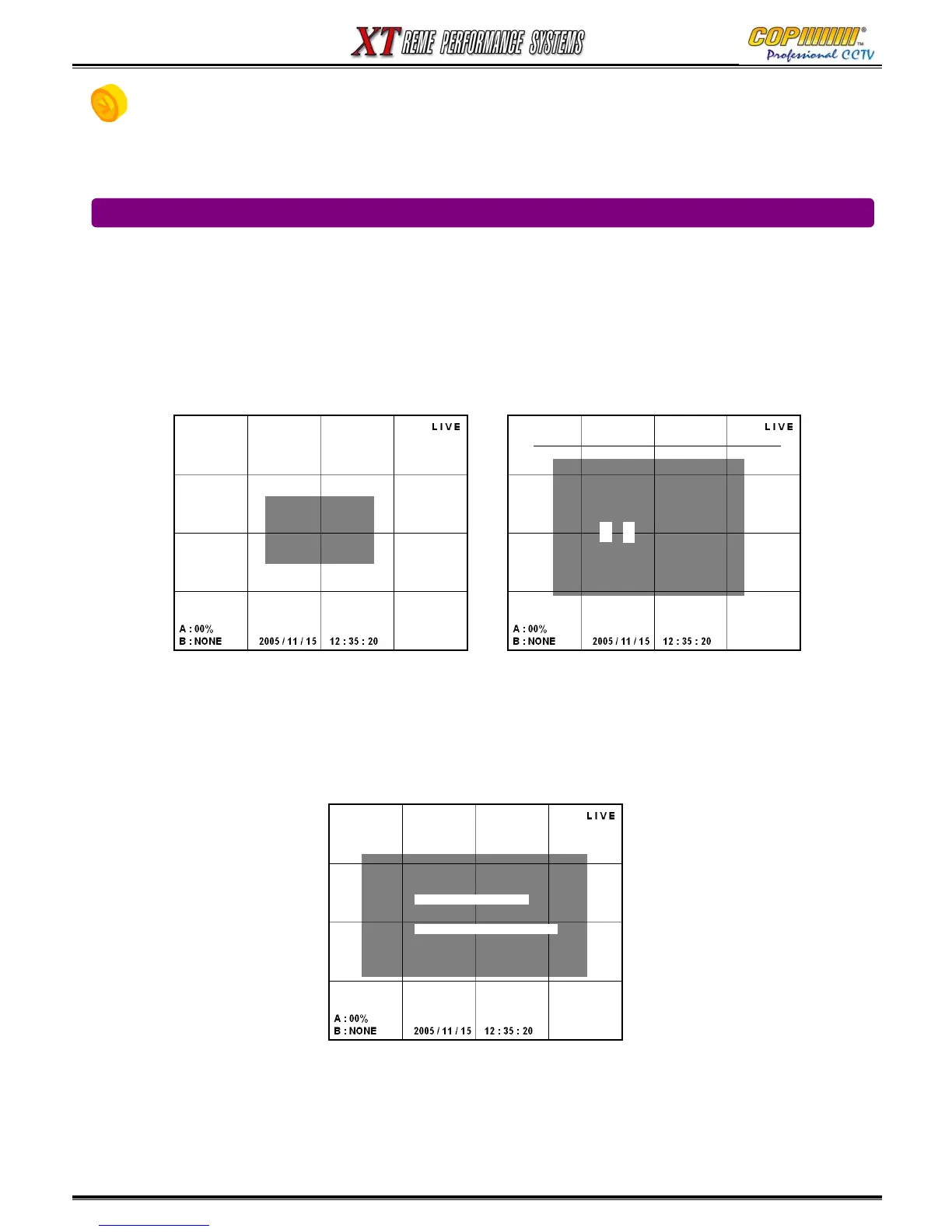
1) Highlight [TIME SEARCH] using (▲)(▼) buttons and press [ENTER] button to select the calendar.
2) The current Calendar Month is displayed, from which a day can be selected.
3) To select another month use the (<<) or (>>) buttons.
4) Days that have recordings stored on the DVR are displayed in green. Days where there are no
recordings stored are displayed in white.
5) Use the Cursor (▲)(▼)(◀)(▶) buttons to select a day, and press the [ENTER] button.
6) The TIME window will be shown, use the (◀)(▶) buttons to highlight the Hour on the Hour Bar.
7) Use the (▼) button to drop to the Minute Bar. Use the (◀)(▶) buttons to highlight the Minute.
8) Press the [ENTER] button to start the Playback from the Date & Time selected.
9) Once Playback has started use the Play controls to find the specific incident.
10) To end the Playback press the Stop Button.
[SEARCH]
- <TIME SEARCH>
- EVENT SEARCH
- FILE SEARCH
[CALENDAR TIME]
<< 2005-07 >>
SUN MON TUE WED THU FRI SAT
1 2
3 4 5 6 7 8 9
10 11 12 13 14 15 16
17 18 19 20 21 22 23
24 25 26 27 28 29 30
31
4 < 5 >
[SEARCH TIME]
HOUR :
MIN:
TIME : 02:00:00
Select Month by REW(◀◀) FF(▶▶) buttons
4. SEARCH



 To Next Page