47
7. BACKUP (Continued)
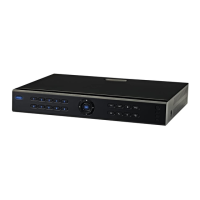
12) Press (▼) button once to highlight “START”. Press [ENTER] to show the Calendar.
13) Use the (<<)(>>)(▲)(▼)(◀)(▶) and [ENTER] buttons to select the Date.
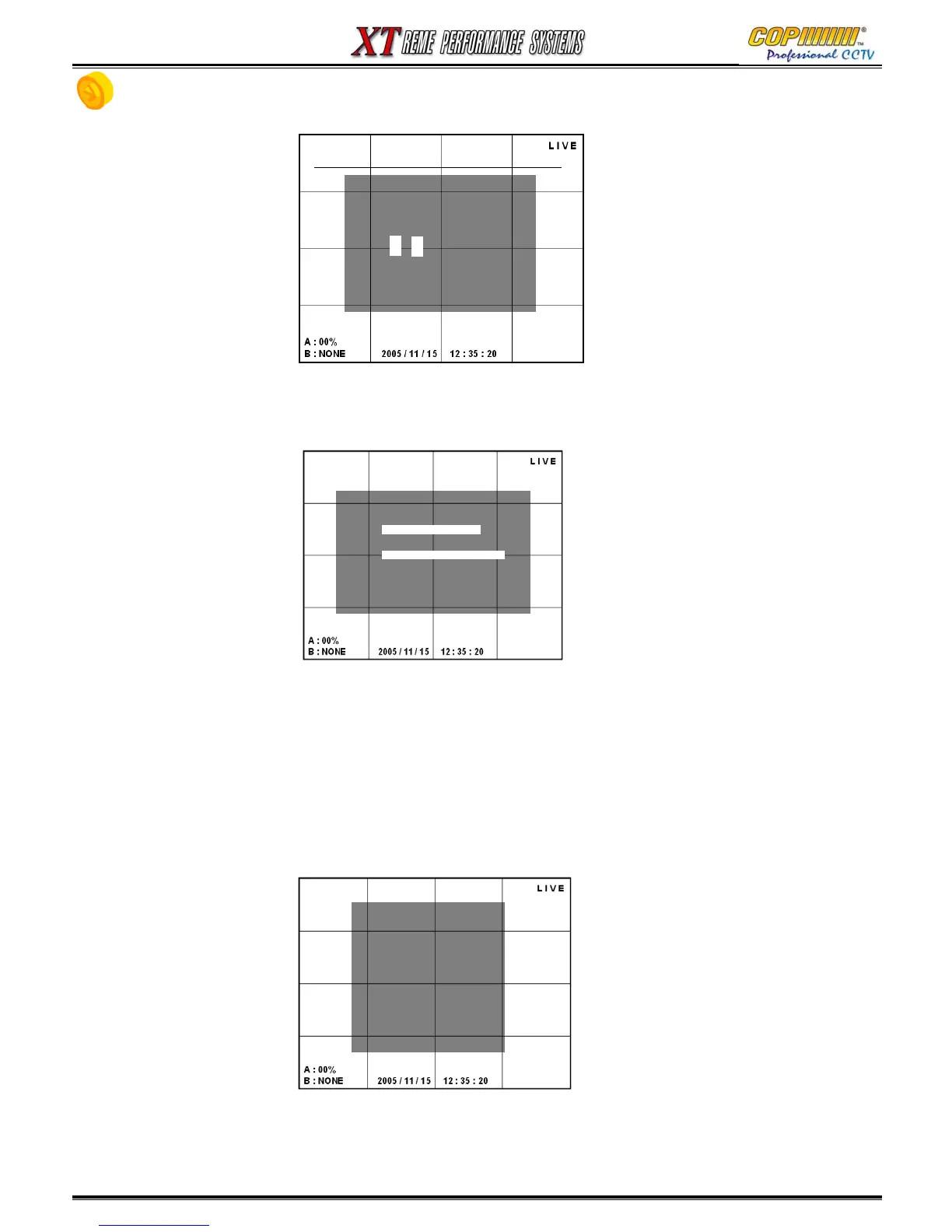
14) The TIME window will be shown, use the (◀)(▶) buttons to highlight the Hour on the Hour Bar.
15) Use the (▼) button to drop down to the Minute Bar. Use the (◀)(▶) buttons to highlight the Minute.
16) Press the [ENTER] button to select the Start Time for the Backup.
17) Press the (▼) button once to highlight “END”. Press [ENTER] to show the Calendar.
Repeat the process described from 13) to 16) to select the End Time for the Backup.
18) The DVR will automatically calculate the File Size from the information entered, and will display the file
size ready for Backup.
If this selection will not fit onto the CD-R or USB device, please start the selection again.
19) Press the (▼) button once to highlight “BACKUP”. Press [ENTER] to start the Back-up.
If you want to abort the Backup, use the (▲)(▼)(◀)(▶) and [ENTER] buttons to select [CANCEL].
20) When the Backup has been completed, press the [MENU] button to exit the display and Menus.
7. BACKUP / 8. PTZ (Pan/Tilt/Zoom/Focus)
[SEARCH TIME]
HOUR :
MIN:
TIME : 02:00:00
[CALENDAR TIME]
<< 2005-07 >>
SUN MON TUE WED THU FRI SAT
1 2
3 4 5 6 7 8 9
10 11 12 13 14 15 16
17 18 19 20 21 22 23
24 25 26 27 28 29 30
31
4 < 5 >
Select Month by REW(◀◀) FF(▶▶) buttons
[BACKUP]
MEDIA TYPE : <-CD-R>
FILE FORMAT : - NATIVE
BACKUP TYPE : - FILE
CHANNEL : - ALL
[.] 1 [.] 2
[.] 3 [.] 4
START :
END :
TOTAL SIZE :
BACKUP CANCEL



 To Next Page