Product Manual — Doc. 8550E TSW-70 Series • 149
Display Setup
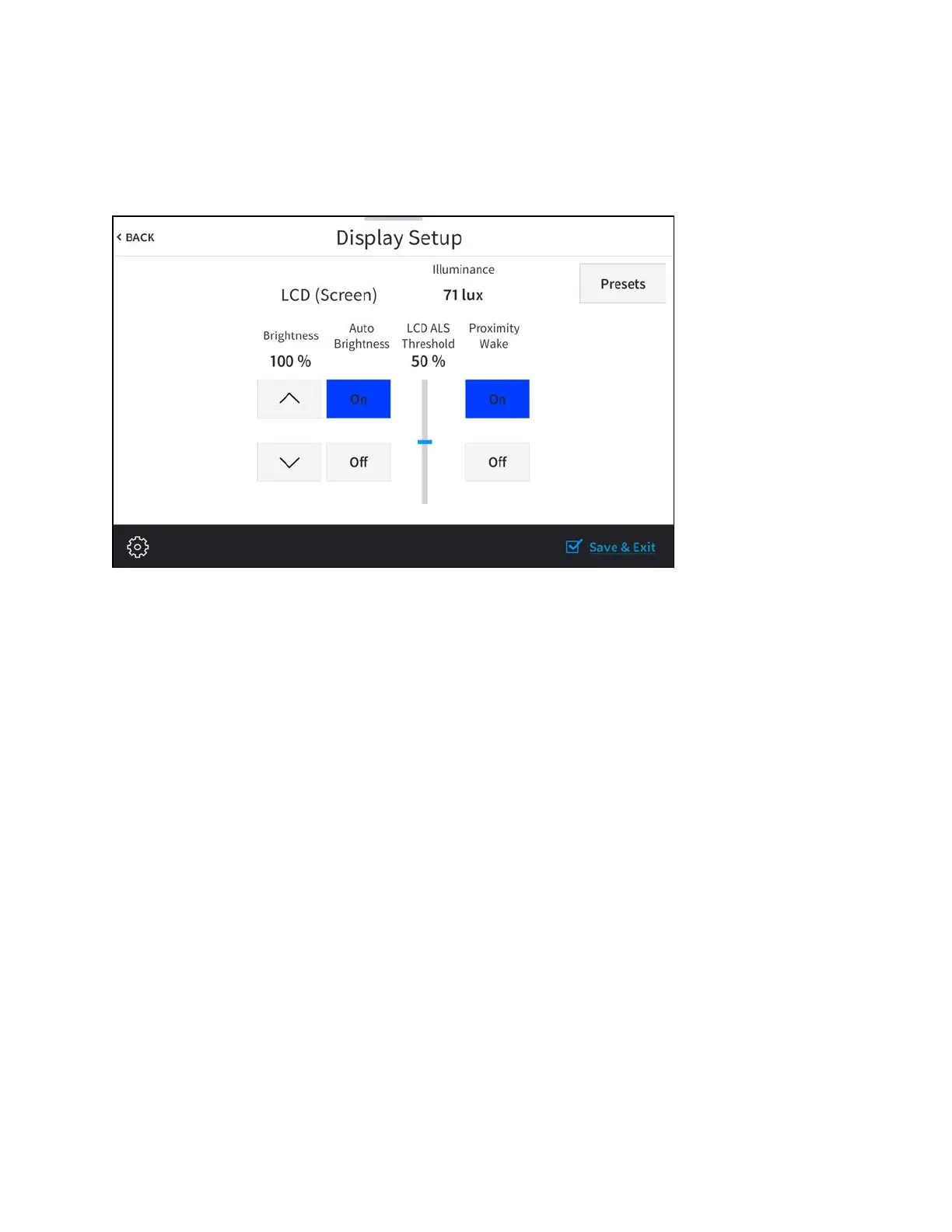
Tap Display Setup on the Setup screen to display the Display Setup screen.
Display SetupScreen
l
The value shown under Illuminance represents the units of light (in lux) that are received by
the touch screen. This value changes in real time depending on the light received by the
touch screen.
l
Tap the up or down arrow buttons under Brightness to raise or lower the LCD display
brightness level incrementally from 0 to 100%.
l
Tap On or Off under Auto Brightness to turn automatic brightness on or off for the
display.
l
Drag the slider up and down under LCD ALS Threshold to adjust the ALS (ambient light
sensor) threshold value for switching between high and low auto-brightness presets on
the LCD display.
l
Tap On or Off under Proximity Wake to turn proximity waking on or off for the display.
When proximity waking is on, the touch screen will wake from standby automatically when
a user gets within proximity of the touch screen.



 To Next Page
 Loading...







