14 of 35Fly6 PRO User Guide |
7. Inicdent protection and image capture
Incident protection
Incident protection mode has been designed to automatically lock les
containing incidents so that they are not recorded over. Incident protection
mode is activated when the Fly6 PRO is tilted more than 60° from vertical for
more than ve seconds. Learn more about incident protection mode on page 24.
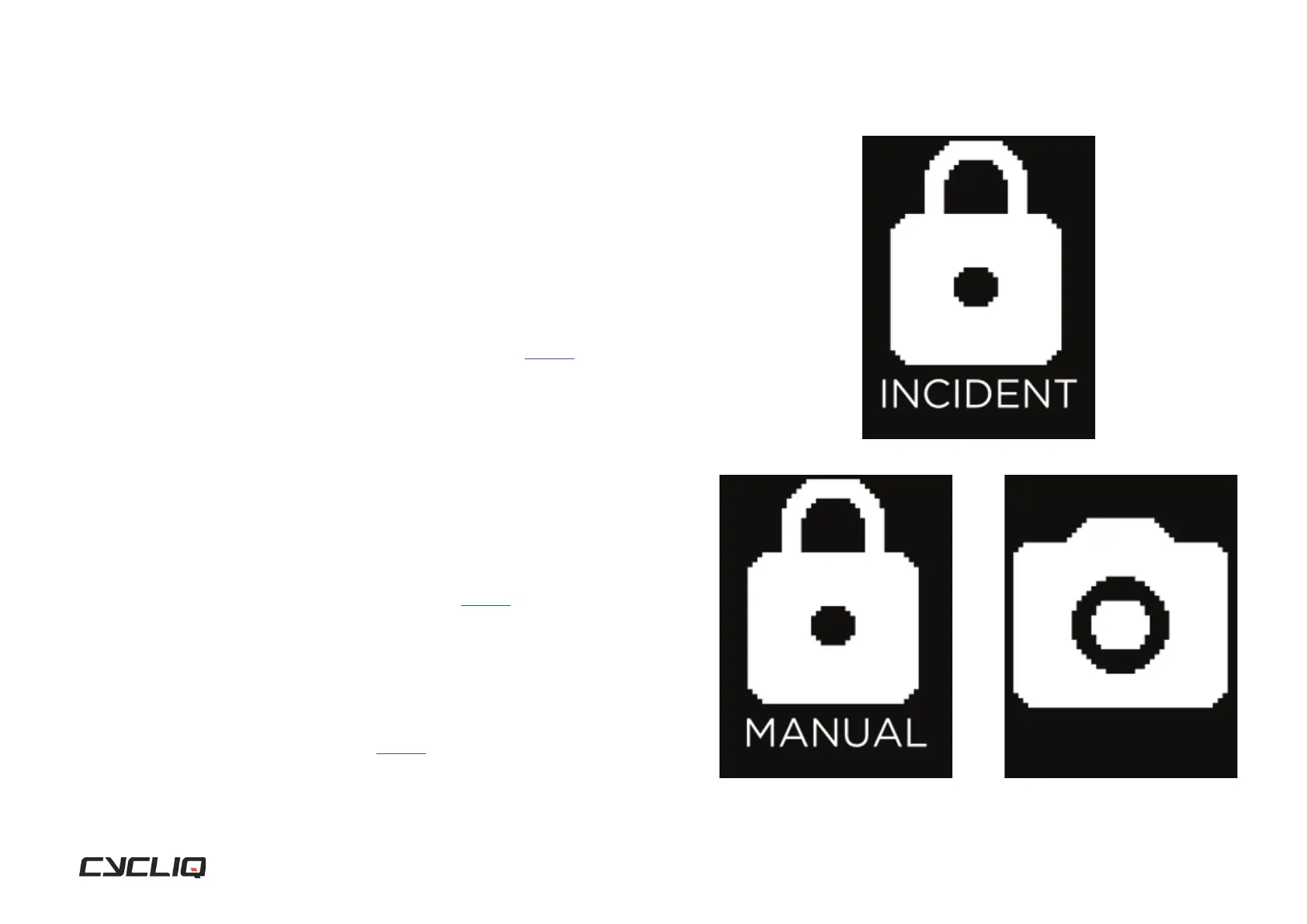
The incident screen is displayed to show your incident has automatically been
saved and les locked.
Manual footage capture
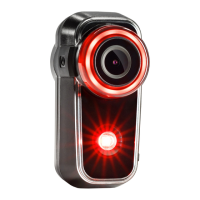
If you witness an event that you want to capture, simply press the Q button.
This will lock the current and preceding video segments.
The manual lock icon will be shown to con rm the incident has been saved
and les locked. Learn more about manual footage capture on page 24.
Still image capture
The Fly6 PRO can take still images while recording video. You can capture
a still image by pressing and holding the Q button (for approximately 3
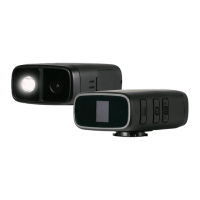
seconds). The camera icon will be shown to con rm the image has been
saved. Learn more about capturing still images on page 24.
Display Screen
Incident protection mode confirmation
Manual footage confirmation
Still image capture confirmation


 To Next Page