24 of 35Fly6 PRO User Guide |
Incident protection mode
The Fly6 PRO has been designed to automatically save footage from major
incidents.
Incident protection mode is activated when the Fly6 PRO is tilted more than
60° from vertical (or 30° from the ground) for more than ve seconds. If
this happens, the Fly6 PRO will lock the current and immediately preceding
video les and will continue recording as normal.
Note
The incident protection mode can be toggled on/off via CycliqPlus,
HOWEVER, we strongly advise you leave inicident protection mode active at
all times.
Features
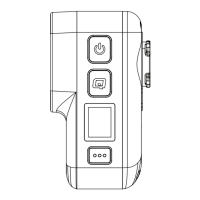
Manual footage capture
If you witness an event that you want to capture and retain when riding,
simply press the Q button. This will lock the current and immediately
preceding video les.
A lock icon will be shown on the display screen to con rm the manual
footage capture.
Still image capture
The Fly6 PRO can take a still image while recording video.
You can do this by holding the Q button for 3 seconds. The still image
capture is con rmed by a snapshot sound. A camera icon will be shown on
the display screen to con rm the still image capture.
This image will be saved as a JPEG and can be accessed with the rest of
your footage.
This feature enables you to capture images without having to take
screenshots from video footage.


 To Next Page