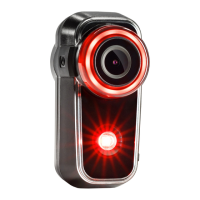
28 of 35Fly6 PRO User Guide |
All Fly6 PRO settings can be managed using CycliqPlus mobile app -
available for iOS and Android.
Connecting to your mobile device
Your Fly6 PRO uses Bluetooth® for connection to your iOS or Android
device.
Connecting for the first time
The first time you connect your Fly6 PRO to your mobile device you will
need to follow the below steps to enable Bluetooth.
1. Turn on your Fly6 PRO by pressing and holding the power button.
2. Open CycliqPlus mobile app and make sure Bluetooth is enabled on your
mobile device.
3. Select your Fly6 PRO from the menu.
4. The Bluetooth icon will appear on the Fly6 PRO’s display screen when a
connection is established.
Time and date settings
The Fly6 PRO will automatically sync with the time and date settings from
your smartphone when connecting to the CycliqPlus app.
Note
You can also manually input the date and time via the CycliqPlus desktop
app.
CycliqPlus mobile app
Light mode settings
This function allows you to select which light options will be available on your
Fly6 PRO - see page 8.
Audio settings
Set the volume of the audible alerts on your Fly6 PRO.
Video resolution
The resolution the Fly6 PRO records in can be customised.
Video segment length
Video segment lengths can be set to 3, 5 and 10 minute intervals.
Electronic Image Stabilisation
The Fly6 PRO has 6-axis image stabilisation. This function can be toggled
on/off via CycliqPlus.
Idle mode
This function can be toggled on/off via CycliqPlus.
Video logo timestamp display
This function can be toggled on/off via CycliqPlus.
Note
Timestamp can be an important feature should you require the footage for
legal purposes.


 To Next Page