BROWSING PRESETS
Basic Acons on Filters
Tag buons in Filters work in toggle mode. Click to acvate/deacvate Tag (Grey color means that the Tag in inacve, teal blue means that
the Tag is acve). If at least one Tag in a column (Category) is acve, then the Filter also becomes acve.
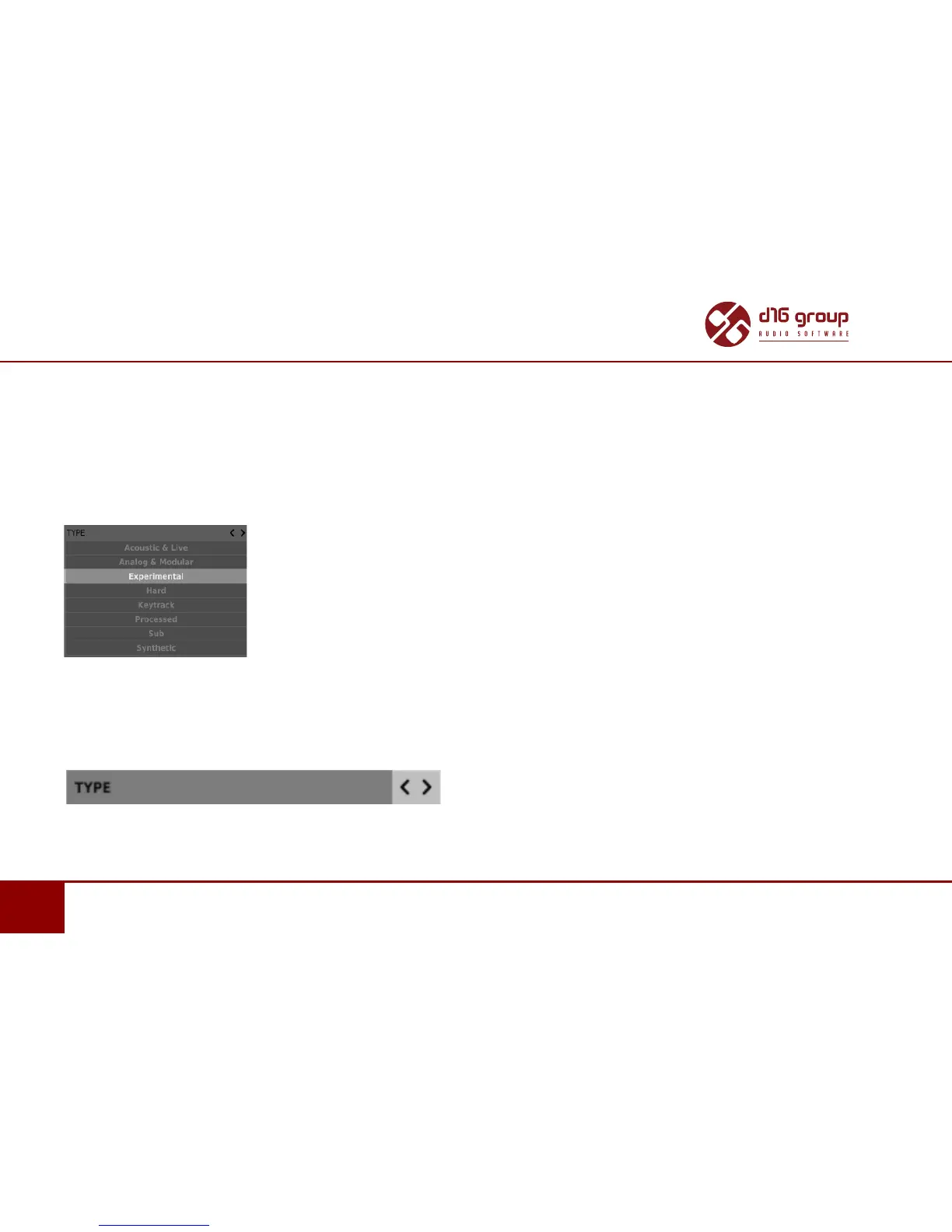
For example, if the rst column represents Type Category with a set of the following Tags: {Acounsc & Live, Analog & Modular, Experimental,
Hard etc. }, clicking the Experimental Tag will acvate the Category Filter Type and narrow down a list of presets to the items in case
of which the Experimental Tag appeared in the Type Category.
Enabling Experimental tag in Type Category
If you click the Experimental item again, you will deacvate the Filter, so all presets from the content will be displayed again.
Reordering Categories
To the right of the Category Filter header there are buons with arrow icons:
Filter reordering
They enable moving the Category to the le or right in a cascade. Clicking the right arrow replaces the current Category with the Category
on the right. Clicking the le arrow replaces the current Category with the Category on the le.


 To Next Page