Display: Description of the icons
en
Display
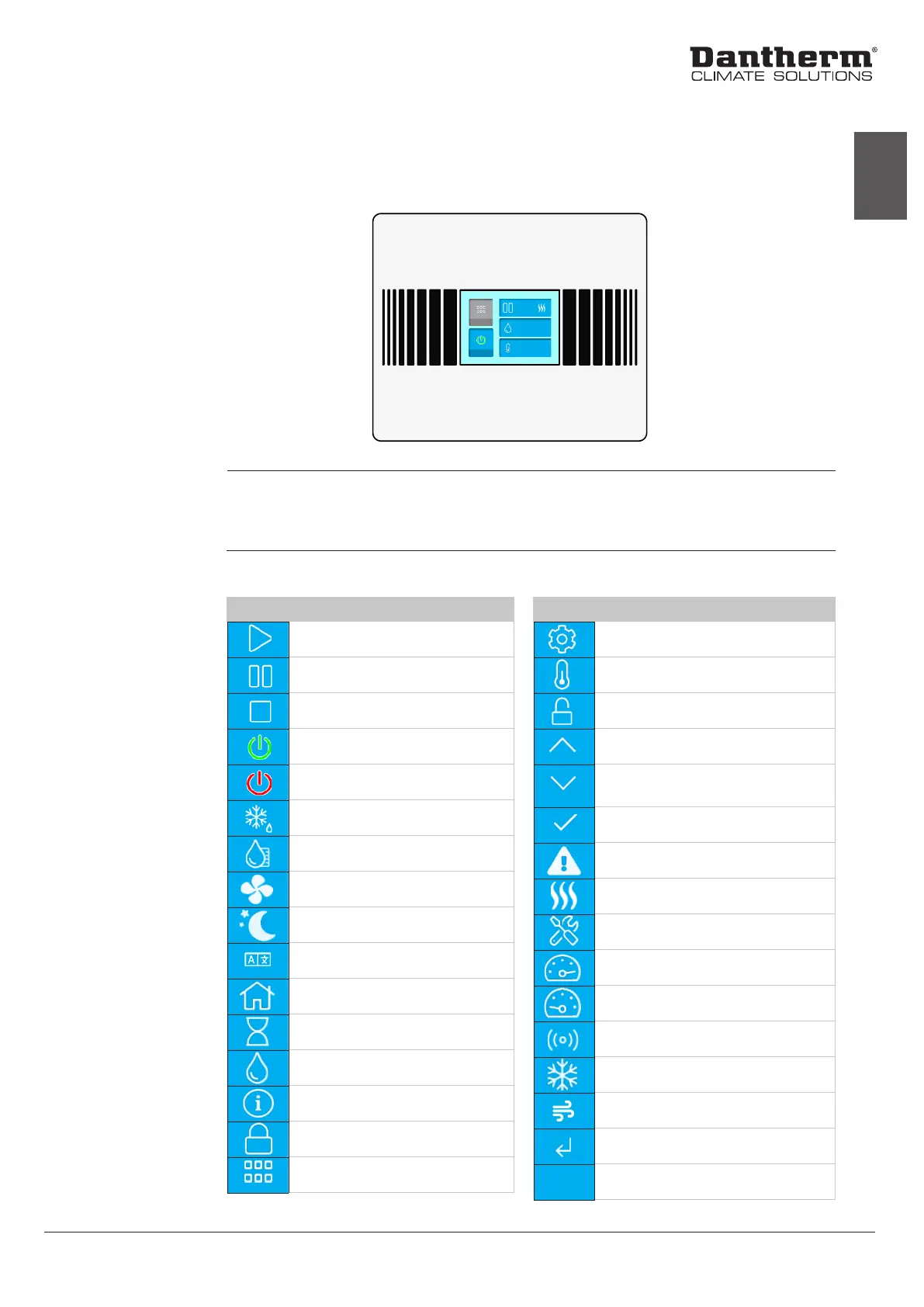
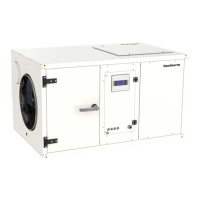
The inspection side of the unit has a touch display panel with a graphical user interface.
Icons The icons in the display panel indicate various operation modes. When a blue icon turns grey
after pressing it, it means the function is turned o. Selecting it again activates the function.
An overview of the description of the icons is given below.
The following table gives an overview of the meaning of the icons in the display:
Icons Description
Active
Pause
Stop
ON/OFF switch (ON state)
ON/OFF switch (OFF state)
De-icing ongoing
Dew point
Fan ON
Unoccupied mode
Language
Room RH/Temperature
Compressor in pause mode
Relative humidity %
Information
Set value lock
Menu
Display
Description of
the icons
Icons Description
Settings
Temperature
Unlock set value
Move up or increase selected value
Move down or decrease selected
value
Conrm
Alert/error
Heating ON
Service timer expired
High pressure error (soft)
Low pressure error (soft)
Wireless connection
Cooling ON
Fresh air
Exit
Fig. 2: Default display
%
60
%
28
°C
11


 To Next Page