Linking the Reader
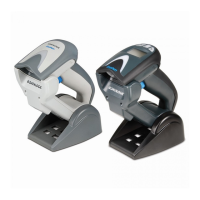
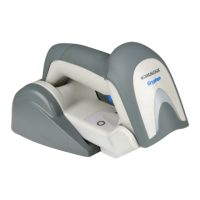
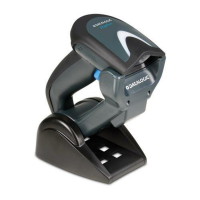
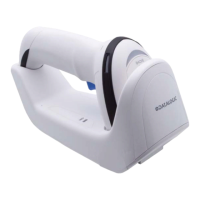
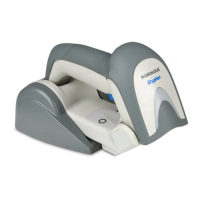
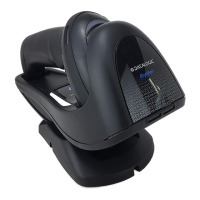
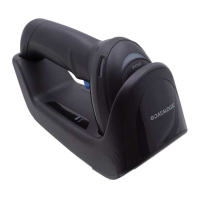
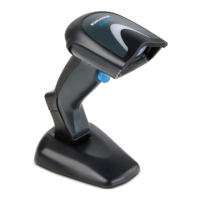
14 Gryphon™ I GBT4100
Link Scanner to Bluetooth Adapter in Server
Mode
1. Install any drivers provided with the Bluetooth
adapter.
2. Scan the
Enable RF Link to Server
label below to
make the scanner visible to the host computer.
3. Use the host computer’s Bluetooth manager to
“Discover new devices” and select "Datalogic
Scanner." If you receive an error message, it may
be necessary to disable security on the device.
4. Use an RS-232 terminal program to see incom-
ing data on the port designated by the com-
puter's Bluetooth manager.
Linking to Bluetooth Adapter in HID
1. Install any drivers provided with the Bluetooth
adapter.
2. Scan the
Link to a PC in HID
bar code below to
make the scanner visible to the host computer.
3. Use the host computer's Bluetooth manager to
"Discover new devices" and select "Datalogic
Scanner." If you receive an error message, it may
be necessary to disable security on the device.
4. Select "connect" on the PC to link the reader to
the PC. Use a text editor to see incoming data
from the reader.
The Gryphon I GBT4100 can be set up to
require a PIN code when connecting. If you
want to set up a PIN, or when adding new
equipment to a system that uses a custom
security PIN, please see the PRG for informa-
tion.



 To Next Page