93
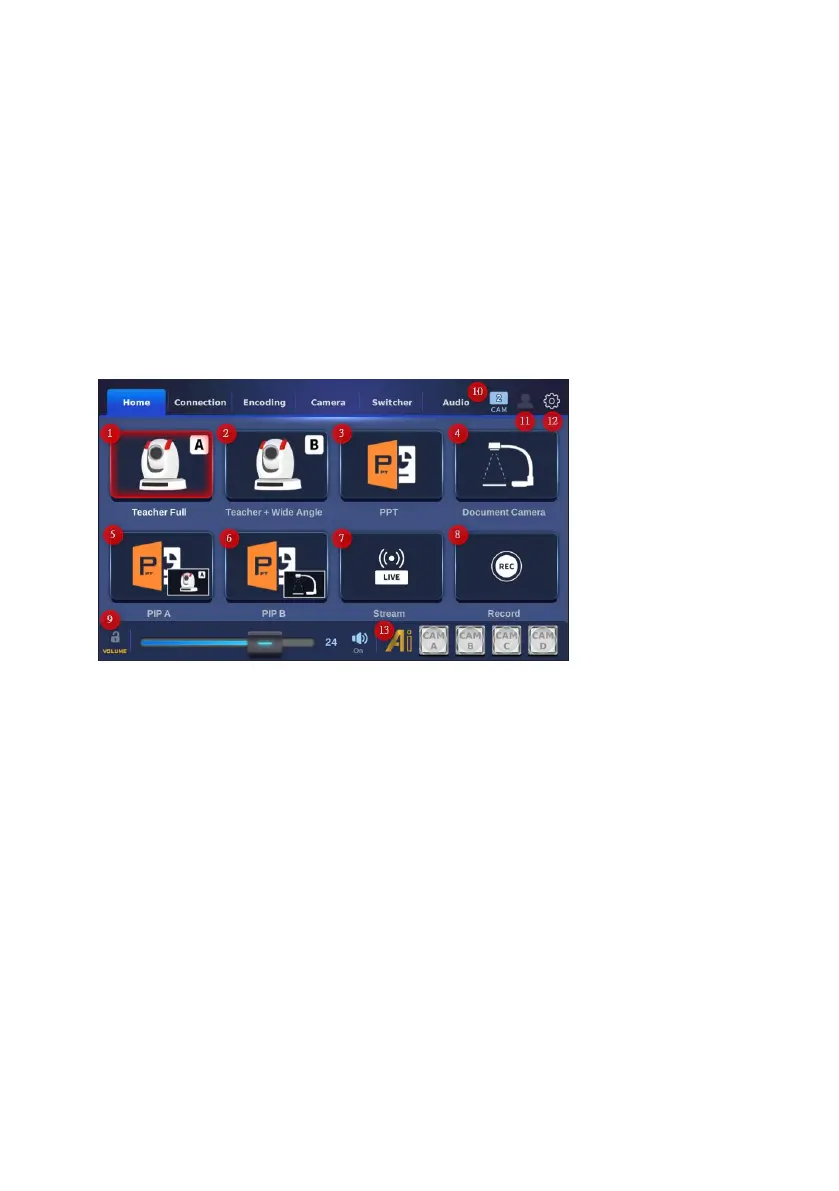
Tracking function when Datavideo AI Auto Tracking cameras are connected to
the iCAST 10 NDI. You can connect up to 4 Datavideo AI Auto Tracking cameras
to the HDMI input interfaces on the rear panel of the iCAST 10 NDI. Once the
ZR-1 app detects that the connected cameras are not AI-enabled, those four
buttons will be shown in white. If the ZR-1 app detects that the connected
cameras are AI-enabled cameras, those four buttons will be shown in blue. At
this time, you can press the CAM A, CAM B, CAM C or CAM D button to turn
on the AI Auto-Tracking function. Once the AI Auto-Tracking function is turned
on, those four buttons will be shown in red.
13.2.2 2 cams Interface-Home
1. Teacher Full: Press the “Teacher Full” button to show the half-body image of
the teacher which is shot by the camera connected to the HDMI input 1 of the
iCAST 10 NDI to the PGM external monitor.
2. Teacher + Wide Angle: Press the “Teacher + Wide Angle” button to show
the full-body image of the teacher and the panoramic view of the classroom
which is shot by the camera connected to the HDMI input 2 of the iCAST 10
NDI to the PGM external monitor.
3. PPT: The PPT button of the “2 cams” mode is the same as the PPT button in
“3 cams” mode. Please refer to “4. PPT” in 13.2.1 3 cams Interface-Home for
details.
4. Document Camera: The Document Camera button of the “2 cams” mode is
the same as the Document Camera button in “ 3 cams” mode. Please refer to


 To Next Page