dCS Vivaldi DAC User Manual Software Issue 2.0x
November 2016
Vivaldi DAC Manual v2_0x Page 13 English version
Basic setup with a PC
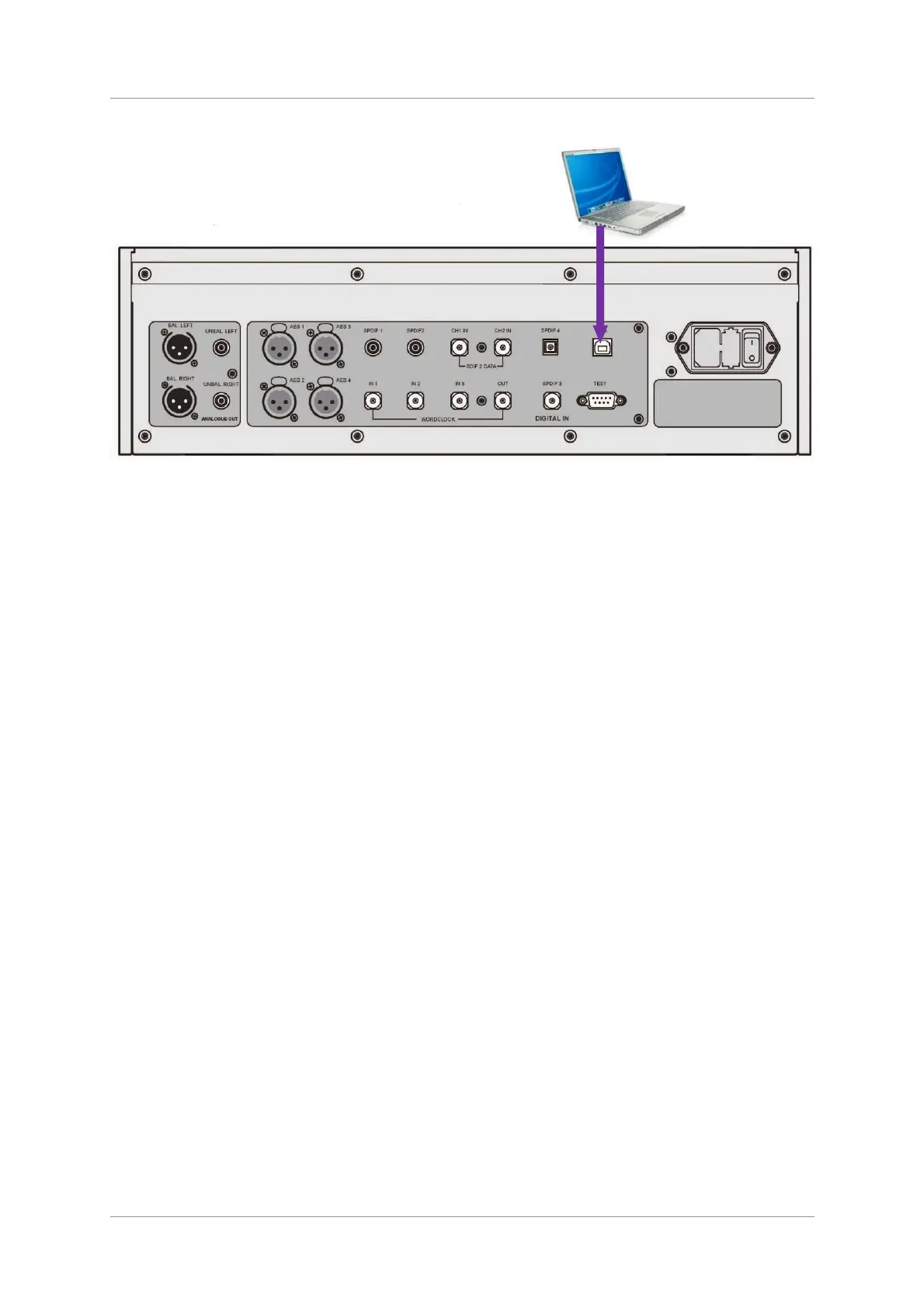
Figure 2 – Connecting the USB interface.
• Connect one of the computer’s USB ports to the USB port on the DAC’s rear panel.
• Press the Input button repeatedly until USB is displayed. If the source is transmitting PCM data,
the DAC will lock to the source and the sample rate will be displayed.
The DAC’s USB interface operates in asynchronous mode. This allows the clock inside the DAC to
control the delivery of data from the computer, avoiding the use of the computer’s inaccurate and
jittery clock.
A word about Music Playing Software
There are countless programs that can play music on Windows
TM
PC and Apple Mac
TM
OSX systems.
Unfortunately, not all of them present the data completely unprocessed to the USB ports. For
example, Windows Media Player re-samples all data to 24 bits at the original sample rate, while
iTunes converts data as necessary to the output sample rate set in the OSX Audio MIDI Set-up panel.
With such a proliferation of playing software, and updates being issued frequently, it is impossible for
dCS to be fully up-to-date with the behaviour and performance of all programs. If you have questions
or problems, we would urge you to take them up with your software vendor. What we will say is that
different programs operate very differently and it is well worth finding out exactly how your particular
program processes the audio.
We suggest that you use a premium music streaming program, such as JRiver Media Center
(Windows or Mac) or Audirvana (Mac), rather than relying on the software bundled with the operating
system.


 To Next Page