Alignment and Troubleshooting
4-3
Service Manual
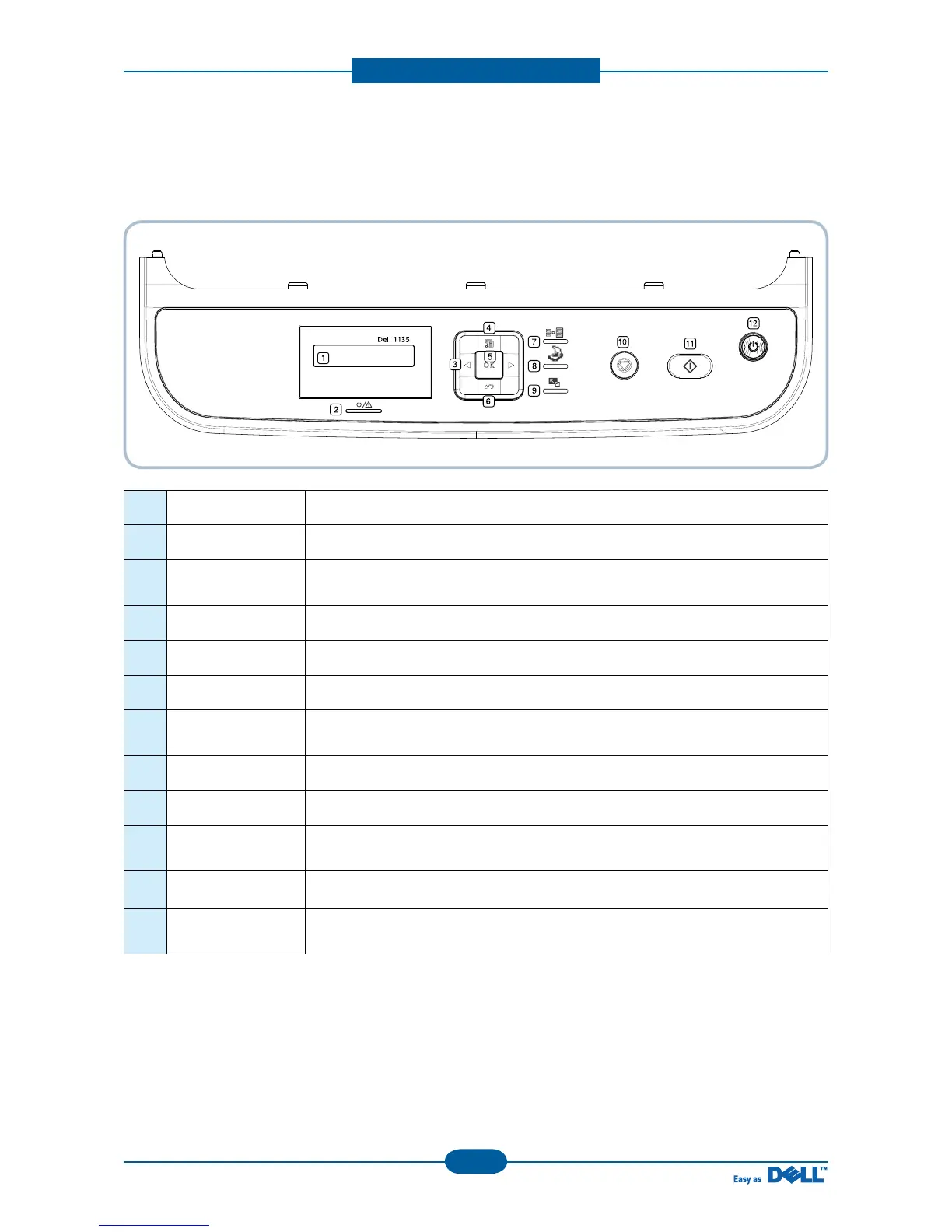
■ Dell 1133
This control panel may differ from your machine depending on its model.
1 Display Shows the current status and prompts during an operation.
2 Status Shows the status of your machine.
3 Arrow
Scroll through the options available in the selected menu, and increase or
decrease values.
4 Menu Enters Menu mode and scrolls through the available menus.
5OK Confirms the selection on the screen.
6 Back Sends you back to the upper menu level.
7 ID Copy
You can copy both sides of the ID Card like a driver’s license to a single side of
paper.
8 Scan to Sends scanned data.
9 Reduce/Enlarge Makes a copy smaller or larger than the original.
10 Stop/Clear
Stops an operation at any time. The pop-up window appears on the screen
showing the current job that the user can stop or resume.
11 Start Starts a job.
12
Power/
Energy Saver
Sends the machine into power saver mode. If you press and hold this button,
you can also turn the power on and off.



 To Next Page