Alignment and Troubleshooting
4-9
Service Manual
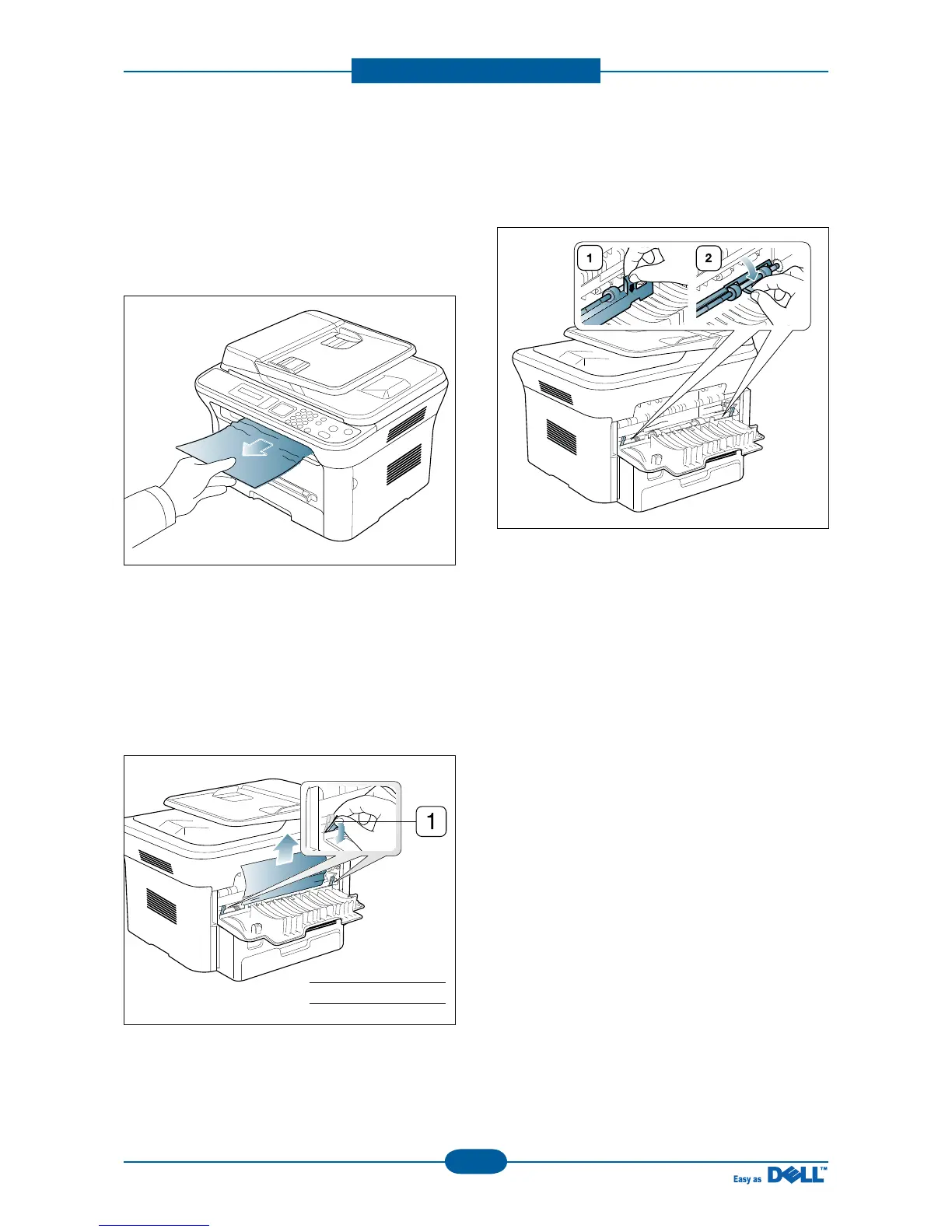
In exit area
1. Open and close the front cover. The jammed
paper is automatically ejected from the machine.
If you do not see the jammed paper, go to next
step.
2. Gently pull the paper out of the output tray.
If you do not see the jammed paper or if there is
any resistance when you pull, stop and go to the
next step.
3. Open the rear cover.
4. Pull the pressure levers down and remove the
paper.
Return the pressure levers to their original
position.
If you do not see the jammed paper, go to next
step.
5. Pull the fuser cover levers down and remove the
paper.
Return the fuser cover levers to their original
position..
6. Close the rear cover.
7. Open and close front cover, printing
automatically resumes.
1 Pressure lever



 To Next Page