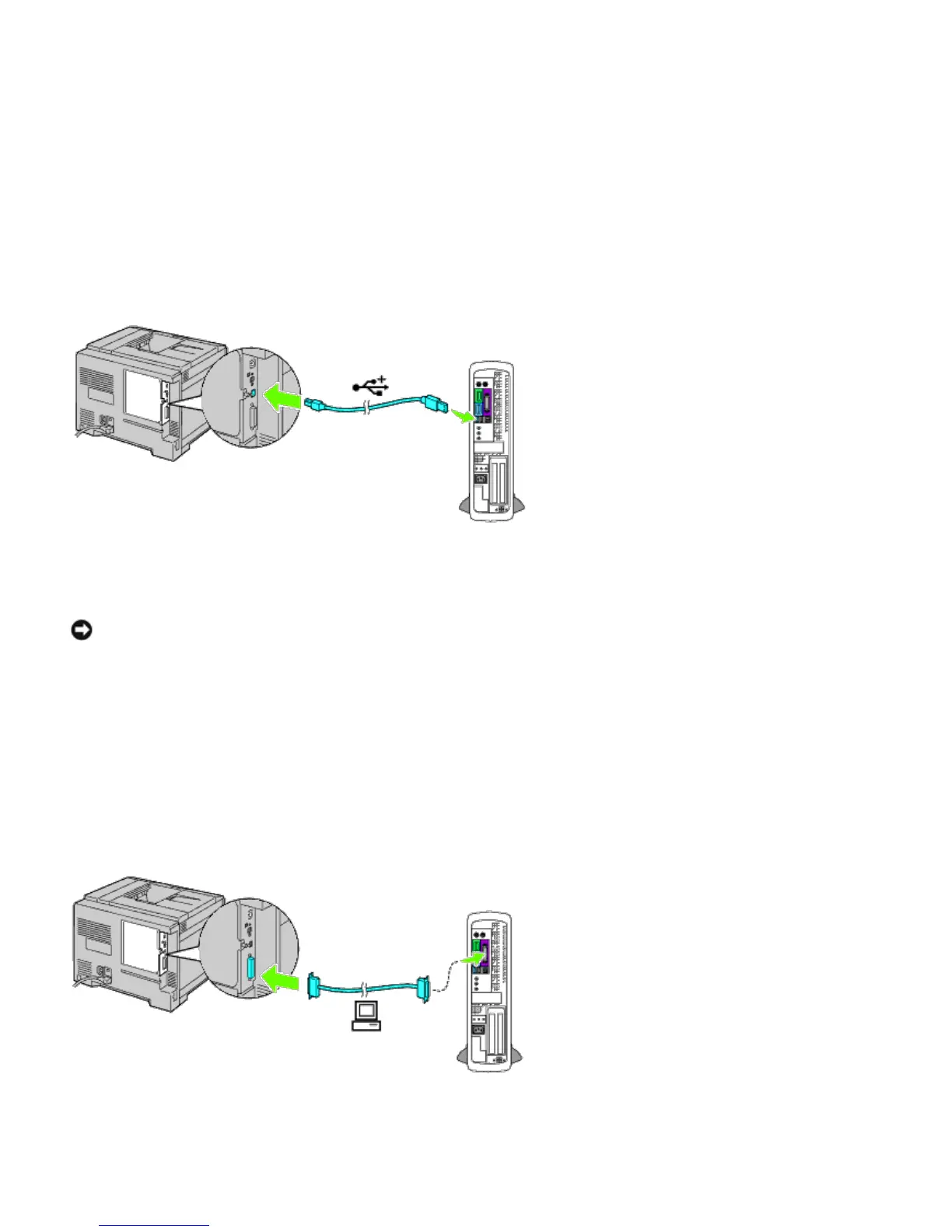
USB Cable
Microsoft
®
Windows
®
2000, Windows XP, Windows XP 64-bit Edition, Windows Server
®
2003, Windows Server 2003 x64
Edition, Windows Server 2008, Windows Server 2008 64-bit Edition, Windows Server 2008 R2 64-bit Edition, Windows
Vista
®
, Windows Vista 64-bit Edition, Windows 7, Windows 7 64-bit Edition and Mac OS
®
X or later operating systems
support USB connections. Some UNIX
®
and Linux computers also support USB connections. See your computer operating
system documentation to see if your system supports USB.
To attach the printer to a computer:
1. Ensure that the printer, computer, and any other attached devices are turned off and unplugged from the power
source/outlet.
2. Connect the smaller USB connector into the USB port on the back of the printer.
3. Ensure that you match the USB symbol on the cable to the USB symbol on the printer.
4. Connect the other end of the cable into a USB port of the computer.
NOTICE: Do not connect a USB cable for printers into the USB keyboard.
Parallel Cable
A parallel port requires a parallel cable.
To attach the printer to a computer:
1. Ensure that the printer, computer, and any other attached devices are turned off and unplugged from the power
source/outlet.
2. Connect the parallel connector into the parallel cable port on the back of the printer.
3. Ensure that you match the parallel symbol on the cable to the parallel symbol on the printer.
4. Secure the fastening clips of the parallel cable.
5. Plug the other end of the cable into a parallel port on the back of the computer.









 To Next Page