About this task
NOTE: This procedure applies if you are installing a M.2 2230 solid-state drive or M.2 2230 WWAN card in M.2 card slot 3.
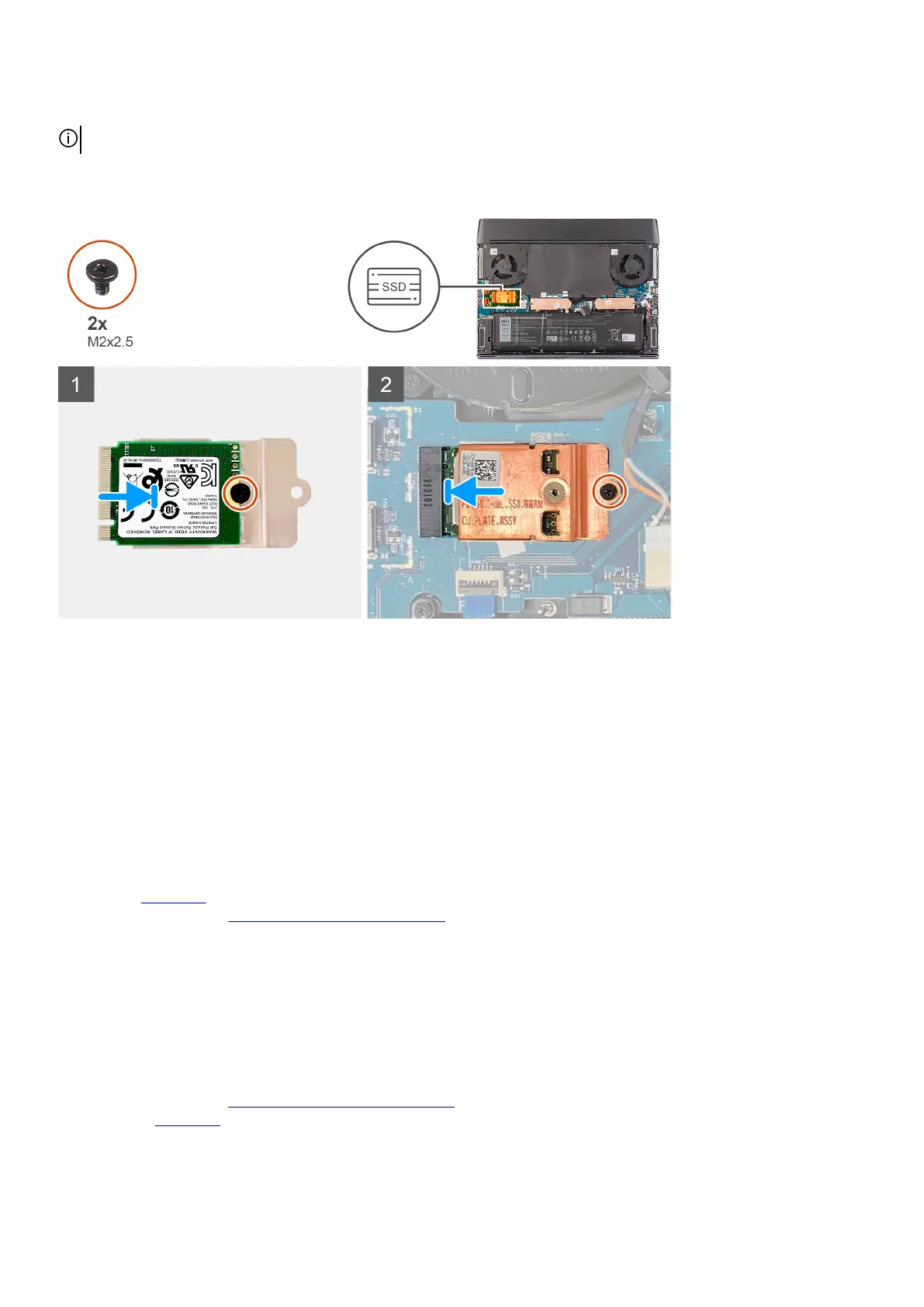
The following image(s) indicate the location of the M.2 2230 WWAN/solid-state drive and provides a visual representation of the
installation procedure.
Steps
1. Place the M.2 2230 WWAN/solid-state drive on the M.2 2230 thermal shield.
2. Align the screw hole on the M.2 2230 WWAN/solid-state drive to the screw hole on the M.2 2230 thermal shield.
3. Replace the screw (M2x2.5) that secures the M.2 2230 WWAN/solid-state drive to the M.2 2230 thermal shield.
4. Flip over the M.2 2230 thermal shield.
5. Align the notch on the M.2 2230 WWAN/solid-state drive with the tab on the M.2 card slot on the left I/O-board.
6. Slide the M.2 2230 WWAN/solid-state drive into the M.2 card slot on the left I/O-board.
7. Align the screw hole on the M.2 2230 thermal shield with the screw hole on the left I/O-board.
8. Replace the screw (M2x2.5) that secures the M.2 2230 WWAN/solid-state drive and thermal shield to the left I/O-board.
Next steps
1. Install the
base cover.
2. Follow the procedure in After working inside your computer.
Rear-I/O cover
Removing the rear I/O-cover
Prerequisites
1. Follow the procedure in Before working inside your computer.
2. Remove the base cover.
28













 To Next Page