Steps
1. Open the latch and disconnect the keyboard-backlight cable from the mechanical keyboard.
2. Open the latch and disconnect the keyboard-controller board cable from the mechanical keyboard.
3. Open the latch and disconnect the keyboard cable from the mechanical keyboard.
4. Fold up the touchpad cable so that it is no longer resting on the mechanical keyboard.
5. Fold up the power-button assembly cable so that it is no longer resting on the keyboard.
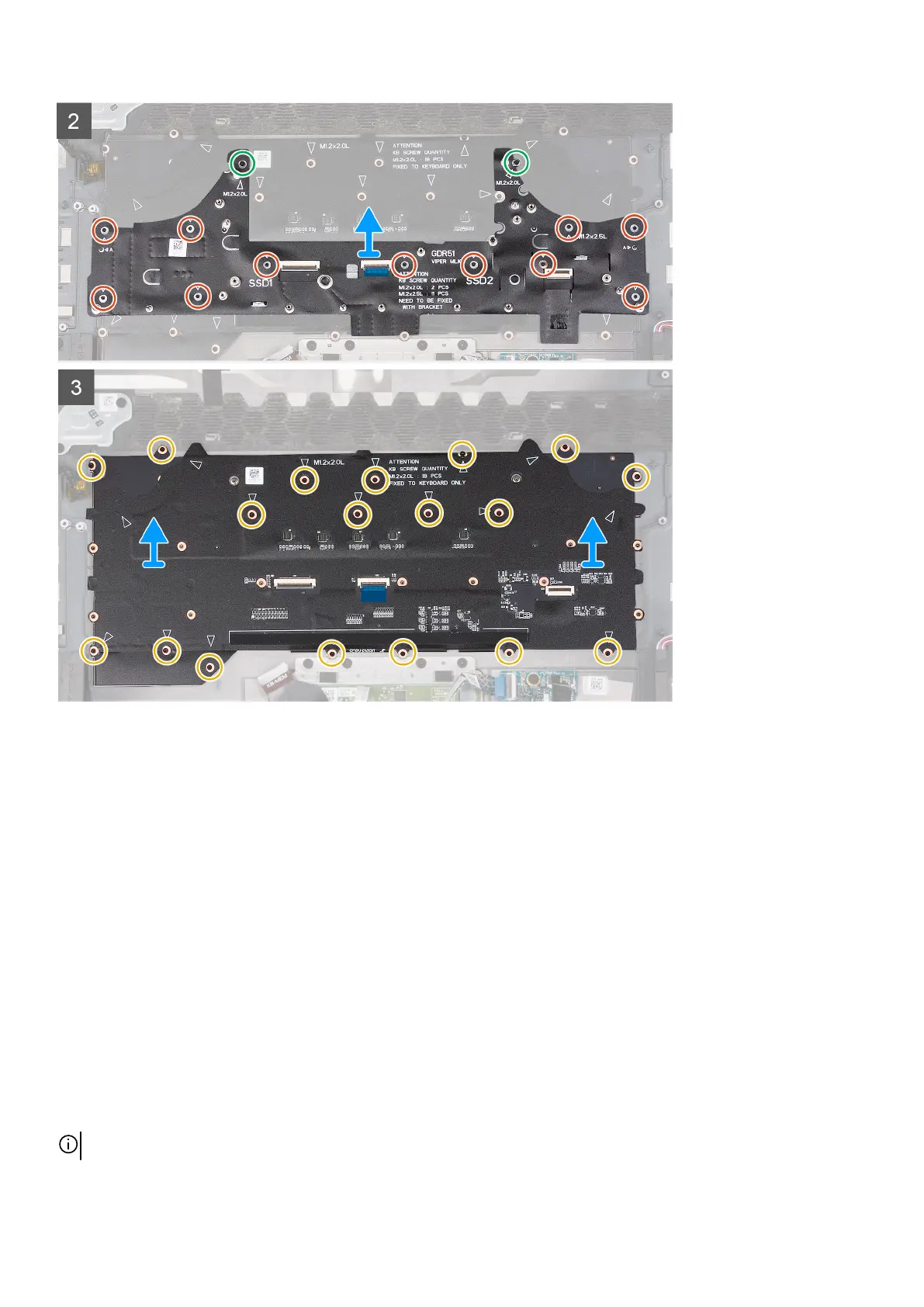
6. Remove the 2 screws (M2x2) that secure the keyboard bracket to the keyboard and palmrest.
7. Remove the 11 screws (M2x2.5) that secure the keyboard bracket to the keyboard and palmrest.
8. Lift the keyboard bracket off the keyboard.
9. Remove the 18 screws (M1.2x2) that secure the mechanical keyboard to the palmrest.
10.Lift the mechanical keyboard from the palmrest.
Installing the mechanical keyboard
Prerequisites
If you are replacing a component, remove the existing component before performing the installation process.
About this task
NOTE: This procedure is only applicable if you are installing a mechanical keyboard.
The following image(s) indicate the location of the keyboard and provides a visual representation of the installation procedure.
67













 To Next Page