Alienware Command Center (AWCC) │ 22
Setting up lighting and animation
Dashboard screen
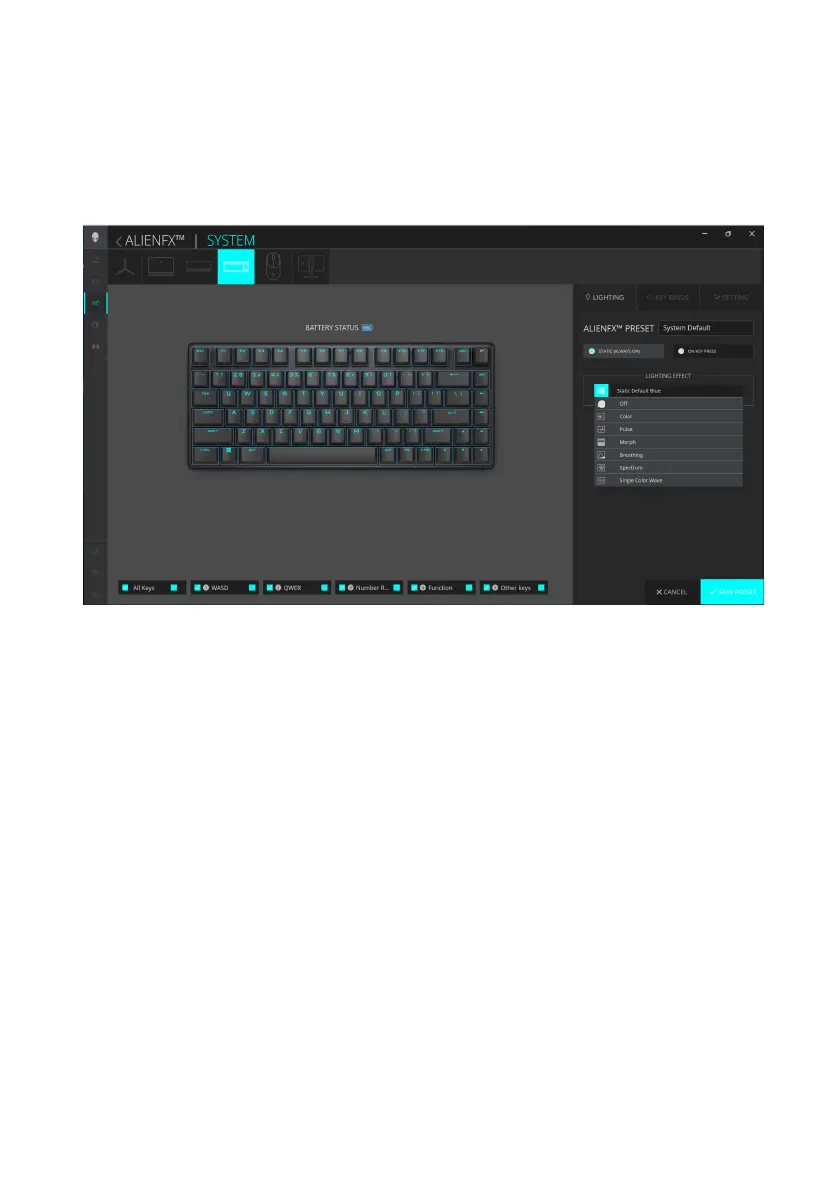
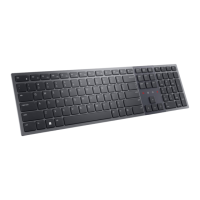
Pro Wireless Gaming Keyboard enables you to change the lighting effect of the
keyboard except the Profile Key through AWCC and store it in the device.
1. Click the ALIENFX icon.
2. In the SYSTEM tab, select ALIENFX PRESET. Click LIGHTING from
the right panel.
3. Select the lighting effect from the drop-down list for STATIC (ALWAYS ON)
or ON KEY PRESS modes.
4. For STATIC (ALWAYS ON), select the section of the keys or all sections that
you want to apply the animation above the keyboard image.
5. From the menu of supported animations, select one of the following:
Off, Color, Pulse, Morph, Breathing, Spectrum, Single Color Wave,
Rainbow Wave, Scanner, or Static Default Blue.
6. For Color animation, define the color of the keyboard animation effect by
following these steps:
a. Choose color using the color wheel bubble or enter the RGB value
of the required color or select from the PRESET COLORS.
b. Adjust the brightness.
c. Adjust the tempo of the animation effect.
Alienware Command Center (AWCC)



 To Next Page