Alienware Command Center (AWCC)
│
27
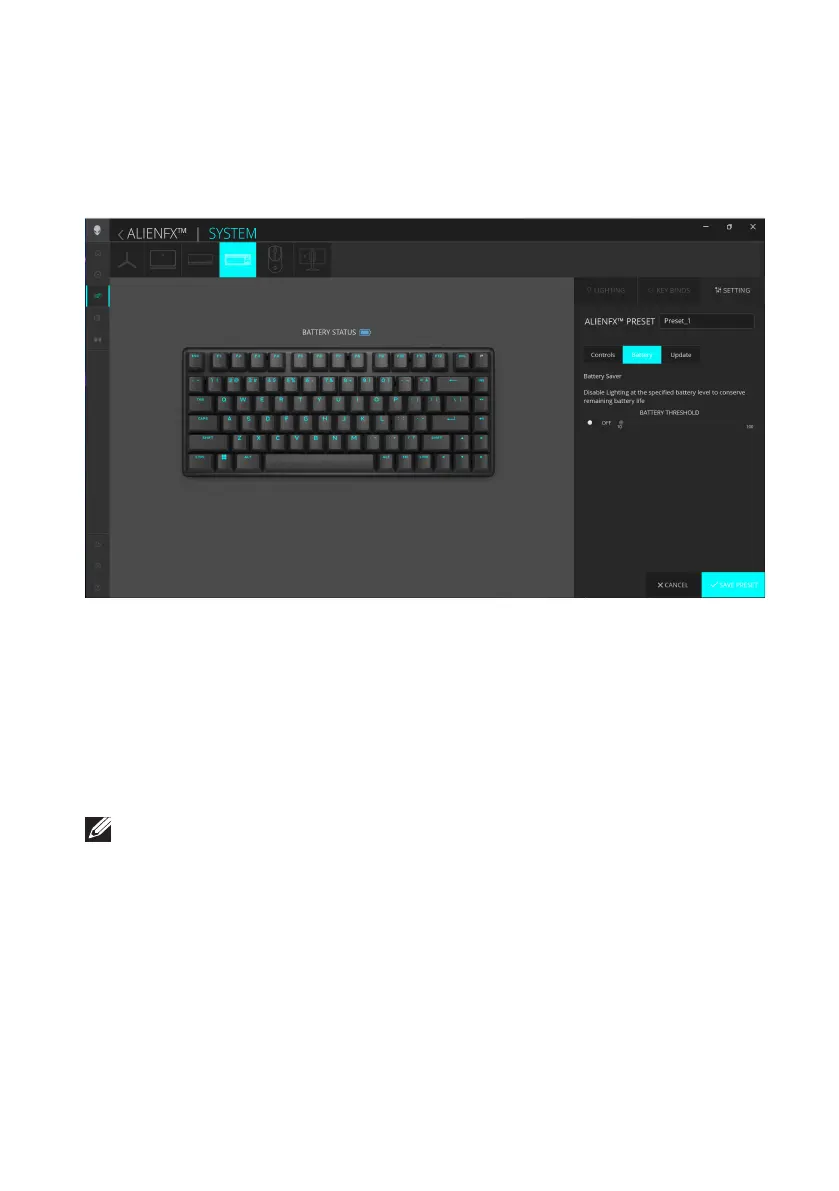
Battery Saver mode
Pro Wireless Gaming Keyboard enables you to adjust the Battery Saver mode
where the keyboard disables the lighting at the specified battery level to reduce
battery consumption.
1. Click the AlienFX icon.
2. In the SYSTEM tab, select ALIENFX PRESET. Click SETTING from the
right panel, and then click Battery.
3. Click the ON button to enable Battery Saver mode at the battery level set on
the slider.
4. Move the slider to select the battery level to enable the Battery Saver mode.
5. Click SAVE PRESET to save your changes.
NOTE: The default battery threshold at 10% in Battery Saver mode. Keyboard
lighting is switched OFF automatically when battery level falls below the battery
level threshold.
The battery threshold is adjustable based on your preference.
You can manually increase the lighting brightness with FN+F6. After manual
lighting change, note that battery saver mode is enabled, and lighting is turned
OFF under the following conditions:
• Keyboard power is switched from OFF to ON
• Connectivity mode change
Alienware Command Center (AWCC)



 To Next Page