Alienware Command Center (AWCC)
│
29
Updates
You can update the firmware of the Type-C dongle and the keyboard when a
new version is available. In addition, you can also reset the keyboard setting to
its factory settings with a single click.
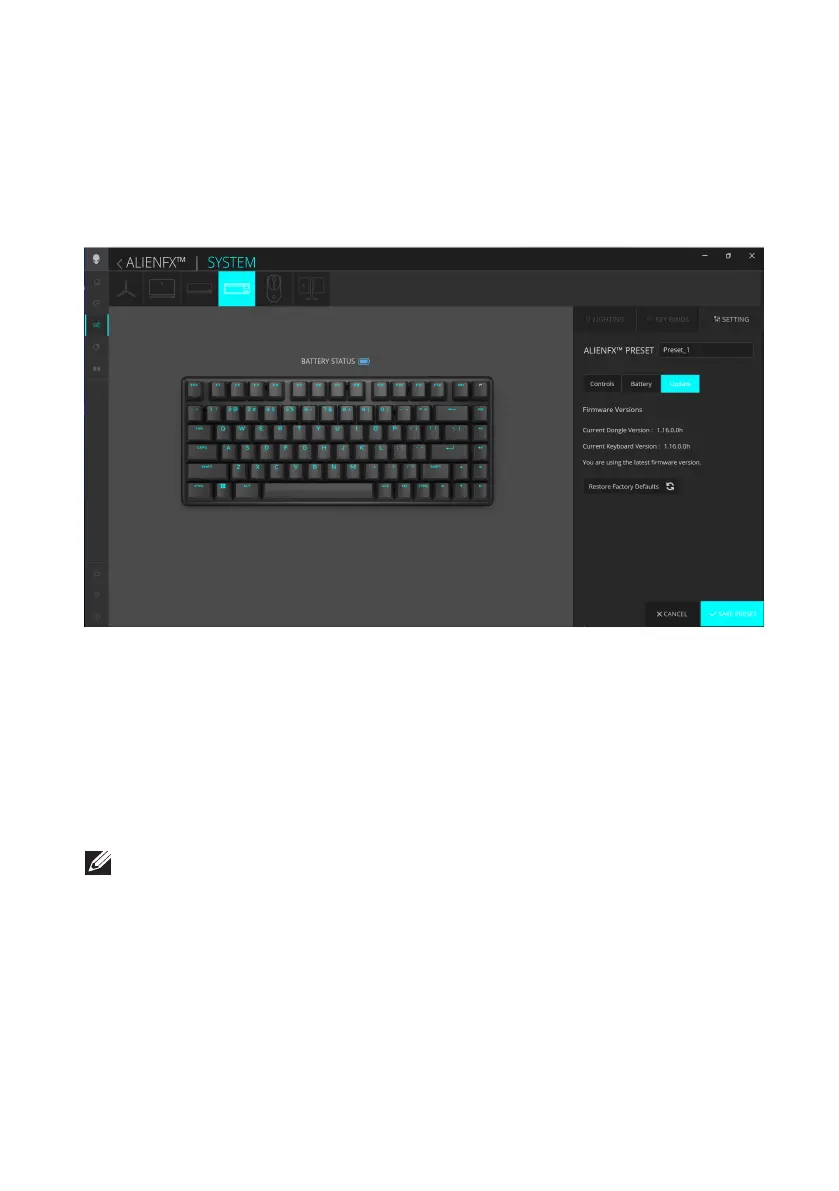
1. Click the ALIENFX icon.
2. In the SYSTEM tab, select ALIENFX PRESET. Click SETTING from the
right panel, and then click Update.
3. View the firmware version and check if any new firmware is available. You must
connect the Type-C dongle to the USB port and the keyboard with the USB
cable to upgrade your device firmware. Follow the on-screen instructions.
4. Click Restore Factory Defaults
to reset the device to the manufacturing state.
NOTE: Reset Factory Defaults feature resets all the keyboard settings and
configurations to the factory defaults. AWCC applies the existing Lighting and
Macro settings to the keyboard when it is connected to the computer.
Update firmware and restore factory defaults
Alienware Command Center (AWCC)



 To Next Page