Installing the AC Chassis | 21
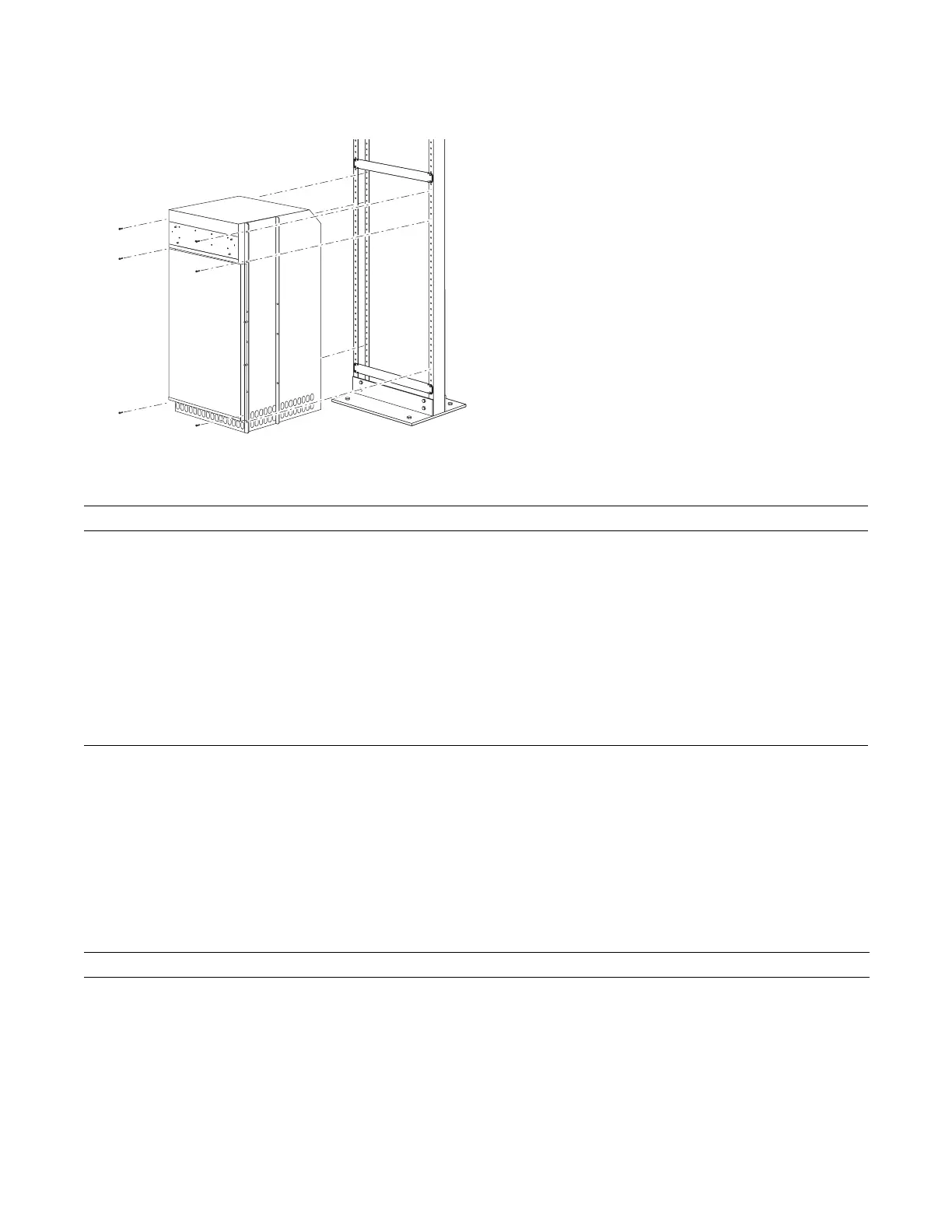
Figure 4-2. Rack Mounting the Chassis
To install the chassis into a prepared rack:
Installing the Chassis into an Equipment Cabinet
Install the E1200 system after you secure the rack shelf bar. Load the chassis in the lower half of the
cabinet to avoid it becoming top-heavy. Make sure the cabinet is positioned with adequate space in the
front, rear, and sides of the unit for proper ventilation, access to cables, and access for maintenance.
Refer to
Chapter 3, Site Preparation
for complete requirements.
To install the chassis into an equipment cabinet:
Step Task
1 If you are center or rear-mounting the chassis in a 19-inch rack, adjust the chassis rack mounting brackets to the
desired position.
2 If you are mounting the chassis in a 23-inch rack, install the 23-inch adapter brackets.
3 Using a hand cart, pallet jack, or forklift, align the rack-mount holes with the equipment rack holes, situating the
chassis on top of the equipment rack shelf bar.
4 Insert rack mounting screws in the holes that are not obscured by the metal chassis shipping cover. Tighten the
screws. See
Figure 4-2
.
5 Loosen and remove the screws that secure the chassis Front Shipping Cover and remove the cover.
6 Insert the remaining rack mounting screws and tighten to secure the chassis in the rack.
Step Task
1 Install the equipment rack shelf bar.
2 Adjust the chassis mounting brackets to the desired front-rear position and add a 23-inch adapter brackets as
required.
3 Using a hand cart, pallet jack, or forklift, align the rack-mount holes with the cabinet holes.
FN00046B



 To Next Page