Using Your Projector 81
Understanding the Buttons
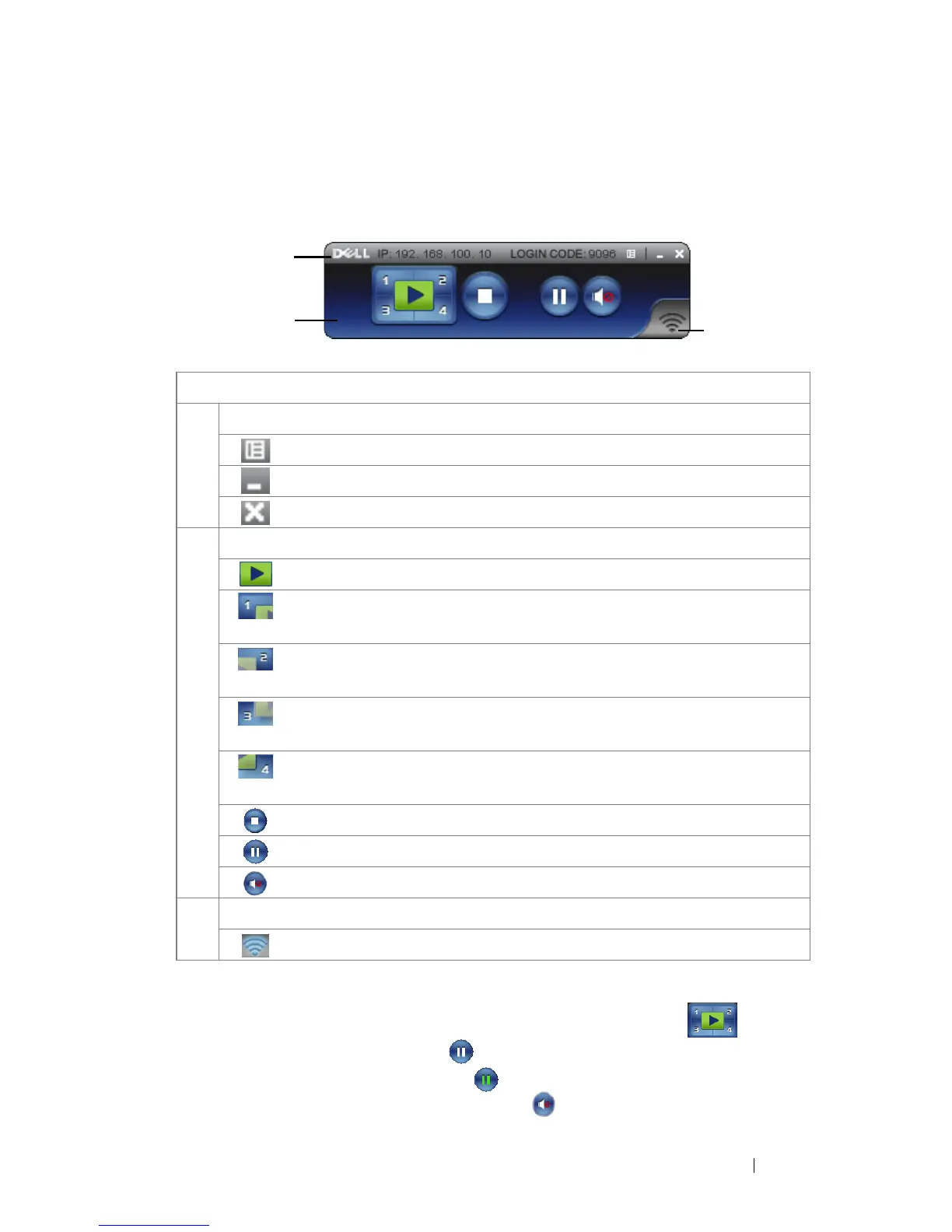
After a successful log in, the following screen appears:
Projecting the Presentation
• To project the presentation, click any of the projection buttons .
• To pause the presentation, click . The icon turns green.
• To continue the presentation, click again.
• To audio projection the presentation, click .
Item Description
1 Status Bar Displays IP and LOGIN CODE information.
Menu Click to activate the application menu.
Minimize button Click to minimize the application.
Close button Click to exit the application.
2 Controls Toolbar
Full screen Click to project the image in full screen.
Split 1 Click to project the image in the upper left
corner of the screen.
Split 2 Click to project the image in the upper right
corner of the screen.
Split 3 Click to project the image in the lower left
corner of the screen.
Split 4 Click to project the image in the lower right
corner of the screen.
Stop Click to stop projection.
Pause Click to pause projection.
Audio Projection Click to enable audio projection.
3 Connection Status
Connection Icon Blinks when projection is in progress.
1
2
3





 To Next Page