82 Using Your Projector
• To stop the presentation, click .
NOTE: WLAN environment using 802.11g connection, and no screen
stretching.
NOTE: Your computer will not enter S1 (standby mode) / S3 (sleep mode) / S4
(hibernate mode) when running a wireless, USB Display, or USB Viewer
presentation.
Using the Menu
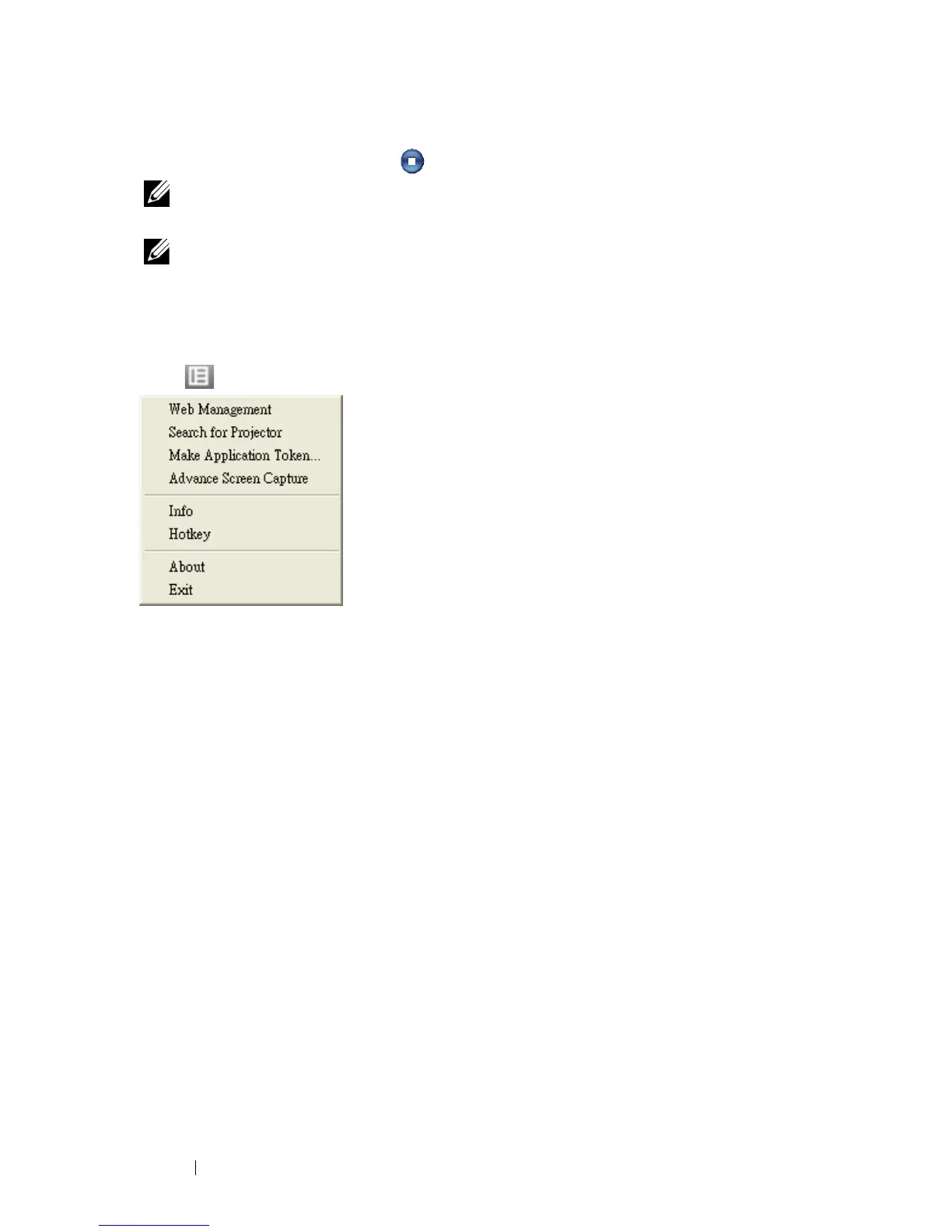
Click to display the menu.
W
EB MANAGEMENT—Click to open the Web Management page. See "Managing the
Projector From Web Management (for Wireless Network)" on page 95.
S
EARCH FOR PROJECTOR—Click to search and connect to wireless projector.
M
AKE APPLICATION TOKEN—Click to make application token. See "Make Application
Token" on page 125.
A
DVANCE SCREEN CAPTURE—The default is enable. Click to disable the advance
screen capture.
I
NFO—Click to display system information.
HOTKEY—Click to display the hotkey information.
A
BOUT—Click to display the application version.
E
XIT—Click to close the application.




 To Next Page