12
64. USB 1/2 Ports: Connect standard USB flash drives to these USB ports. When you set the
input selector on Channels 1 or 2 to Engine (the center position), you can use the display
on each deck to select and load tracks on your USB flash drives to each deck.
Important: We recommend using the Engine software on your computer to configure the
music library on your USB flash drive before connecting it to MCX8000. Analyzing your
music library in Engine will enable you to use hot cue points, crates, and playlists as well as
view color-coded waveforms. See Using Engine > Getting Started to learn how to do this.
65. USB 1/2 Eject: Press each button to “eject” your USB flash drive from the corresponding
USB port. Engine will prevent a USB drive from ejecting if MCX8000 is playing a track
from it; stop the track in order to safely eject the USB drive.
Front Panel
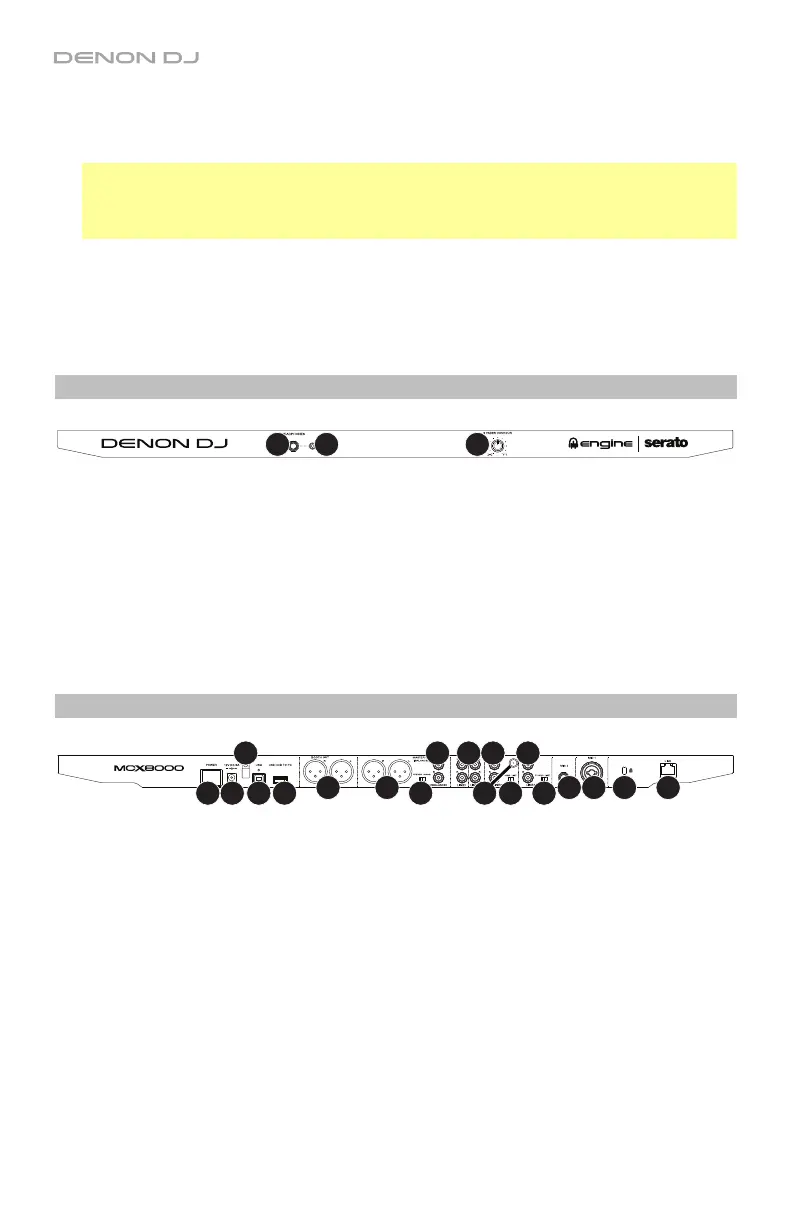
2
11
1. Phones Outputs (1/4” or 1/8” / 6.35 mm or 3.5 mm): Connect headphones to these 1/4”
(6.35 mm) and 1/8” (3.5 mm) jacks for monitoring the signal. The headphone volume is
controlled using the Monitor Level knob.
2. Crossfader Contour: Adjusts the slope of the crossfader curve. Turn the knob to the left
for a smooth fade (mixing) or to the right for a sharp cut (scratching). The center position is
a typical setting for club performances.
Rear Panel
1
2
3
45
69
7
8
10
11 11
12 12
13
1415
16
17
1. Power Input: Use the included power adapter (12V DC, 5A, center-positive) to connect
this input to your power source.
2. Power Button: Press this button to power MCX8000 on or off. Power on MCX8000 only
after you have connected all of your input devices and before you power on your
amplifiers and loudspeakers. Power off your amplifiers and loudspeakers before powering
off MCX8000.
3. Cable Restraint: You can secure the power cable to this restraint to help prevent
disconnecting it accidentally.
4. USB Port: Use a Hi-Speed USB 2.0 cable (included) to connect this USB port to an
available USB port on your computer. This connection sends and receives audio and
control information to and from the computer.
5. USB Hub to PC: You can connect an optional USB hard drive (not included) to this
powered USB port. This hub will connect to your computer; you cannot access its content
using MCX8000.


 To Next Page