45
Using the Utility Menu
The Utility menu contains settings that determine some of MCX8000 default functions. Some
are relevant to overall operation, while others are relevant only to Engine.
To enter the Utility menu, press and hold View/Utility/Column for 2 seconds.
To exit the Utility menu, press View/Utility/Column.
To change a setting:
1. Turn the Select/Load Knob to move through the list of settings. The currently selected one
is highlighted.
2. When you have selected a setting you want to edit, press the Select/Load Knob. The option
will then be highlighted.
3. Turn the Select/Load Knob to cycle through the list of options for that setting.
4. When you have selected the desired option, press the Select/Load Knob. The new setting
is saved automatically.
To change other settings, repeat Steps 1–4.
The Utility menu settings are described below. Note that you will need to power-cycle (power
off and then power on) MCX8000 for some new settings to take effect.
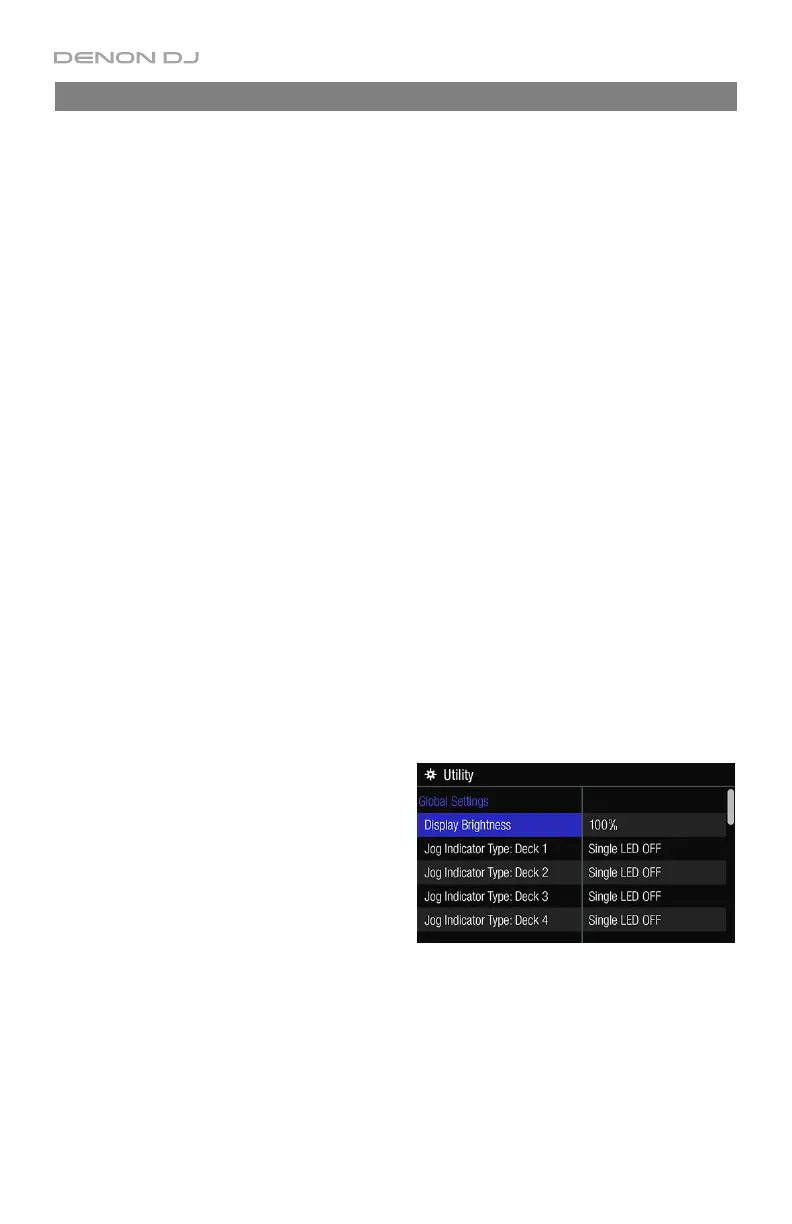
Global Settings
• Display Brightness: This setting determines
the brightness of MCX8000’s two displays.
The range is 10–100% in 10% increments.
• Jog Indicator Type: Deck 1–4: This setting
determines how the lights around the platter
on each deck will indicate its rotation and
speed.
o Single LED OFF: All lights around the
platter will be lit while a single unlit
one appears to “move” through them.
o Single LED ON: All lights around the
platter will be unlit while a single lit
one appears to “move” through them.


 To Next Page