14
Using Serato DJ
Mixing with Serato DJ
Important: In order for the Sync buttons on MCX8000 to work, both active decks must be
controlling decks in Serato DJ. Trying to sync a deck playing a track in Serato DJ to a deck
playing a track in Engine can produce unexpected results.
To set a channel on MCX8000 to control a deck in Serato DJ, set a channel’s Input
Selector to PC. That channel will now control the mixing levels for that deck in the software
(its controls will send MIDI information to your computer only).
Selecting Decks in Serato DJ
To set a deck on MCX8000 to control a deck in Serato DJ, press the corresponding Deck
button on MCX8000 (1/3 or 2/4).
The left deck on MCX8000 can control Deck 1 or 3 (1/3) in the software; the right deck can
control Deck 2 or 4 (2/4).
Navigating & Loading Tracks
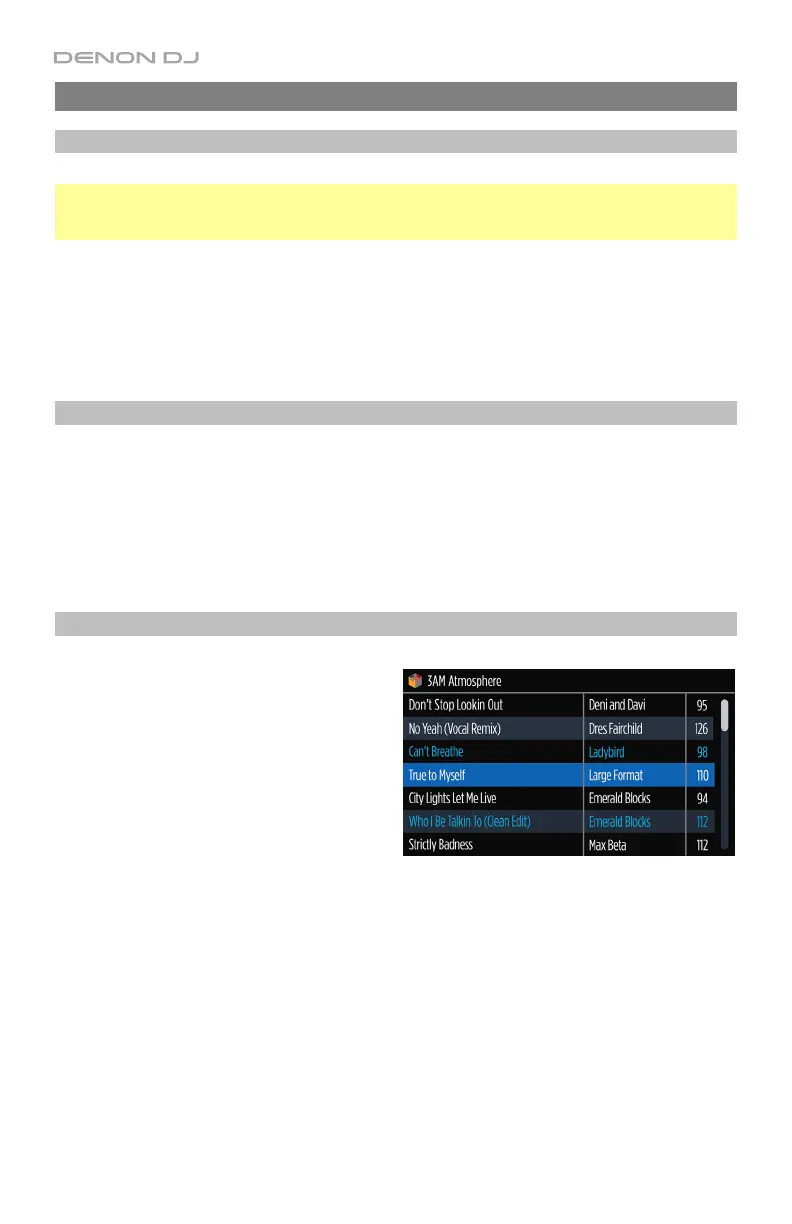
While using Serato DJ with MCX8000, you can
switch the display between two views: the
Library View and the Performance View.
The Library View lets you browse your tracks
on your computer—individual tracks as well as
crates and playlists. This section explains how
to navigate the track list and load tracks to the
deck.
See the following Playing Tracks section to
learn more about using the Performance View.
To show the Library View in the display, turn the Select/Load Knob, or press View.
To exit the Library View, press View. If you turned the Select/Load Knob to enter the Library
View, you can also wait 3 seconds until it returns to the Performance View.
To move to the previous window, press Back/Clr. You will cycle through the track list, your
list of crates/playlists/libraries, and the Prepare Crate (if it is shown in the software).


 To Next Page