34
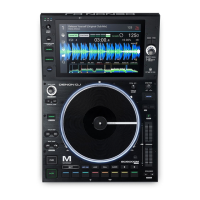
To show your track list in the display, turn the Select/Load Knob or press View. The track
list includes the following items:
• Drives: The list of USB drives connected to MCX8000.
o All: All tracks in the Engine Target database on the USB drive. Just before seeing
the list of tracks, you will see a list of categories by which you can sort them. See
the following Categories to learn about this feature.
o Crate: The top level of crates in the Engine Target database on the USB drive. Enter
a crate to view its tracks or sub-crates, if any. Just before seeing the list of tracks,
you will see a list of categories by which you can sort them. See the following
Categories to learn about this feature.
o Playlist: The playlists in the Engine Target database on the USB drive.
o History: A list of already-played tracks in the Engine Target database on the USB
drive. These tracks are automatically added in their playback order. You can view
the playback history for the last 100 tracks.
o Folder: The top level of folders on the USB drive. Enter a folder to view its files or
sub-folders, if any.
Important: If you load any files while browsing the track list in this way, you can play
only Engine-compatible files, but they do not have to be part of the Engine Target
database. Note that you will not be able to use any cue points, hot cue points, or
loop points within the track previously created Serato DJ; you must first add it to
your Engine Library and/or Engine Target and analyze it.
To exit the track list and enter Performance View, press View.
To move through the track list, turn the Select/Load Knob.
Tip: Press and hold Shift and then turn the Select/Load Knob to quickly navigate the track
list by the first letter of the title track (the letter will appear in the display).
To enter a crate, playlist, library, or folder, press the Select/Load Knob when a crate,
playlist, library, or folder is selected.
See the following Crates section to learn how to navigate crates and sub-crates.
See the following Playlists section to learn how to navigate playlists.
To move to the next-highest level in the track list, press Back/Clr. You will move to the
next-highest level of the Engine Target database (e.g., the “parent” crate or folder, the
category list, etc.).
Tip: To move directly to the highest level of the track list, press and hold Back/Clr for 1 second.
To load a track to a deck, turn the Select/Load Knob to select a track, and then press the
Select/Load Knob to load it.
Tip: To load a track to both decks (“instant doubles”), press the Select/Load Knob twice quickly.


 To Next Page
 Loading...