9 • Events | Stelo Glucose Biosensor User Guide 53
9 • Events
Using events to manage glucose
The StelobyDexcom app gives you a graph showing where your glucose has been.
Events can help you understand why your glucose changed. For example, what
happened to your glucose level when you took a walk after breakfast? You can use
these reflections to find even more ways to manage your glucose.
You can see the events you've tracked on your smartphone.
Glucose tab: The landscape view on your smartphone shows events logged in the
app below your trend graph (go to the App Screens chapter).
Events tab: Lists events logged in the app in the last 3 days.
Tracking events
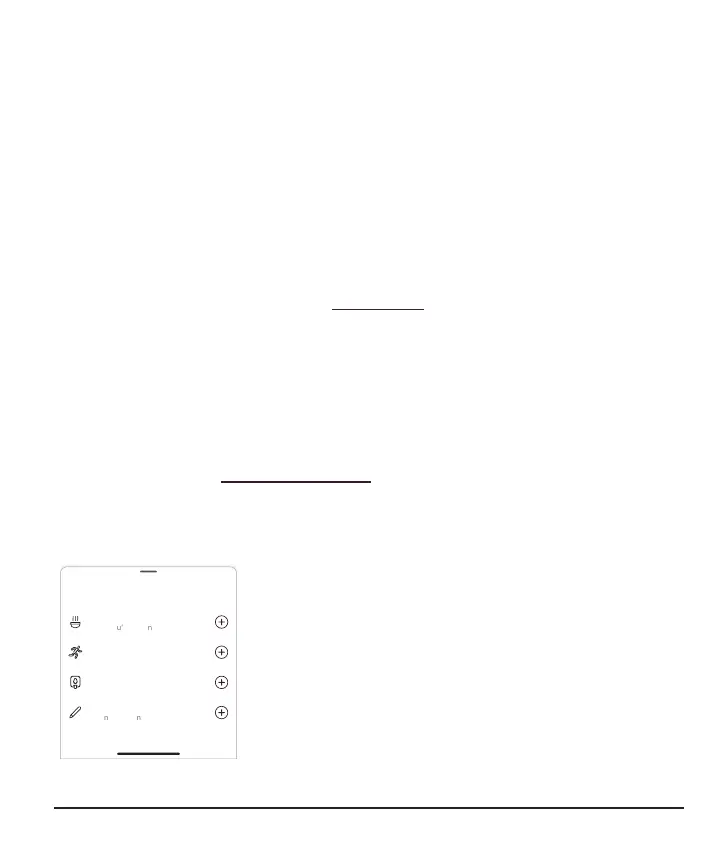
In the Events tab, you can track meals, activity (and BG meter values) by logging the
event yourself. In addition, you can enable the automatic transfer of Activity and Sleep
data when you connect to your health app. You can also find some of your Insights and
Activity here (go to the Reports and Insights chapter).
You can track events as they occur and for up to 30 days in the past.
To add an event:
Tap + in the tab.
Tap the event you want to add and follow the instructions
on the screen.



 To Next Page