DIMAX804KC User’s Manual
DEXON Systems
17
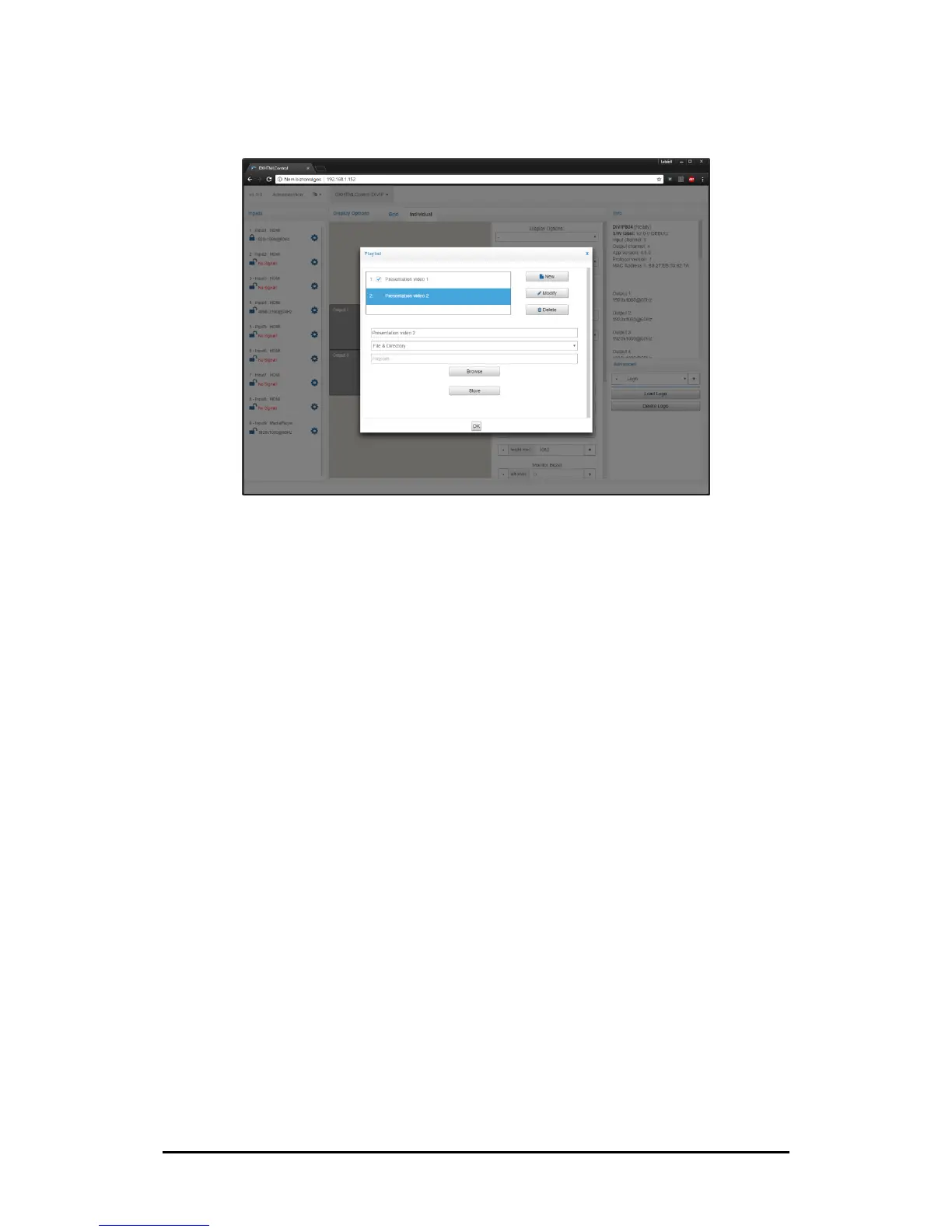
Figure 3-9. Add/modify playlist presentation panel
3.4.2
Create Scheduler Presentation
Follow these steps to add a presentation:
1. Click the Scheduler button
2. Click the calendar area
3. Add a name of the presentation
4. Select a Presentation type from the Protocol dropdown list
5. Fill data form
6. Check the Active All Day Every Day box if you would like the presentation to play at all
times. This disables all other scheduling options in the Schedule Presentation window.
7. Use the Start Time and End time fields to specify a time range for the presentation.
8. Check the Recurring Event box if you want the presentation to play on a repeating
schedule during a specific date range. Check All Days or specify certain days of the
week. It is necessary to specify a Start Date and End Date if the Recurring Event box is
checked.
9. Click OK once you have finished configuring the calendar based presentation.
Note: You can disable all presentation with Enable checkbox, which is located in left top corner.



 To Next Page