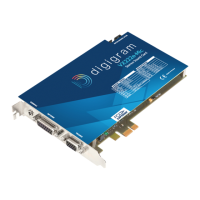
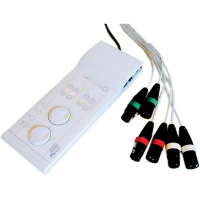
VX222
v2
User’s Manual
11
Updating the driver under Windows 98 SE and
Millennium
• Go to <Start> <Settings> <Control panel> <System>.
• Select the Device Manager tab.
• Open the Sound, video and game controllers category.
• Select the ‘Digigram VX222
v2’ item.
• Click on the Properties button.
• Select the Driver tab.
• Click on the Update driver button.
• Click Next.
• Select Display a list of all the drivers… to select a specific driver and
click Next.
• Click on the Have Disk button.
• Browse to the folder where the installation files are located and click
OK.
• The wizard displays the proper driver. Click OK to continue.
• Click on the Next button to start copying the driver files.
• Click on the Finish button to complete the driver installation. Reboot is
not necessary.
Installation under Windows 2000, XP, and
Windows Server 2003
• Turn off the computer and insert the card.
• Restart the computer. Windows Plug and Play wizard will detect it and
request for a driver.
• Click on Cancel to close the Windows Plug and Play wizard.
• Insert the VX kit CD-ROM. The welcome page opens automatically in
your web browser. Go to your soundcard’s driver page and click on the
link of the Windows 2000/XP/Server 2003 version.
• If you have downloaded the driver package from the web, double-click
on the downloaded file (self-extracting). Select the temporary location
where to expand the files, and click on Start. Click on Ok in the
Finished window. The installation program is then automatically
started.
• Otherwise double-click on setup.exe to start the installation program.
• Click on Next.
• Read the License agreement and click on Yes to confirm.


 To Next Page