Making recordings
You can set your box to record a programme within
TV Guide. To do this:
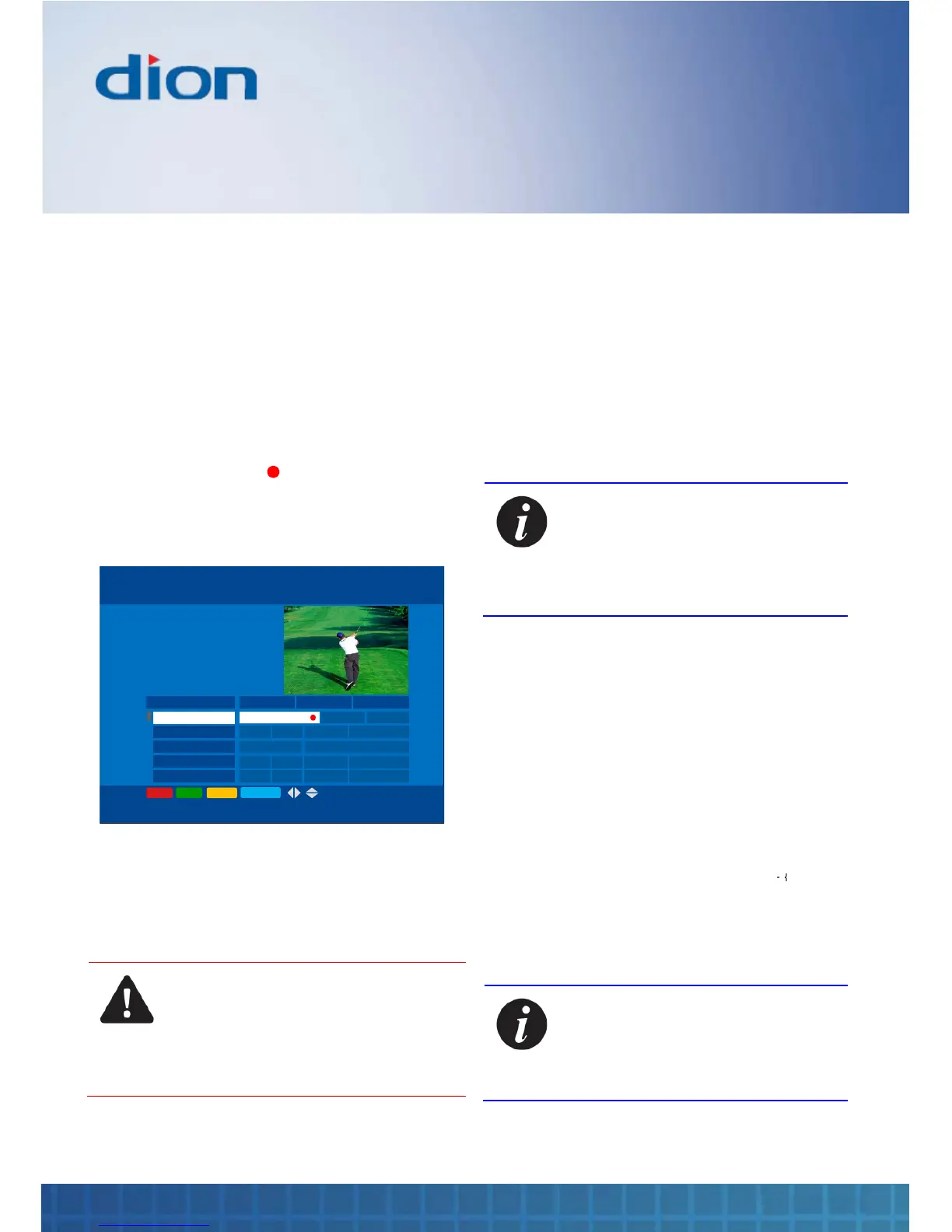
1. Press the GUIDE button to enter TV Guide
2. Press the ▼ / ▲ / ► and ◄ buttons to
highlight the required programme
3. Press the Record button. The highlighted
programme text changes colour to red to
indicate that the programme is scheduled to
be recorded.
15:00 15:30 16:00
Spoils of war Five lem… Pimlico…
BBC One
BBC Two
ITV
Channel Four
Five
Hop … Eastend… Edward Lear …Scie…
Friends Speilberg: Life and Times
Hop … Eastend… Edward Lear …Scie…
Hop … Eastend… Edward Lear …Scie…
SPOILS OF WAR
15:00 - 16:15 (1:15)
BBC One
Press i for programme details
Wed, 16 Aug
TV GUIDE Tue, 15 Aug 15:07
-24hrs +24hrs P+/P- OK:Tune BACK
SERIES
PLANNER
4. The recording will start immediately if the
programme has already started. Otherwise
the box will automatically record the
programme at the scheduled time whether it
is on or in standby
CAUTION: DO NOT REMOVE MAINS
POWER IF YOU HAVE SCHEDULED
RECORDINGS
PUT YOUR BOX IN STANDBY TO MAKE
UNATTENDED RECORDINGS
5. You can clear the scheduled recording by
pressing the RECORD button again. A partial
recording will be displayed in Planner if the
recording had already started
6. Press the BLUE button to see the Planner
and manage your recordings
Note: If you want to record the
programme to an external device,
make sure that the device is
connected to the VCR SCART socket
and that it is programmed to record
from the box at the right time
Recording a series
A yellow ‘Series’ or ‘Single’ label is displayed when
a highlighted programme belongs to a series
You can record all programmes belonging to a
series automatically:
1. Press the ▲ and ▼ buttons to select the
programme of interest. The yellow label will
show ‘SERIES’ if series recording is possible.
2. Press the YELLOW button: a ‘ ’ icon is
displayed next to the programme name to
show that all programmes within the series
will be recorded. The yellow label changes to
show ‘SINGLE’
Note: Press the YELLOW button
again to stop recording the whole
series of programmes and only record
this episode. The yellow label will
change back to ‘SERIES’



 To Next Page