40
DIRECTV PLUS
®
DVR USER GUIDE
Main Menu - My Playlist
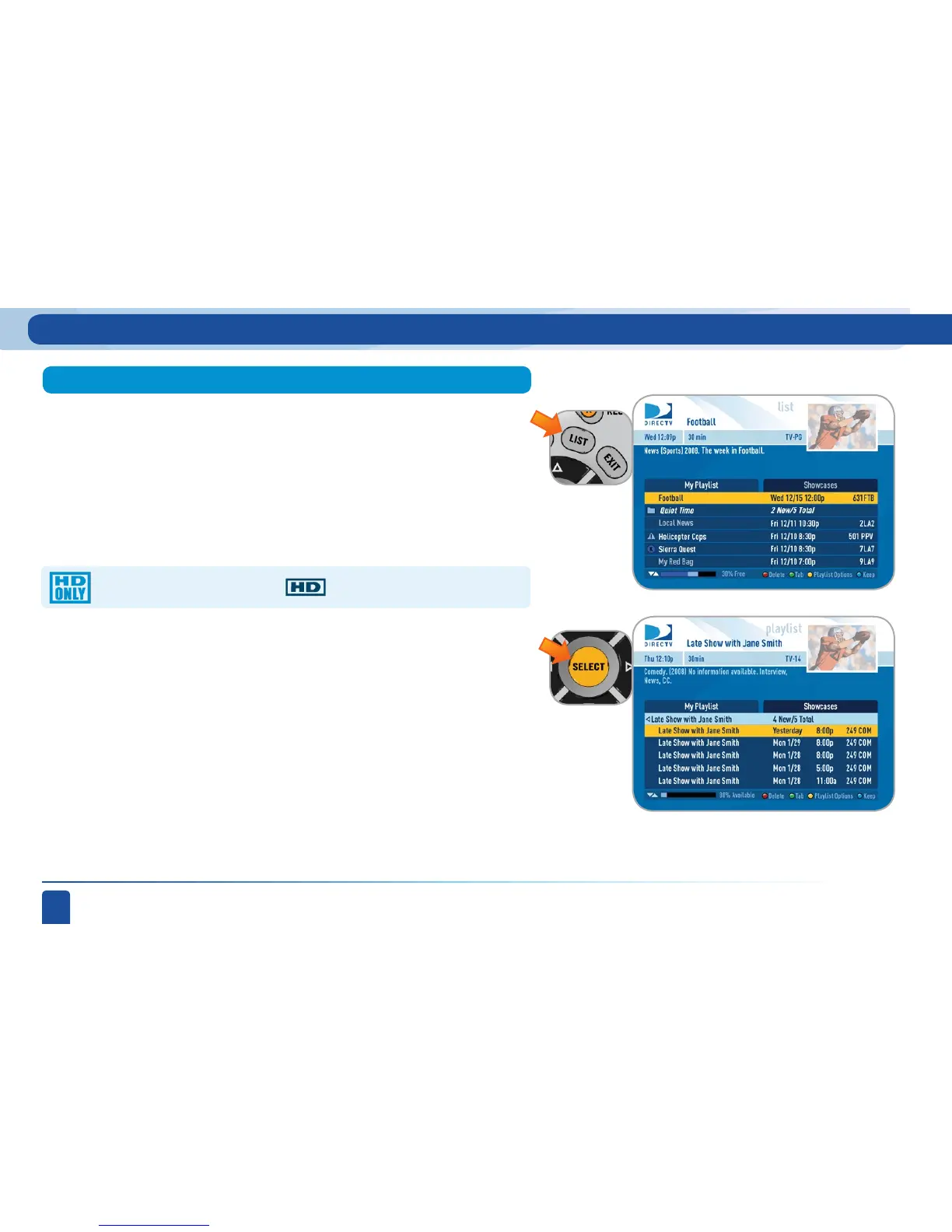
The My Playlist displays all programs that are recorded on the hard drive.
To get to the My Playlist screen directly, press LIST on the remote. You can
also press MENU and select “My Playlist.” Titles that you have not viewed
yet are shown in a bright white font, while titles that you have already
viewed either partially or completely are a muted blue.
The time, date and channel of each recorded program are displayed to the
right of the program title. Any icon identifying program status is displayed to
the left of the program title (for example, a circle K for “Keep Until I Delete”).
Series programs appear in the list with a folder icon. For example, if you
record a weekly comedy series, that series is shown in the list by its name,
and the episodes for that series are saved in a group under that name. The
number of new (not viewed) programs and total programs for each group
are displayed to the right of the group name. You can press SELECT on the
series name to display all the episodes that have been recorded. Programs
recorded as the result of a Search are also saved under a group with a star
icon next to it, where the name of the group is the Search name.
My Playlist Tab
See the inside back inside cover for a list of all the icons.
Highlighting a program title displays the program description, just as in the
Guide.
If you press SELECT or INFO on a program, an Info screen is displayed for
the program that offers several actions including Play, Keep, Delete and
others.
HD shows have the “HD” icon next to them.



 To Next Page