Chapter 1
Chapter 2 Chapter 3 Chapter 4 Chapter 5
49
CHAPTER 2 - DETAILED INFORMATION
49
Pausing Your Downloads
Playing Your Downloaded Shows
Main Menu - DIRECTV on Demand
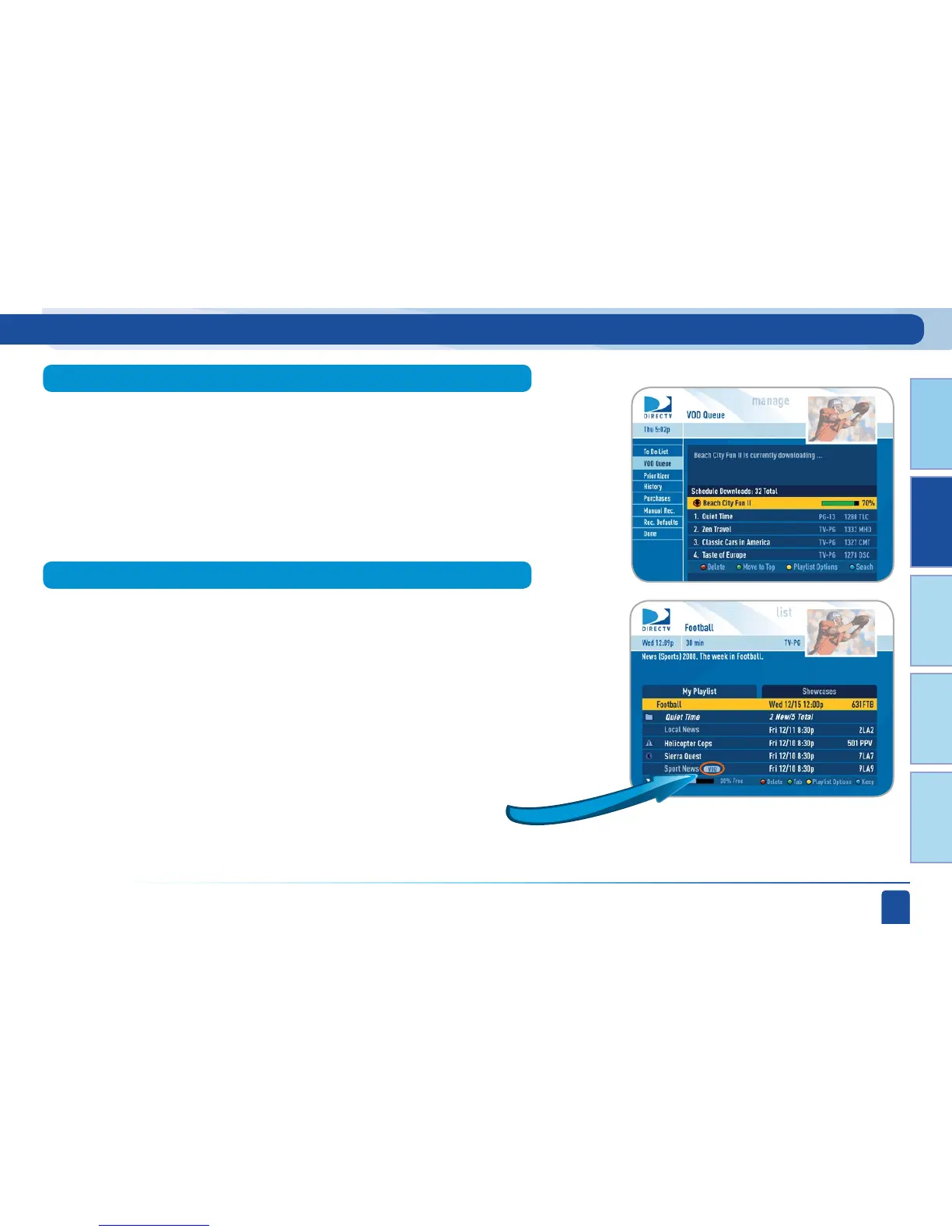
If your home network gets congested, you can always pause your DIRECTV
on Demand downloads by pressing the YELLOW button in the VOD Queue
page. Press the YELLOW button a second time to resume the download.
Highlight a show and press the RED button to delete it from the queue.
To get to the VOD Queue page from Live TV, press MENU, select “Manage
Recordings”, then select “VOD Queue”.
Once the program has started downloading, it will appear in your Playlist
since it is being saved on the hard drive like the rest of your recorded shows.
The download rate depends completely on the speed of your broadband
connection. If fast, you can start watching your show immediately while it is
downloading. If the connection is slow or your home network is congested,
you may start watching the show, but hit a pause while the recorder waits
for the broadband connection to download more of the show. The color of the
download progress bar indicates whether you will hit a pause. Green means
that you will not hit a pause. Yellow means that you might. Red means that
you will eventually hit a pause if you start watching now.
You can easily tell which shows in your Playlist came from DIRECTV on
Demand by the “VOD” label next to the program title. “VOD” stands for
“Video on Demand”.



 To Next Page