18
devICe Mode
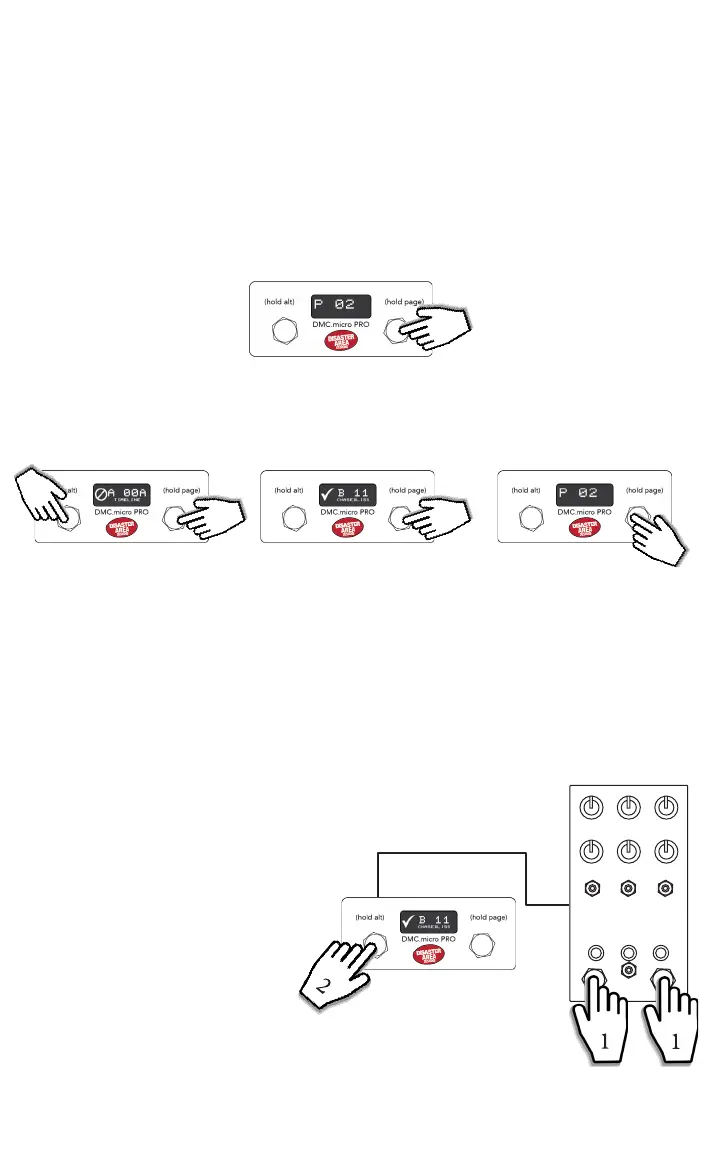
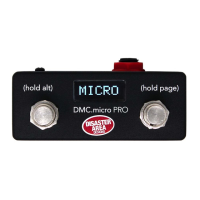
Device mode lets you scroll through all of your connected devices, change their patches /
sounds, and bypass or engage them.
It’s a quick way to make changes on your pedals, and we also use it to edit the settings for
preset mode.
Hold down the right footswitch from preset mode to enter the rst device mode (DevA).
If you’re already in a device mode, hold the right footswitch to move to the next device mode
(DevB, DevC, etc.)
HOLD TO ENTER
Once you are in device mode, the DMC.micro changes from controlling all of your devices at
the same time to controlling only the selected device.
HOLDTAP
Hold the right button to
advance to the next device
mode (Dev B.)
Repeat to edit all of your
devices.
Tap the left or right buttons to
select the sound you want to
use on the selected device.
If you want to bypass this
device, hold the left button.
HOLD TO
BYPASS
LONG
HOLD
Repeat to scroll through all
of your remaining devices, or
long-hold the right button
to go back to Preset mode
immediately.
LONG
HOLD
HOLD
BOTH
You can also use Device mode to help
you save presets on your Chase Bliss
Audio or Red Panda pedals.
Select the location of the sound you’d
like to save in the DMC.micro Device
mode.
Turn the knobs and move the DIP
switches on your pedals, and when you
get the sound you want, hold both of
the footswitches on the pedal.
Long-hold the left footswitch on DMC.
micro to send over the MIDI message
to save.
The center LED (Chase Bliss) or green
LED (Red Panda) will ash to show that
it has saved the new sound.


 To Next Page