44
Troubleshooting (continued)
Removing card jams
To determine the part of the machine affected by a
card jam refer to the error code on the operation
panel LCD on the printer and the relevant page in
this manual.
When removing a jammed card, make sure that the
power switch is set off before carrying out the
following procedure.
Hopper jam
1.
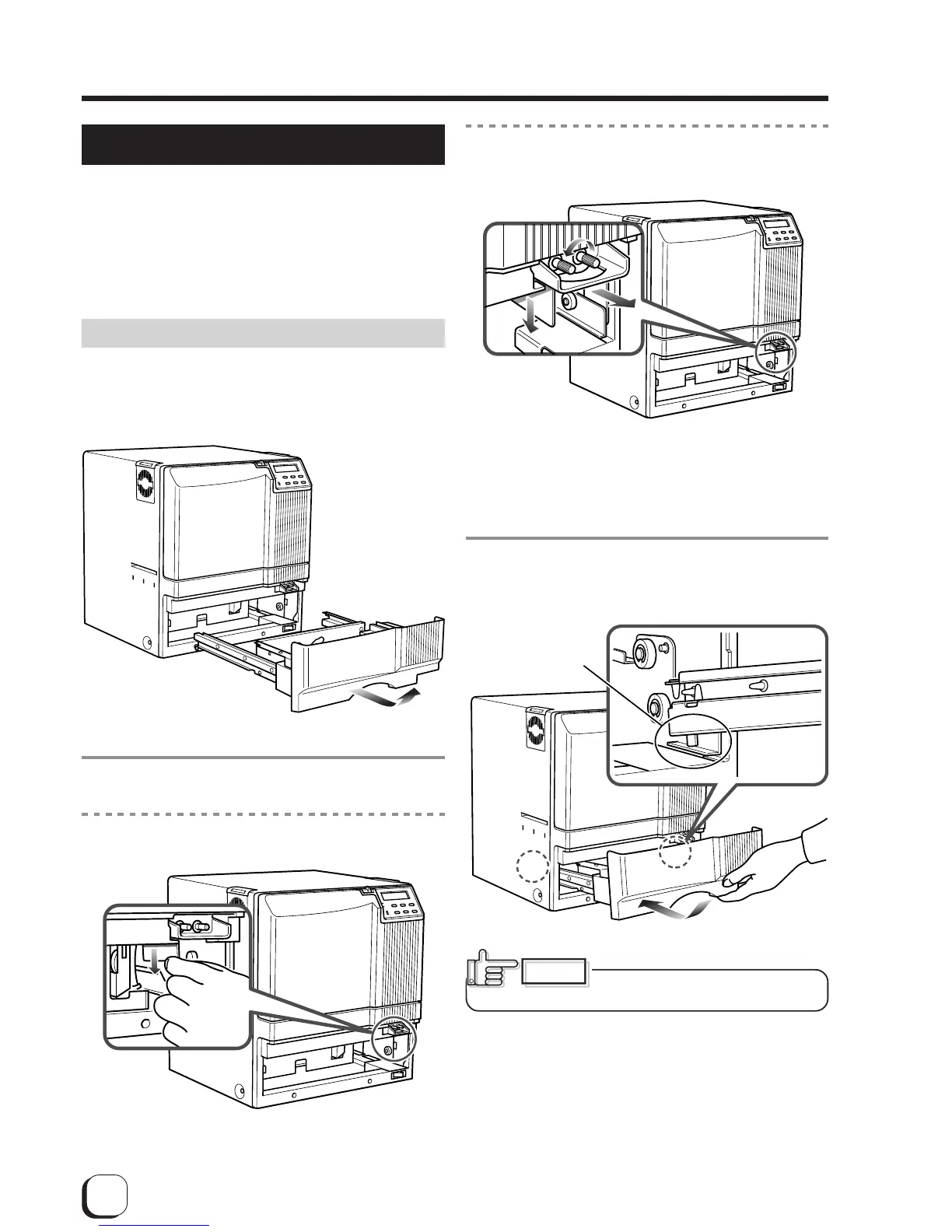
Pull out the card tray.
To remove the card tray, pull it out toward you until it no
longer moves and lift it.
2.
Remove the jammed cards.
If you can hold the jammed card, pull it out.
3.
Return the card tray to its original position.
Push the card tray back into position on an angle.
Push the card tray back
into its position while
placing the card tray
tabs on the folded over
metal plates.
If you cannot hold the jammed card:
Pull out a small portion of the cleaning unit.
Turn the right knob to drop the jammed card. Remove
the fallen card.
Pushing the tray with excessive
force may cause a failure of the printer.
CAUTION


 To Next Page