20
Set-up (continued)
Loading cards
Load cards when the printer’s LCD shows the message
“Ready” or “No Card,” etc. and not when printer
operations have stopped due to an error. Cards can
also be loaded when the power supply is not switched
on. If there is a drop in the volume of remaining cards
(under 20 cards with a thickness of 0.76mm), the
electronic beep sounds before every feeding.
During printing, if there is a drop in the volume of
remaining cards (under 20 cards with a thickness
of 76mm) an electronic beep sounds.
When “Loading” is displayed on the LCD, do not
open the card tray under any circumstances.
The unit is currently feeding cards. If a message
other than the one above is displayed, cards can
be loaded even while the unit is printing. However,
you are recommended to load cards when the unit
is not printing.
To prevent defective printing caused by
suspended printing or vibration as a result of
opening and closing the card tray, load cards
with care.
Ready
No Card
OR
Loading
Switching the card thickness
Depending on the material, some 0.25mm thick cards
may not be suitable for printing. Consult your dealer
regarding the materials and specifications of the card
before purchasing.
WARNING
䢇
Before switching the thickness, turn off the
printer and the devices connecting to the
printer, and take off their power plugs from
the outlet to prevent an electric shock.
CAUTION
䢇 When switching the card thickness, be
careful not to remove the screws except
those instructed. Removing uninstructed
screws may cause injuries or a
malfunction of the printer.
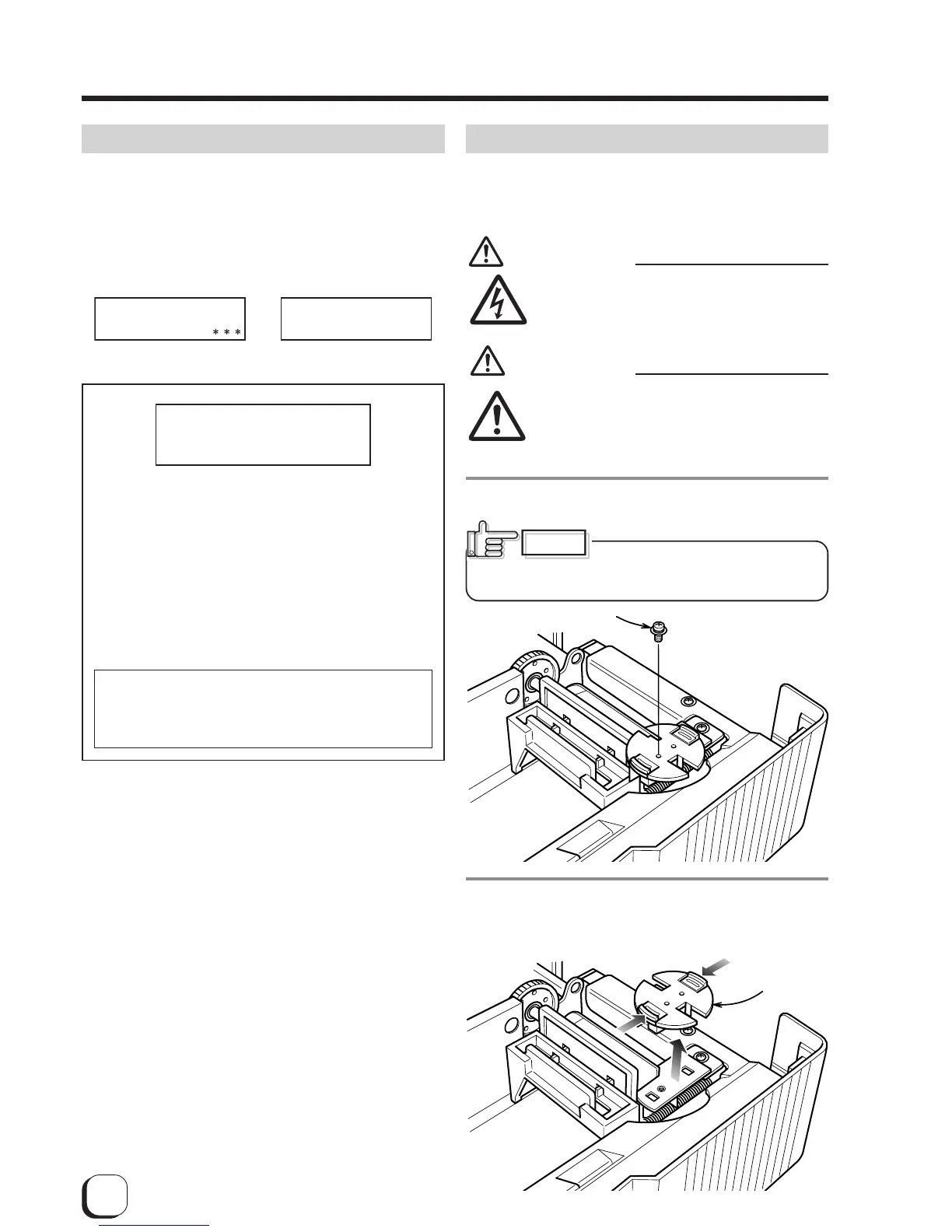
1.
Remove the blue securing screw.
Do not remove the screws other
than blue ones. Removing other screws may cause a
malfunction of the printer.
2.
Remove the card thickness switching plate.
Pull the plate up while pressing the left and right knobs
toward the center.
Injury
Electric shock
CAUTION
Plate securing screw
0.25
0.76
Thickness
switching plate
0.76
0.25


 To Next Page