When removing the printer driver , login with administrator right as same as when instlling the driver.
In order to update the printer driver, follow the steps shown below.
1. Driver Removal
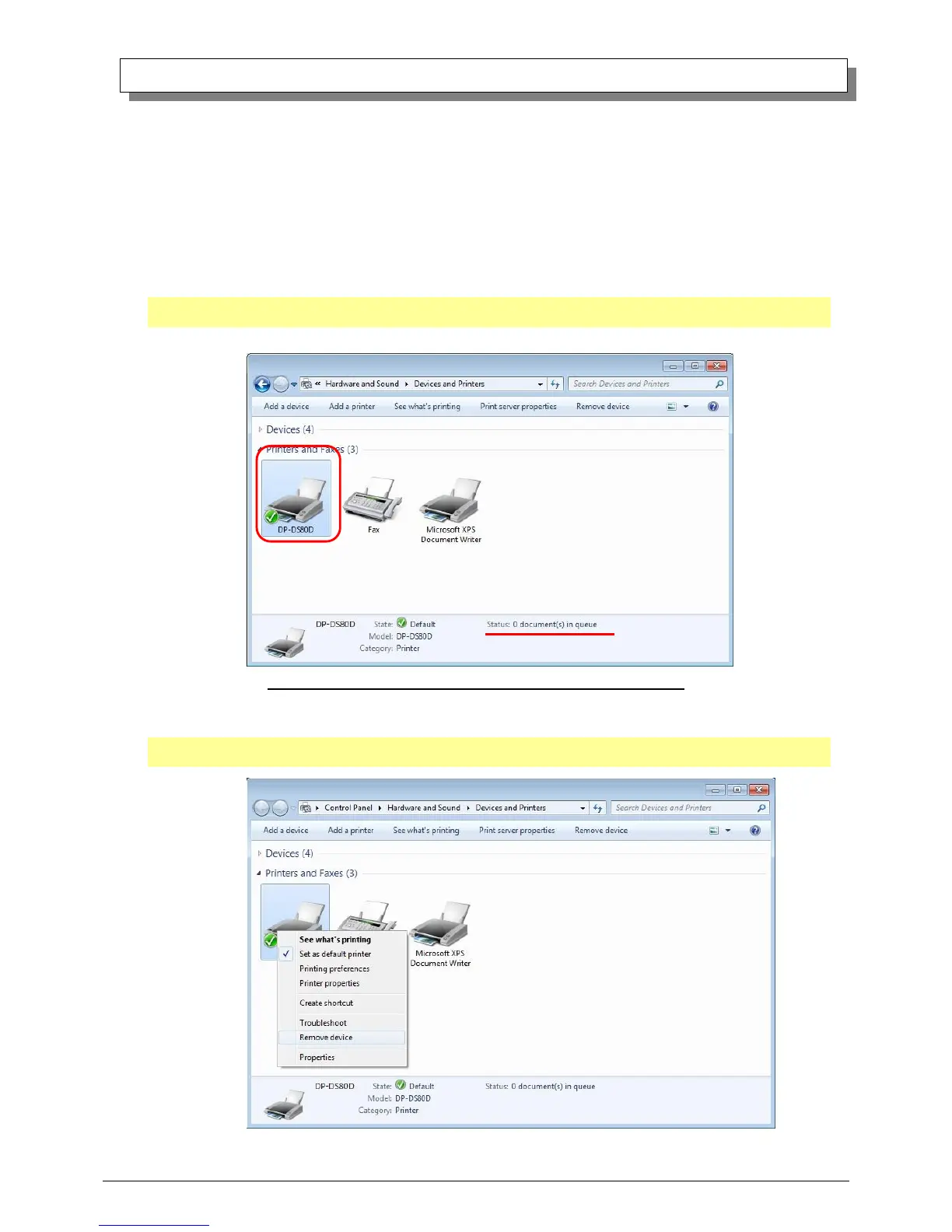
(1) Before removing the printer-driver, shut down all other applications. Also, in the “Devices and Printers” window, select the
printer icon of the printer you want to remove, check the bottom of the window that there are no documents in queue, and start
removal of the driver.
Note: In Windows 8, DP-DS80D icon does not appear if the printer is offline (if the printer with the power on is not connected).
If you can not connect to the printer with the power on, remove the device in the procedure on the next page.
Fig 3.1 “Devices and Printers” window with the DP-DS80D icon clicked
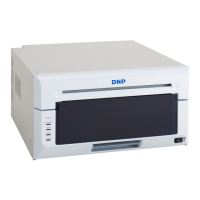
(2) Select “Start”–“Control Panel”, and click on “View devices and printers” in the control panel. From the “Devices and
Printers” window, select the DP-DS80D printer, display the pull-down menu with the right click, and click on “Remove device”.
In Windows 8, right click on the Start screen, select the right-under "All apps", select "Control Panel", click on "View devices
and printers" in the Control Panel.
Fig 3.2 Devices and Printers window; DP-DS80D right-clicked menu



 To Next Page