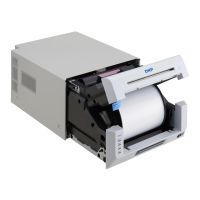
Connect the printer to the computer with the USB cable, and turn the printer power ON.
The printer will be recognized, and the driver installation should begin.
* Please refer to the manual for the DP-DS80 printer for connection if needed.
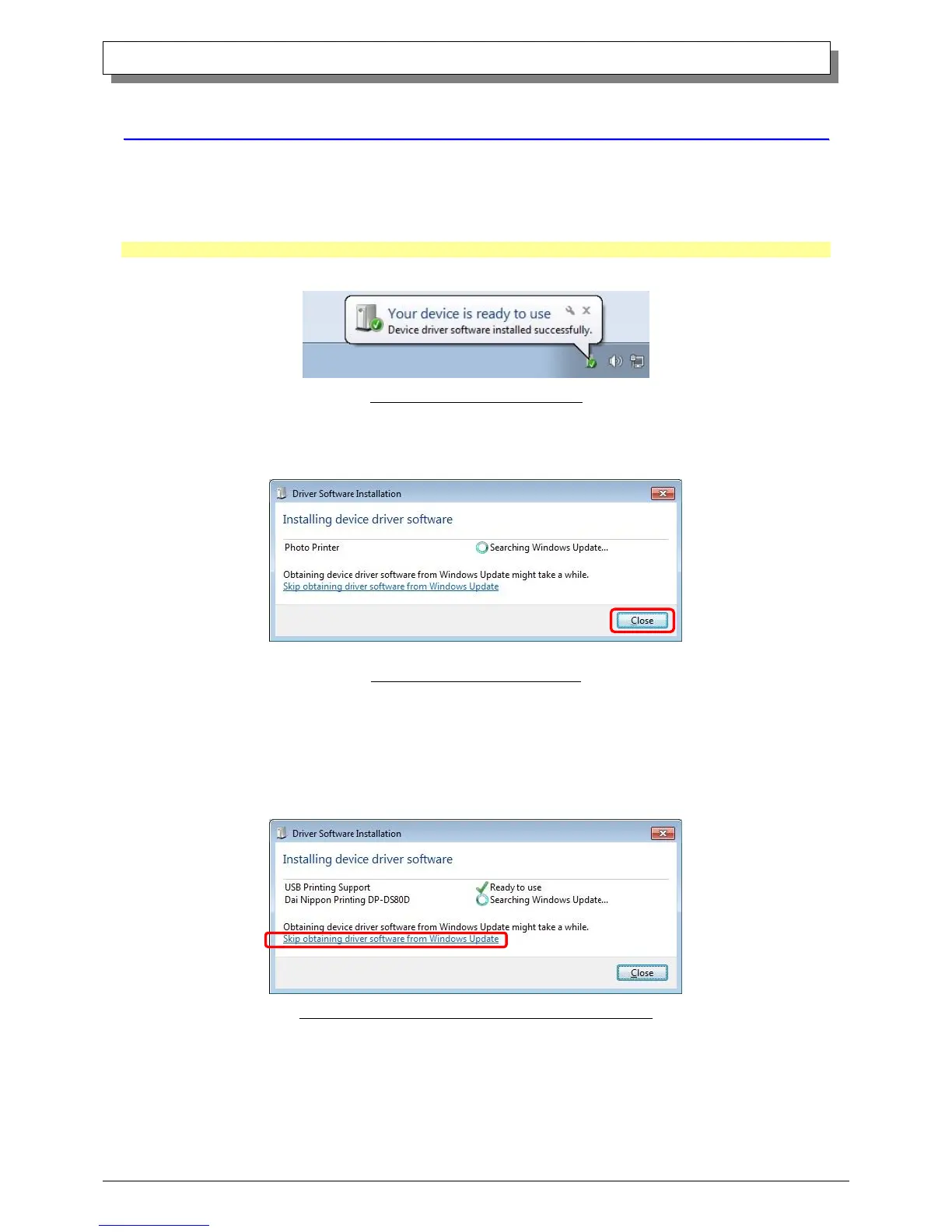
When driver installation begins, the message “Installing device driver software” will appear above the task bar.
The message will not appear in Windows 8. Please turn to page 7.
Fig 1.7 Driver Installation message
By clicking on this message, the “Driver Software Installation” window will be opened, and the driver installation status will be
shown. Click on “Close” to close the window.
Fig 1.8 Driver Software Installation
* About “Skip obtaining driver software from Windows Update”
If the operating system setting is such that it will get the driver software from Windows Update, it will first search for the driver
through Windows Update, so it will take more time to complete the installation. If you skip getting the driver software through
Windows Update, the time to complete the installation will be decreased (Depending on the environment, it may take some time to
complete the installation).
Click on “Skip obtaining driver software from Windows Update” in the “Driver Software Installation” window.
Fig 1.9 Skip obtaining driver software from Window Update



 To Next Page