5.2 Doremi Universal Interface Overview
The Doremi Universal Interface software consists of a Graphical User Interface (GUI) that can
control one or more Dimension-3D devices connected to the workstation through a USB.
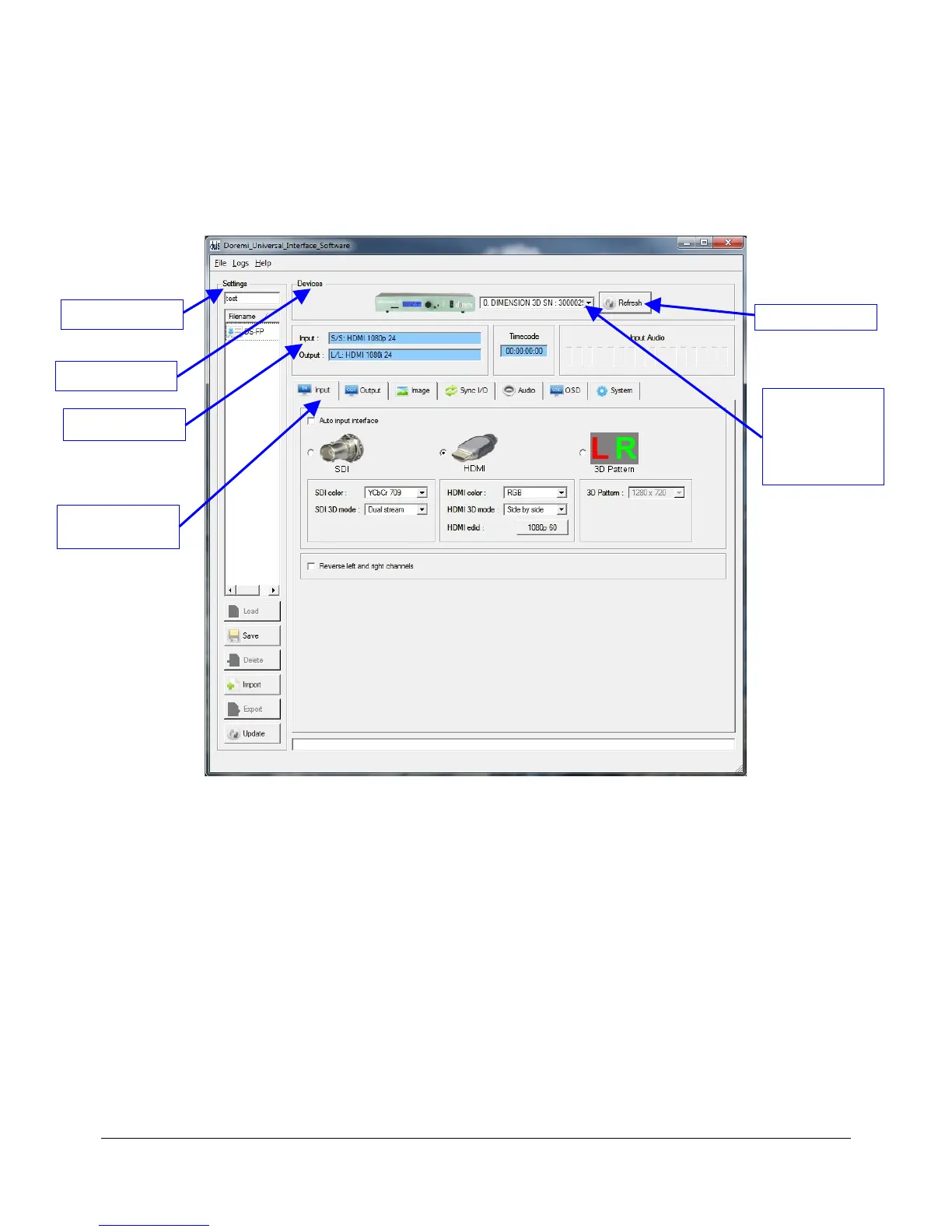
• When starting the "Doremi Universal Interface," the following will appear:
Figure 10: Doremi Universal Interface GUI
• The "Doremi Universal Interface" GUI is composed of the following parts:
• The “Devices” field can be used to select one connected Dimension-3D from the drop-down
menu. Click on the “Refresh” button to confirm if all the connected Dimension-3D units are
visible (Figure 10).
• The “Information” field provides information about the input and output interfaces and
resolutions. The "Information" field also provides the current "timecode" and audio input
levels of the connected Dimension-3D device (Figure 10).
• The “Control” field has tabs that can be used to view or modify various settings on the
connected Dimension-3D unit. These tabs include: Input settings, Output settings, Image
settings, Sync I/O settings, Audio settings, OSD (On Screen Display) settings and System
settings. These tabs are explained in detail in Section 5.4 .
DM3.OM.001026.DRM Page 33 Version 1.4
Doremi Labs Inc.
List-box drop-
down menu for
selection of the
connected
Dimension-3D
"Refresh" Button
"Settings" Field
"Devices" Field
Information Field
"Input" Tab and
Field



 To Next Page