24EN
Start Mapping:
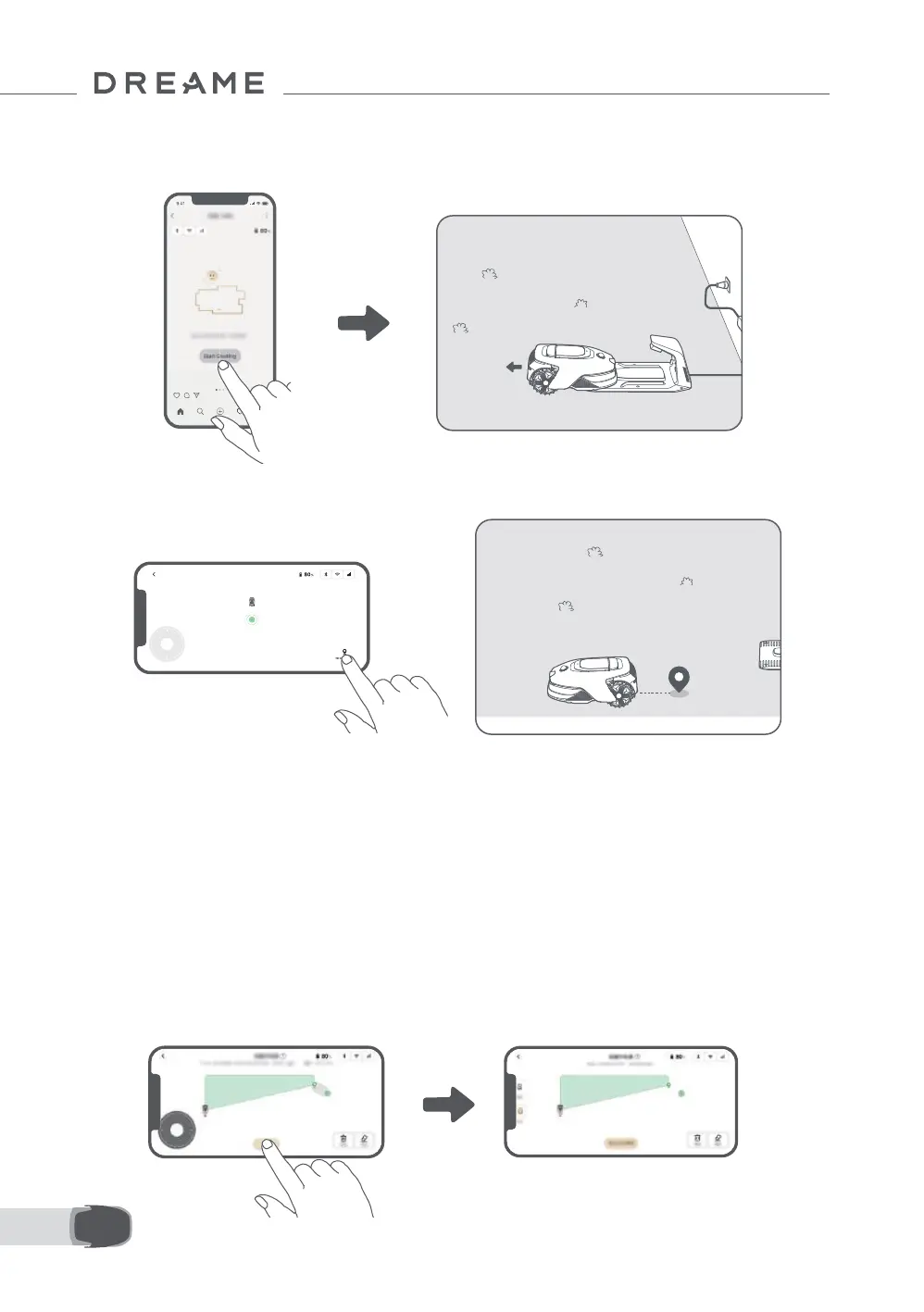
1. Tap Start Creating via the app, and the robot will check its status and calibrate. It will automatically leave
the charging station to do the calibration. Please be careful.
Auto Boundary Detection
Powered by an advanced AI algorithm, the robot uses its front camera to detect grass and non-grass areas,
allowing it to identify boundaries without the need for manual guidance.
After guiding the robot remotely to the lawn edge and setting the starting point, you can use Auto
Boundary Detection mode. You can choose whether the robot should cross the perimeter for cleaner edge
cutting results or stay close to it to avoid getting stuck.
We recommend following the robot during this process. If the robot fails to accurately detect the boundaries,
you can exit Auto Boundary Detection mode and switch to remote control at any time.
Important: The Auto Boundary Detection mode should be used in daylight to ensure proper visibility. Avoid
using this feature in poor light or rainy conditions.
Important: Make sure the robot's front camera is clean and unobstructed
2. Guide the robot remotely to the edge of your lawn and tap Set Starting Point to establish the starting
point for the boundary.
3. Remote control the robot to move along the perimeter of your lawn to map out the work area.


 To Next Page