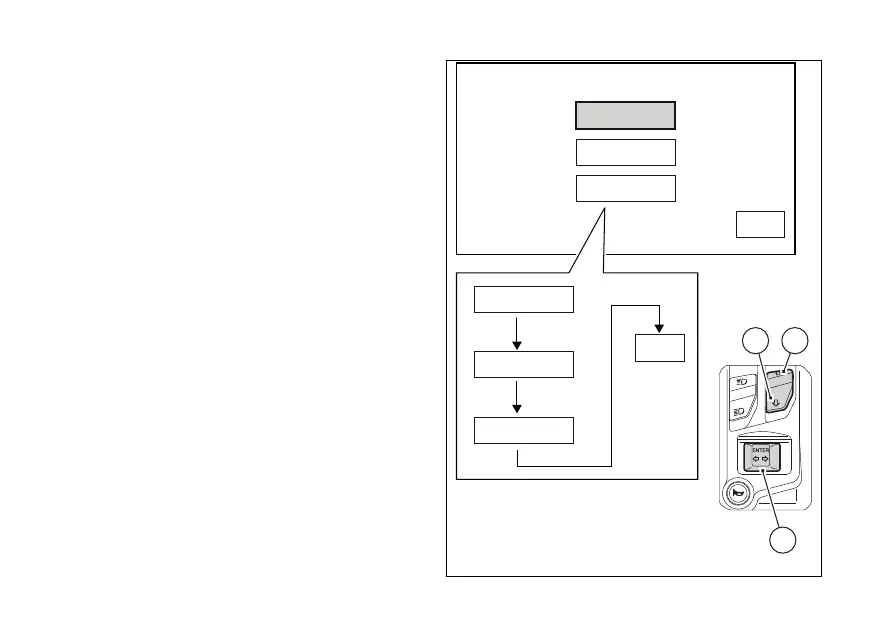
When entering the function, the currently set
background status is indicated on the left. The
possible background settings are shown in the
middle: DAY, NIGHT, AUTO
Press buttons (1) and (2) to highlight the instrument
panel backlighting options one by one: in particular,
use button (1) to highlight the following item and
button (2) to highlight the previous item. Once the
desired backlighting option is highlighted, press
CONFIRM MENU button (4) to confirm. The
instrument panel immediately activates the
backlighting option selected by the user and
highlights the corresponding name.
Select DAY (day mode) to permanently set display
"white" background for improved readability -
recommended in conditions of strong ambient light.
Select NIGHT (night more) to permanently set display
black background for dimmed visibility -
recommended in case of poor ambient light and/or at
night.
Select AUTO (automatic mode) to automatically
adjust background colour according to ambient light
(detected by a sensor).
It will be "white" for better visibility with high ambient
light and "black" for a dimmed visibility with low
ambient light.
DAY
DAY
NIGHT
NIGHT
AUTO
AUTO
BACKLIGHT
DAY
EXIT
EXIT
2
4
1
Fig. 75
127



 To Next Page