Accessing the EN-204 via a Web Browser
29
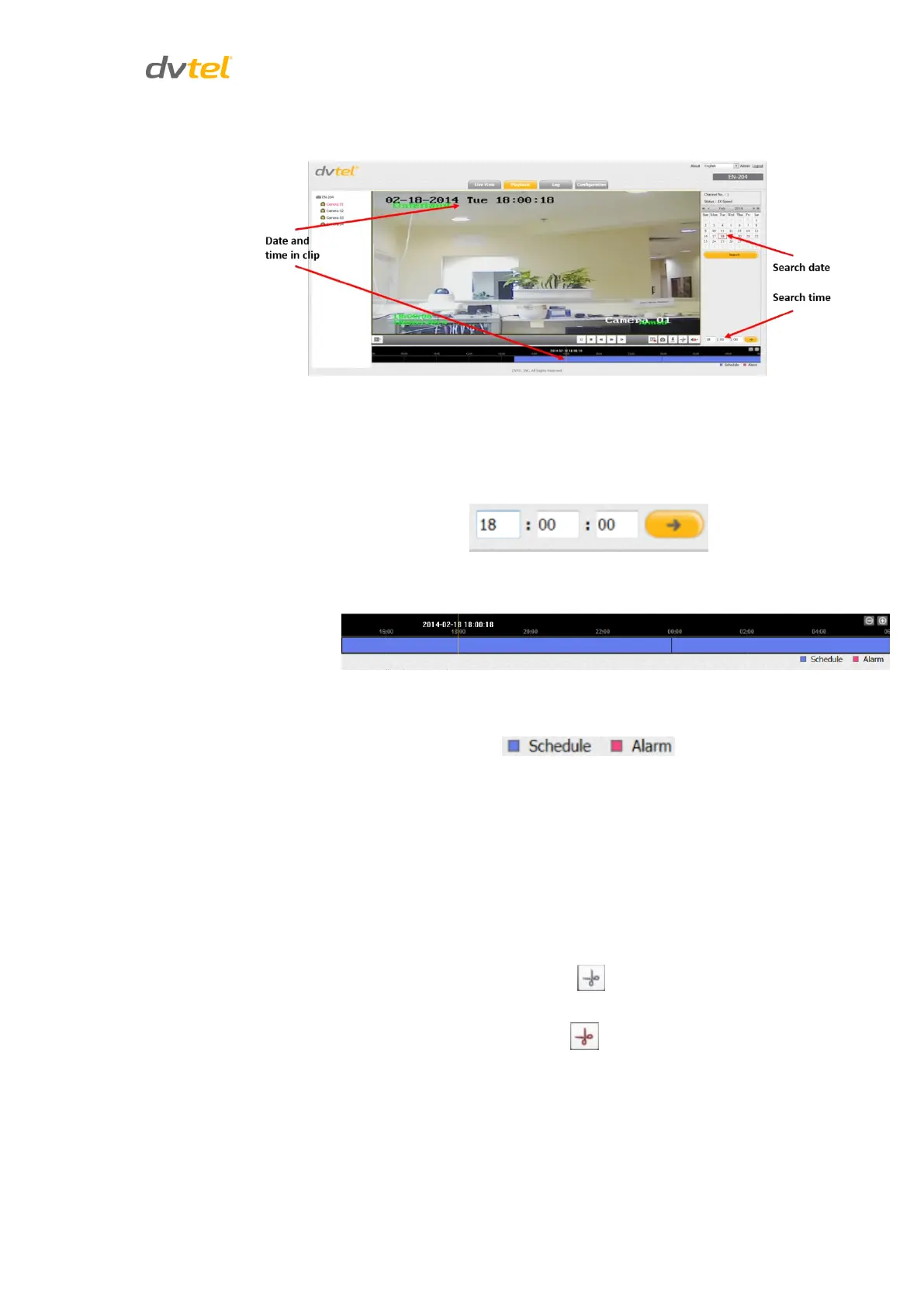
Select a date and time from the calendar.
Figure 30: Playback Screen with Callouts
a. Click Search.
b. From the calendar, select the date to search.
c. At the bottom of the page, enter the time of the event to search.
d. Click the right arrow to go to the time in the clip. The clip is displayed
in the progress bar on the bottom of the screen.
Figure 31: Playback Progress Bar
The color of the progress bar represents the different video types:
Blue: A scheduled clip has been selected
Red: A clip of an alarm has been selected
The requested time is indicated by a vertical line superimposed
over the date and time.
e. To view a specific start time in the clip, drag the progress bar to the
time.
f. To view a period of time in the clip:
To select the start time, move the cursor over the blue or red strip
and click the gray scissor icon .
To select the stop time, move the cursor over the blue or red strip
and click the red scissor icon .



 To Next Page